🧭 Navigation
You can open a Patient File from:
-
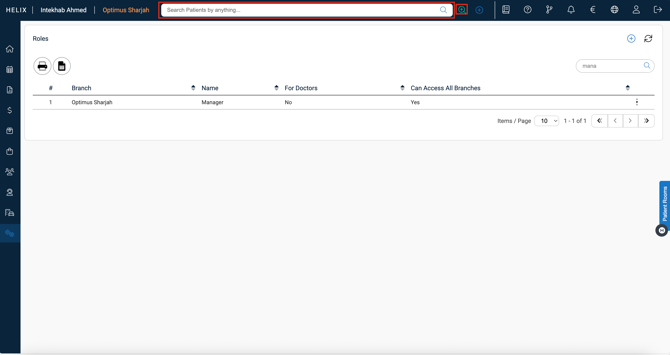
The Top Search Bar (accessible from anywhere in Helix):
Best for: Quickly finding a patient from anywhere in the system.
-
Go to the top-right search bar in Helix.
-
Start typing the Patient Name, Mobile Number, or National ID.(at least 5 characters)
-
Select the correct patient from the suggestions.
-
Click to open the Patient File in a new tab.
- Select Advanced search for better results
-
-
Appointments section of Homescreen
Best for: Accessing a patient’s file during or after booking.
-
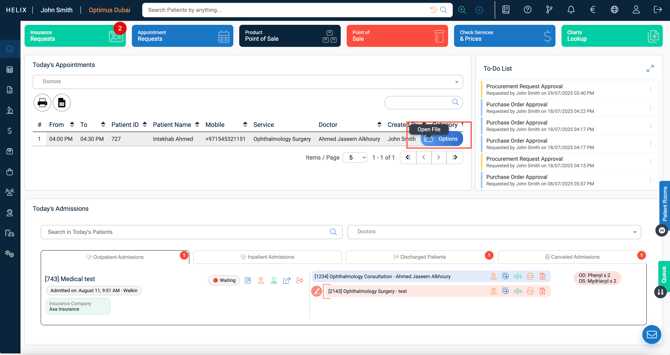
In the Today's Appointments section, find the patient’s booking.
-
Hover over the '⋮' at the right.
-
Click the Open File icon.
-
The Patient File opens directly without losing your place in the calendar.
-
-
From the Admissions Module
Best for: Inpatient/outpatient/discharged cases.
-
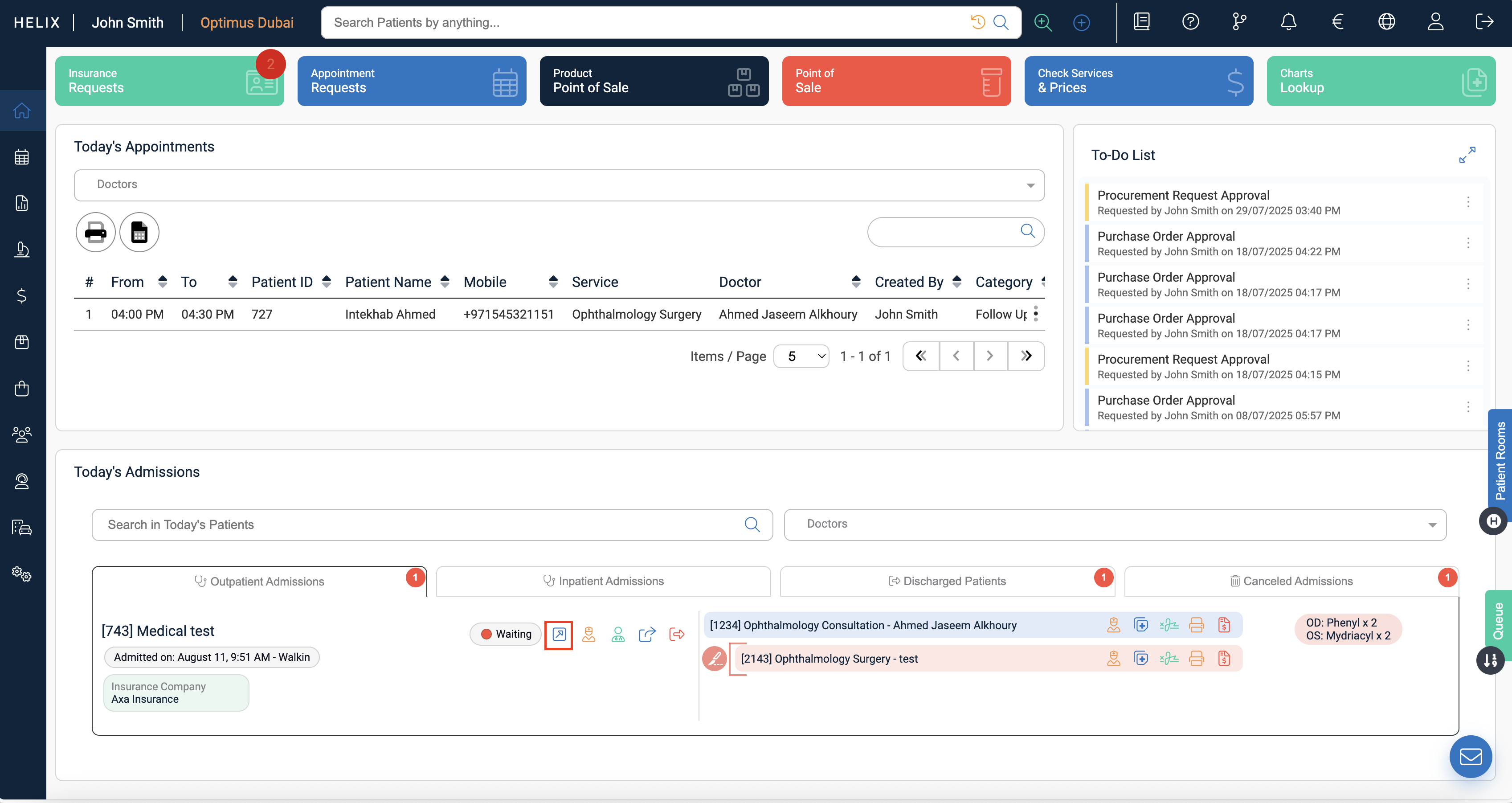
Go to Today's Admissions on the homescreen
-
Search for the admitted patient.
-
Click the Open File button to view their complete record.
-
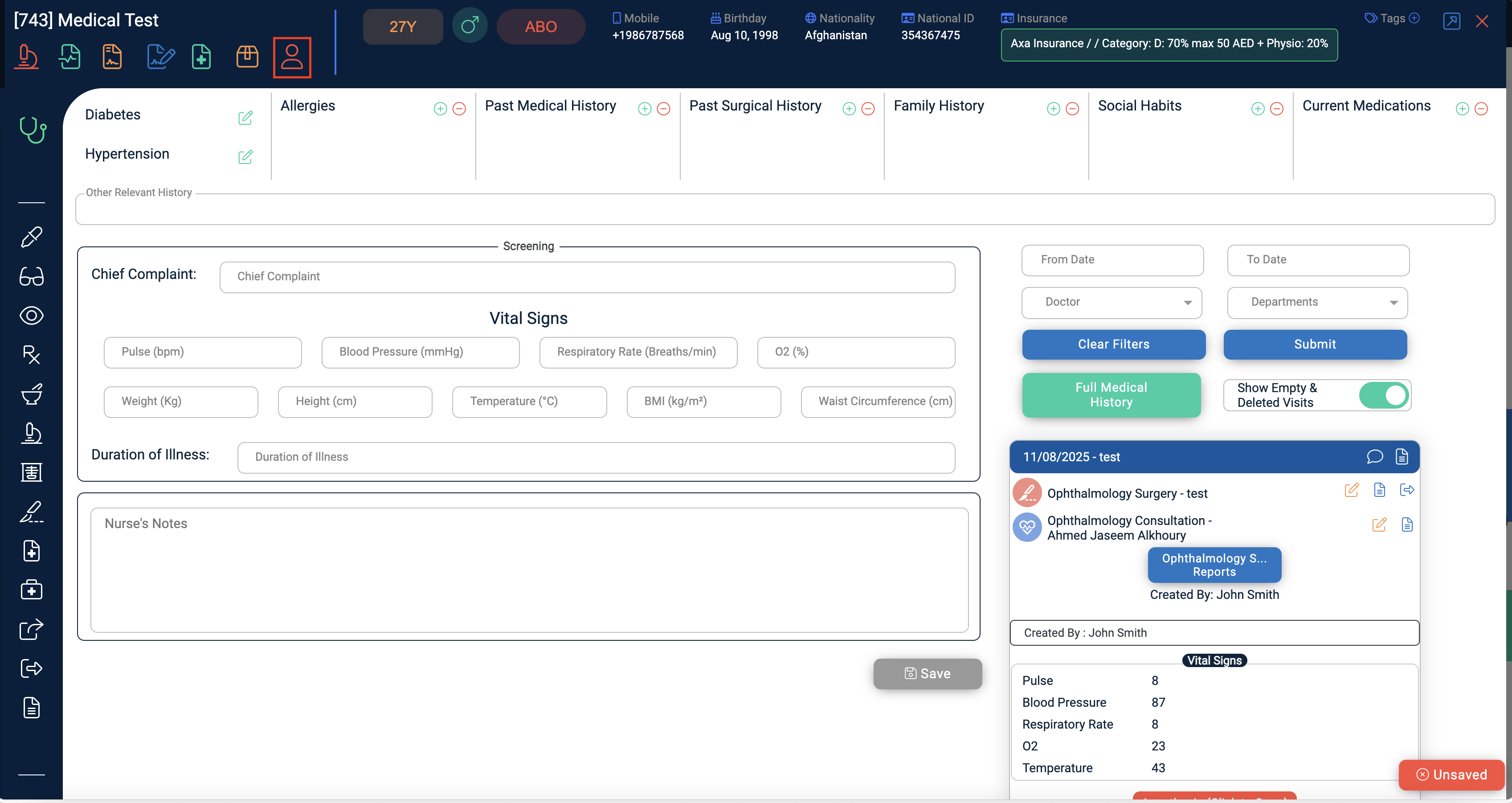
- Screening page/Medical record page
Open screening page or medical recoerd page and then click on the profile like icon as shown in the picture below.
- Add Patient Button
1. Click Add Patient, complete the registration form, and press Add.
2. The new patient file opens automatically after creation. - Appointment/Room/Surgery Booking calendar
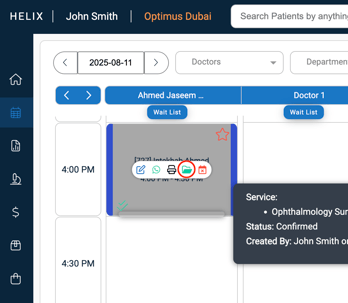
1. Hover over a booked appointment block.
2. Click the green Open File icon to jump straight to the patient profile.