
🧭 Overview
Helix allows clinics to seamlessly manage insurance workflows by enabling them to:
-
Register any number of insurance companies or TPAs (Third Party Administrators)
-
Upload and manage insurance price/tariff lists
-
Submit insurance claims directly from Helix
-
Track approvals, rejections, and balances via ledger mapping
This guide walks you through the process of adding a new insurance company to Helix and configuring related settings.
🧭 Where to Find It
-
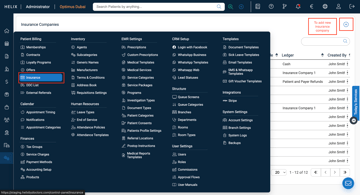
From the Helix Home Screen, go to: Control Panel → Insurance (Under the "Patient Billing" section)
-
On the Insurance Companies screen, click the + icon on the top-right corner to add a new insurance payer.
📝 Add Insurance Company
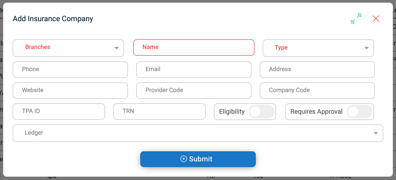
Upon clicking the + icon, you'll see a popup window titled "Add Insurance Company".
Fill in the following fields:
-
Branches – Select the branches where this insurance is applicable
-
Name – Insurance or TPA name
-
Type – Insurance or TPA
-
Phone, Email, Address, Website – Optional contact details
-
Provider Code / Company Code – Use the code provided by the insurance company
-
TPA ID / TRN – Identification details if applicable
-
Eligibility – Toggle ON if insurance eligibility checks are required
-
Requires Approval – Toggle ON if pre-approvals are needed before claim submission
-
Ledger – Link to a ledger to track receivables from this insurance provider
Click Submit to save the new insurance payer.
⚙️ Post-Creation Actions
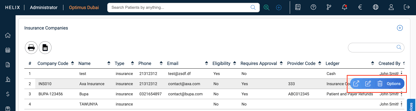
Once the insurance company is added, it appears in the list. Click the Options (3 dots) next to the company name to:
-
Open – View or add more details
-
Edit – Modify existing information
-
Delete – Remove the company from your system
Clicking Open takes you to the Insurance Company Profile screen.
➕ Additional Insurance Configurations
On the top-right corner of the Insurance Company Profile page, you will see 5 key action buttons:
1. Upload Price List
-
Bulk upload an Excel file containing insurance tariff codes and pricing.
-
Make sure the codes in the upload match with the existing cash price codes in your Medical Services section.
2. Add Price List
-
Add individual services manually using their unique codes and rates.
3. Add Consumables Price List
-
Upload or add consumables/medications included in the insurance tariff.
-
These items should already exist in your Inventory Items List.
4. Add Network
-
Add network names (e.g., GN+, GN-) and assign DRG Factors to each.
-
DRG Factor may influence pricing or eligibility for claims.
5. Add Policy
-
Register specific insurance policies with:
-
Payer name
-
Policy Name & Number
-
Effective From and Expiry Date
-
✅ Pro Tips
-
Always map a ledger when creating an insurance payer to track unpaid claims.
-
Ensure your Medical Services cash price list is up-to-date before uploading an insurance price list.
-
Use Eligibility and Requires Approval toggles for better claim validation.
-
Regularly update Networks and Policies to stay aligned with the insurance provider's requirements.