
🌐Overview
Departments in Helix determine:
-
Which specialty chart appears when creating medical notes.
-
How revenue and costs are categorized in financial reports.
-
Which users and services belong to which part of the clinic (e.g., Dental, Radiology, Administration).
🧭 Navigation
Control Panel → Structure → Departments
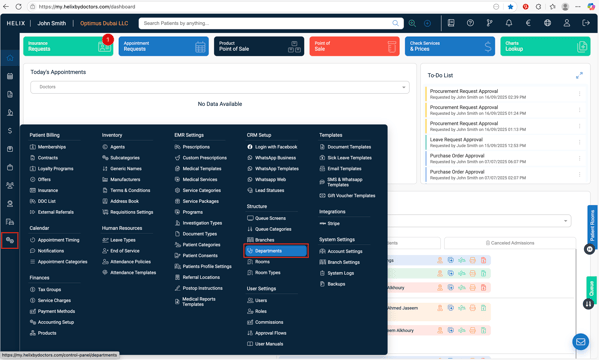
⚙️ How to Add a Department
-
Click + (Add) on the top-right.
-
Fill out the form with the following details:
-
Code: Your internal reference code.
-
Name: Department name (e.g., Dental, Radiology, Administration).
-
Type: Choose Medical or General.
-
Specialty: (Required if Medical)
-
The Specialty determines which medical chart appears.
-
Example: Choosing Dental opens the Default Dental chart.
-
Ophthalmology clinics can select Default or Iris (simplified chart).
-
-
Default Template: Select Default unless using Iris for Ophthalmology.
-
Revenue Account (Ledger): Choose from the existing Chart of Accounts (ask your accountant).
-
Cost Center: (Optional) – Create in Finance first if used. Cost center is a centralized place when you can find all the payouts made by the clinc for specific projects includng all the consumables used.
-
-
Click Submit to save the department.
What You’ll See
The list view shows the following columns:
-
Branch
-
Code
-
Name
-
Type
-
Specialty
-
Ledger
-
Cost Center
-
Default Template
-
Created By
Tools available:
-
Search-as-you-type (top-right)
-
Print PDF / Export to Excel (top-left)
-
Pagination (bottom-right)
Row actions (⋯): Edit or Delete a department.
Notes & Tips:
✅Pick the correct Specialty — it controls which chart doctors see when documenting.📊 There are 21 specialties available (21 chart types).
💰 Ensure the Revenue Account exists and is correctly mapped for accurate financial reporting.
🏷️ Set up Cost Centers only if you plan to track expenses by department.
🧾 Keep department names consistent with your chart of accounts for smooth integration with finance.