
🌐Overview
In Helix, every person who uses the system — from receptionists to doctors — must have a user account.
This section helps you:
-
Create and manage logins for all staff members.
-
Assign roles and departments for access control.
-
Manage user details, licenses, and permissions.
-
Reset passwords or remove access when needed.
🧭 Navigation
Control Panel → User Settings → Users
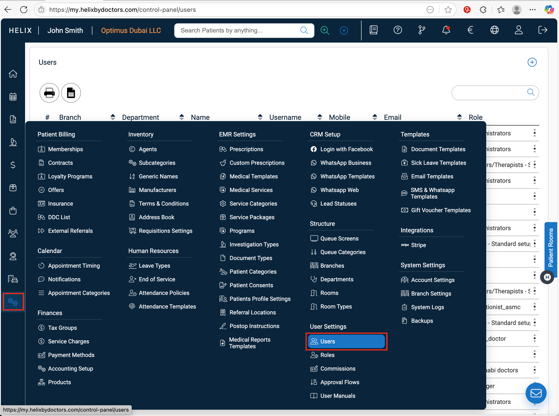
🛠️ How to Add a User
1️⃣ Click ➕ (Add) on the top-right corner.
2️⃣ Fill in the form with the user’s details:
-
Branch: Select the branch the user belongs to.
-
Full Name: Use the person’s full or display name as it should appear in the system.
-
Username: Create a unique login name.
-
Password: Must be 8+ characters long and include at least 1 number, 1 uppercase, and 1 lowercase letter.
-
Mobile and Email: Used for communication and password recovery.
-
Department: The department this user belongs to.
-
Role: Choose from the existing roles (configured in the Roles section).
-
Appointment Interval (optional): For service providers only — overrides the default calendar slot length.
-
Salary Ledger (optional): Assign the correct ledger if salary mapping is used.
3️⃣ For Medical Providers (Doctors, Nurses, or Licensed Professionals):
-
DHA License Number:
-
Doctor →
DHA-P-<number> -
Nurse →
DHA-N-<number>
-
-
Eclaim Clinician Credentials (optional): Add if the user will issue e-prescriptions from Helix (use the clinician gateway login).
4️⃣ Click Submit to save.
📋 What You’ll See in the List
Columns displayed:
-
Branch
-
Department
-
Name
-
Username
-
Mobile
-
Email
-
Role
-
Notes
-
Created On
Tools available:
🔍 Search-as-you-type (top-right)
📤 Print PDF / Export to Excel (top-left)
🔢 Pagination (bottom-right)
Row actions (⋯):
✏️ Edit User
🔑 Reset Password
🗑️ Delete User
⚠️ Delete vs. Data Retention
🗑️ Deleting a user removes their login access and hides them from dropdown lists, but:
📁 Their clinical and financial records remain intact, including invoices, notes, and history for full auditability.
🔎 You can still find historical data tied to deleted users in reports or search results.
💡 Tips & Best Practices
- Assign clear roles — permissions are inherited from roles, not individual users.
- Set Appointment Intervals per provider to match their real schedule (e.g., 15 or 30 minutes).
- Ensure strong passwords and unique usernames for every staff member.
- Always confirm the Salary Ledger mapping with Accounting before activating payroll integration.
- Review the Roles KB article to understand how permissions interact with user access.