
🌐 Overview
A Contract links:
-
A Corporate Customer (such as a company, school, or partner clinic)
-
The Departments, Services, and Rates applicable under the agreement
-
The Tax groups, Discounts, and Financial accounts associated with the setup
Once the configuration is complete, the linked patients will automatically inherit the contract rules during registration or billing.
When both insurance and contract are linked to a patient, contract rules override insurance.
🧭 Navigation
-
Path: Control Panel → Patient Billing → Contracts
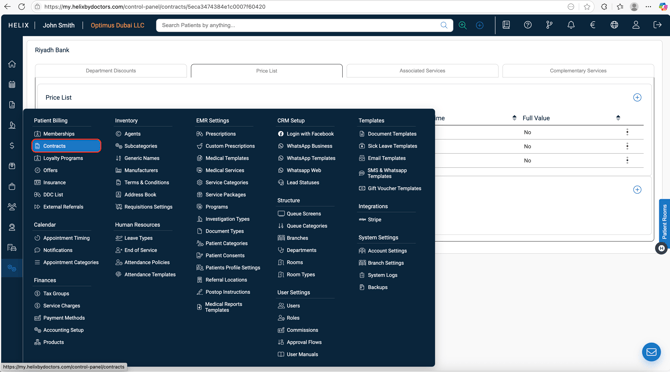
⚙️ How to Create & Configure a Contract
Step 1 – Create Contract Shell
-
Go to Contracts in Control Panel.
-
Click + Add.
-
In the pop-up:
-
Select Branch(es).
-
Enter Contract Name.
-
Choose Payment Method (Cash or Credit).
-
Link Ledger and Tax Group(if taxable) from Chart of Accounts.
-
(Optional) Add company contact details (Address, Email, Phone, Website).
- (Optional) Add TRN
-
-
-
(Optional) Set Start Date and End Date if applicable.
- (Optional) Global Discount - flat discount across services.
-
-
- (Optional) Auto Activation threshold along with a enabling option.
- (KSA clinics) Toggle Saudi VAT Relaxation if applicable.
Meaning of Payment Method here:
- Cash: Patient is payer.
- Credit: Third party pays (corporate/TPA).
(This is contract type, not the cashier’s tender type.)
Click Submit. The contract appears in the list.
Step 2 – Configure Tabs
Open the already created Contract and then add details.
🔹 Department Discounts
-
Click + Add.
-
Select a Department.
-
Choose a Service Type.
-
(Optional) Refine further by Category/Sub-category.
-
Enter Discount %.
-
Save → repeat as needed.
🔹 Price Lists
-
Assign a custom price list for the contract.
-
Allows billing at rates different from standard cash prices.
- Set Visit Time = 7 (required; used for follow-up/return logic).
- Full Value, switch ON: no extra discounts apply to this line.
- (Optional) Variable Cost per service.
- Save. Repeat for all contracted services.
🔹 Associated Services
-
Choose specific services linked to the contract.
-
These services will follow contract billing rules automatically.
🔹 Complimentary Services
-
Add services that are free under the contract.
-
Define limits (count or frequency within a duration).
Step 3 - Create the Corporate Customer
Path: Accounting → Customers
-
Click + Add (top-right corner).
-
Enter the required details:
-
Branch – Select one or more branches.
-
Customer Name – The company or organization name.
-
Type – Choose business or individual.
-
Ledger – Select the appropriate Accounts Receivable ledger from the Chart of Accounts.
- Tax Group - Associate the applicable tax group.
-
-
-
Contact Details – Add address, contact person, and communication details if available.
-
-
Click Submit.
Once saved, this corporate customer can be used in contract configuration or linked to patient files.
Step 4 - Link Contract to Patient
Once the contract and corporate customer are ready, you can assign the contract to specific patients.
Path: Patient File → Edit Profile
-
Open the patient’s file.
-
Click Edit Profile.
-
Go to Insurance / Contract section.
-
Select:
-
Contract Name – Select the contract from the dropdown.
- Contract ID - Add the applicabel ID(if any)
-
-
Click Update to save.
Once linked, all billing for that patient will follow the configured contract prices, tax groups, and discounts automatically.
Billing Flow
A. Contract Credit
- Admit patient → add Doctor & Service(s).
- In billing, choose Payment Method: Contract Credit → Submit.
- Invoice posts to patient Financial History as credit-billed.
B. Contract Cash
- Normal workflow is to be followed.
📊 Management & Notes
-
Contracts can be edited anytime from the row menu (⋮).
-
Only one contract can be active per patient at a time.
-
If both insurance and contract exist, contract rules apply first.
-
Expired contracts remain in the list but cannot be assigned to new patients.
💡 Pro Tips
-
✅ Always set correct ledger mapping for financial reporting.
-
📊 Use department discounts to control costs while still offering benefits.
-
🔍 Track expiry dates to avoid billing errors.
- Price overrides in the contract supersede master prices for linked patients.
-
📎 Use Notes field to document contract-specific terms for easy reference.
- Wrong price on invoice? Check: Contract → Price List rate, Full Value, Tax Group, and patient’s linked Contract.