
🌐 Overview
With Helix, you can:
-
Add and manage Insurance Companies and TPAs.
-
Configure networks, service-type discounts, and global DRG factors.
-
Upload or manually enter price lists for each network.
-
Set up eligibility and approval requirements for automated insurance workflows.
These settings directly impact insurance claims, pre-approvals, and invoice calculations within the system.
Configuration
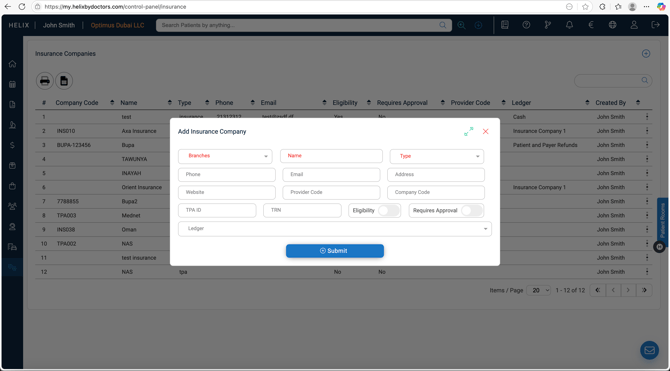
🧭 Step 1: Add an Insurance Payer / TPA
Path: Control Panel → Insurance
-
Click ➕ Add (top-right corner).
-
Fill in the following details:
-
🏢 Branch – Select the branch(es) the insurer applies to.
-
🏷️ Name – Enter the name of the insurance company or TPA.
-
📂 Type – Choose Insurance or TPA as appropriate.
-
💰 Ledger – Link the ledger account (Finance can assist with selection).
-
🆔 Company Code –
-
For TPAs, use the format TPA…
-
For Insurance companies, use the format INS…
-
-
⚙️ Require Eligibility – Toggle ON if pre-authorization is required before billing.
-
🧾 Require Approval – Toggle ON if claims require approval.
- Add other details as required (phone, email, address, TRN, etc).
-
-
Click ✅ Submit.
-
The new payer or TPA will now appear in your Insurance list.
-
⚙️ Step 2: Configure Networks and Terms
After adding the payer, click Open (from the right-side row menu) to begin configuration.
What are Networks?
In healthcare insurance, a Network refers to the group of hospitals, clinics, doctors, pharmacies, and other healthcare providers that have a contractual agreement with an insurance company or TPA (Third Party Administrator) to provide services to insured patients at predefined rates.
What are DRG Codes?
DRG codes are a way for hospitals and insurance companies to classify types of medical treatments or hospital stays into groups that have similar medical conditions and similar costs.
Each DRG represents a specific category of care — like a type of surgery, treatment, or hospital admission — and has a fixed reimbursement rate agreed upon with insurance companies.
🌐 Networks Setup
-
Click the 🌍 Globe icon (top-right corner) to add a network.
-
Enter the Network Name and an optional DRG Code (for day-care/surgery).
-
You can create multiple networks if the payer manages more than one.
-
If all networks share the same DRG factor, you can set it later under Service Type Discounts.
💸 Service Type Discounts
If your insurance agreement defines different discount rates by service type:
-
Enter percentage discounts for specific categories such as:
-
🩺 Consultation
-
🧪 Clinic
-
🧫 Investigation
-
⚕️ Surgery
-
-
Use the provided fields for each service type.
-
Click the Save button beside each field to record your entries.
-
(Optional) Add a Global DRG Factor here if it applies uniformly to all networks.
📌 Multiple discount fields are available—Helix lets you manage complex payer rules flexibly.
🧾 Policies (KSA Reference)
This section provides a historical view of policies for reference.
Note: This is used mainly for Saudi Arabia-based workflows.
📊 Step 3: Price Lists (Default & Network-Specific)
Each insurance setup includes a Default Price List and additional tabs for every created network.
You can either upload prices in bulk or add them one by one.
🔼 Bulk Upload Method
-
Click Upload Price List (red button).
-
Prepare an Excel file with two columns:
-
Column A: Service Code (index 0)
-
Column B: Price (index 1)
-
-
Follow these formatting rules:
-
No empty cells — fill blanks with
0. -
No formulas — values only.
-
Use a dot (.) for decimals (no commas).
-
Codes must match your master service codes.
-
-
During upload:
-
Choose the Network (or leave blank to upload to Default).
-
Set Code Column = 0, Price Column = 1.
-
(Optional) Turn ON Replace Current Price List to overwrite existing entries.
-
-
Click Confirm.
-
A green success message will show the total number of uploaded lines.
-
🧩 Add Price List Manually
-
Click Add Price List (blue button).
-
Choose the Network (or Default).
-
Select a Service from the master list.
-
Enter the Rate for that service.
-
(Optional) Toggle Full Value to prevent additional discounts from being applied.
-
Save the line and repeat for all required services.
-
You can also include Consumables if applicable.
-
📁 Step 4: Review & Manage Insurance Setup
-
You can add, edit, or delete networks and price lists anytime using the row menu (⋮).
-
Use Export to Excel or Print PDF options for easy reporting.
-
Verify the linked ledger account to ensure proper posting in Finance.
💡 Pro Tips
💎 Use clear and consistent naming for insurers and TPAs (e.g., “INS–AXA” or “TPA–NAS”).
🧾 Always double-check that codes in the uploaded Excel match your master service codes.
📊 Use the Global DRG Factor when the same multiplier applies across all networks—it saves time.
📍 Review discount entries periodically to ensure they align with updated insurance agreements.
🚫 If a service is not priced in the list, it will default to the master cash rate, not the negotiated one.