
🌐 Overview
With Memberships, clinics can:
-
Apply department discounts (percentage-based).
-
Offer complementary services with usage limits.
-
Set billing preferences.
-
Enable auto-activation once patients reach a defined spend threshold.
-
Configure tiered memberships (e.g., Silver, Gold, Platinum) with automatic upgrades.
All these rules are applied automatically at billing, so front-desk staff don’t need to calculate or apply discounts manually.
🧭 Navigation
Path: Control Panel → Patient Billing → Memberships
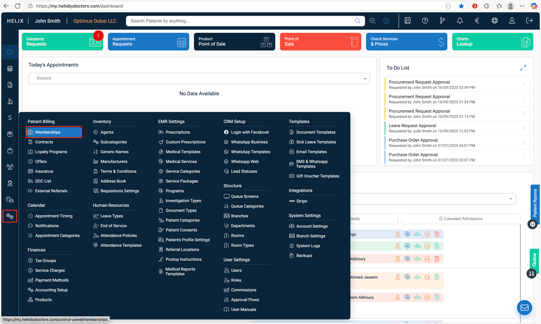
⚙️ How to Create & Configure a Membership
Step 1 – Create Membership (Shell)
-
Go to Memberships.
-
Click + Add.
-
Select the Branch and enter the Membership Name.
-
Click Submit.
In the list, open the membership via the ⋮ (three-dot) menu → Open to configure details.
Step 2 – Configure Tabs
Tab 1: Department Discounts
-
Click + Add to create a discount rule.
-
Define:
-
Department (e.g., Ophthalmology).
-
Service Type (all or specific types like Consultation, Clinic, Investigation, etc.).
-
Category / Sub-category (optional, to target services at granular level).
-
Discount %.
-
-
Add multiple rules if needed.
💡 At billing, discounts apply automatically for enrolled patients with eligible services.
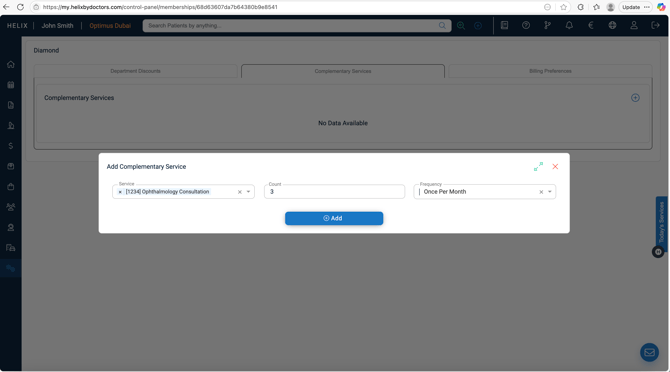
Tab 2: Complementary Services
-
Add services to offer for free.
-
Define:
-
Service.
-
Total Count (e.g., 2 free facials).
-
Frequency (per week, per month, per quarter).
-
-
Add as many as required.
- You can use this tab as optional preference.
Tab 3: Billing Preferences
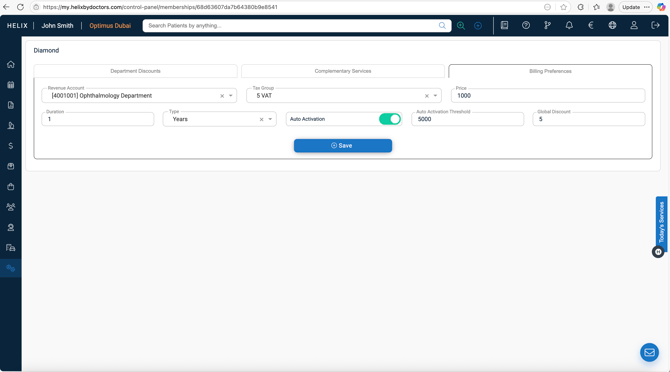
-
Revenue Account – assign income account(ledger) from Chart of Accounts.
-
Tax Group – select applicable tax (0%, Exempt, 5%).
-
Price – selling price (can be zero for complementary memberships).
-
Duration – enter number + type (Months or Years).
-
Global Discount % – optional blanket discount for all services availed by enrolled members, not specific to any department type.
Step 3 – Auto Activation (Optional)
-
Toggle Auto Activation ON.
-
Set Threshold (total spend on services - Eligibility spend uses cash-pay only, excluding VAT, insurance, contract over last 12 months)
-
At billing, the system prompts when a patient becomes eligible(reaches threshold during invoicing):
- Available actions:
-
Enroll Now – enrolls patient immediately.
-
Later – defers, will prompt again during subsequent invoicing.
-
Do Not Enroll – stops future prompts for this patient. A tag
'disable-threshold-enrollment’ will be added to the patient for reference.
-
Step 4 – Tiered Memberships (Optional)
You can model tiered programs such as Silver, Gold, Platinum (or similar levels) in Helix. The system will automatically upgrade patients as soon as they reach higher thresholds.
How to Configure Tiers
-
Create each tier as a separate membership (e.g., Silver, Gold, Platinum).
-
For every tier:
-
Enable Auto Activation.
-
Set a Threshold that defines the minimum spend required for that tier.
-
Use progressively higher thresholds for higher-level memberships (e.g., Silver = AED 1,000, Gold = AED 5,000, Platinum = AED 10,000).
-
How it Works at Billing
-
When invoicing pushes a patient’s cumulative spend past the threshold for the next tier, the system automatically detects the eligibility.
-
A prompt appears to the front desk with upgrade options.
Front Desk Options:
-
Enroll Now → immediately activates the higher-tier membership.
-
Later → defers the upgrade; the system will prompt again in future invoices until a decision is made.
-
Do Not Enroll → permanently suppresses upgrade prompts for that patient at this tier.
Notes on Tier Management
-
After upgrade, the new tier’s benefits apply to all future billing.
-
Rules such as department discounts, complementary services, and global discounts are taken from whichever tier is active.
-
You can still manually enroll or change tiers anytime from the Memberships screen.
📊 Management & Notes
-
Membership benefits can be configured flexibly: only discounts, only complementary services, or any mix.
-
All rules apply automatically at billing.
-
Membership rules can be added, edited, or removed anytime.
-
After upgrade, higher-tier benefits apply for all future billing.
💡 Pro Tips
-
✅ Use tiers to encourage patient loyalty (e.g., auto-upgrade from Silver to Gold).
-
📊 Always link memberships to the correct ledger and tax group.
-
🚫 Suppress threshold prompts with Do Not Enroll if patients decline.
-
🔄 Membership pricing can be adjusted anytime—patients enrolled later get the new rules.