
🔧 When Is This Needed?
Whenever a surgery service is booked for a patient, the system will automatically generate pre-anaesthesia charts in the patient’s medical record. Physicians or nurses must add their signature to the relevant charts as part of the documentation.
🔄 Step-by-Step Instructions
1. Access the Medical Record
-
Go to the Admissions screen and locate the patient and their Surgery service.
-
Click the blue plus (+) icon beside the surgery service.
Only users with doctor or nurse roles can access this section.

2. Locate the Anaesthesia Charts
-
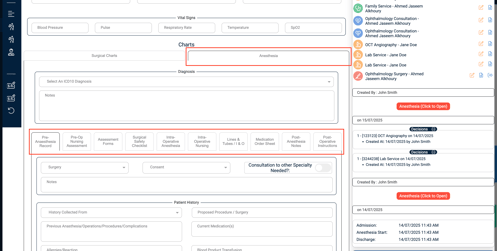
Inside the Medical Record, scroll to the Charts section.
-
Click the “Anaesthesia” tab to view all related charts.
-
You will see 10 charts under this section. All except Medication Order Sheet support signature uploads.
3. Open a Chart (e.g., Pre-Anaesthesia Record)
-
Click on the relevant chart you want to document.
-
Scroll to the Documentation section at the bottom.
4. Add the Signature
-
Completed By: Select the name of the user whose signature you're uploading.
-
Upload: Click “Add files to start uploading” and select a .png or .jpg file of the signature.
-
Once the file is selected, click “Start Upload” to confirm.
-
Date: Enter the date of upload.
Once uploaded, the signature preview will appear, along with a removal (🗙) option in case changes are needed.
5. Verify the Signature
-
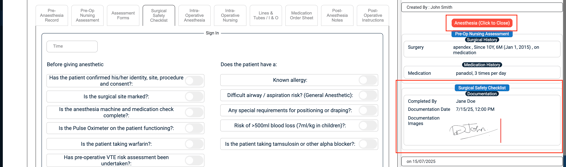
On the right panel, under the Surgery service, click the red "Anesthesia (Click to Open)" button.
-
The saved chart will open with the signature displayed under the Documentation section.
✅ Tips
-
Only doctors and nurses can access and edit anaesthesia charts.
-
Make sure the file is fully uploaded (100%) and saved with the correct date.
-
All uploaded signatures are visible in the chart details once saved.