
Overview
The Medical Services bulk upload feature lets you efficiently import service data like pricing, departments, and tax settings into Helix. Before uploading, ensure your system is configured with the necessary dropdowns to avoid errors.
✅ Prerequisites
Before proceeding, make sure the following are already created in Helix. If anything is missing, create it first via Control Panel → relevant section:
-
Departments (e.g., Dentistry, Cardiology, etc.)
-
Categories & Subcategories (e.g., Consultation → General, Specialist)
-
For Investigations: Investigation Types
-
Tax Groups (e.g., 0%, 5% VAT, etc.)
🔁 If you’ve added or updated any of the above, log out and log back in before uploading to sync changes.
🗂️ Steps to Upload the Price List
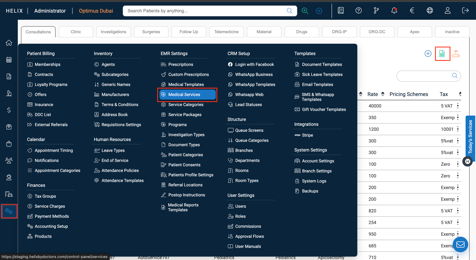
1. Navigate to Upload Page
Go to:
Control Panel → EMR Settings → Medical Services
2. Download the Template
Click Download Template from the top-right of the screen.
3. Fill the Template Carefully
-
All fields are auto-validated. Duplicate codes will be flagged.
-
Do not leave any cells blank. Enter 0 if no value is needed.
-
Ensure numeric fields like Rate, Fixed Cost, and Other Costs are filled correctly (numbers only).
-
Avoid extra spaces or line breaks inside cells.
→ To fix formatting issues, select the row/column in Excel and apply the Wrap Text function to clean up data.
-
Mandatory dropdown columns:
-
Department
-
Service Type
-
Category
-
Subcategory
-
(If applicable) Investigation Type
-
Tax Group
-
Tax-Included (Yes/No)
-
⚠️ All dropdown values must match exactly with what exists in Helix.
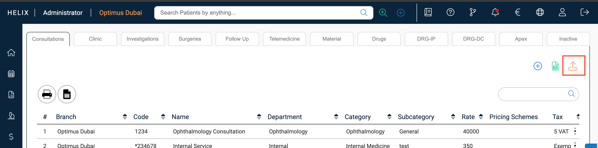
4. Upload the Completed Template
Back in Helix, click Upload, select your filled file, and import it into the system.
5. Log Out & Log In Again
After upload, log out and log in to refresh and see your updates reflected in the Medical Services list.
💡 Pro Tips
-
If your upload fails, check for:
-
Missing or misspelled dropdown entries
-
Extra spaces in service codes or names
-
Blank mandatory fields
-
-
Keep a copy of your filled template for audit or reuse later.
-
Always cross-verify prices post-upload using the Service Price List viewer inside EMR Settings.