
Audience: Nurses and Front Desk Staff
Purpose: Guide users in updating a patient’s journey status through the clinic—from waiting to screening, then to doctor.
When to Update Patient Status
Status updates reflect the real-time location or activity of the patient in the clinic.
This ensures the team knows where each patient is in the process and avoids confusion or delays.
Steps to Change Patient Status
-
Log into Helix using your nurse or receptionist credentials
-
Navigate to the Today’s Admissions panel
-
Locate the patient whose status you want to update
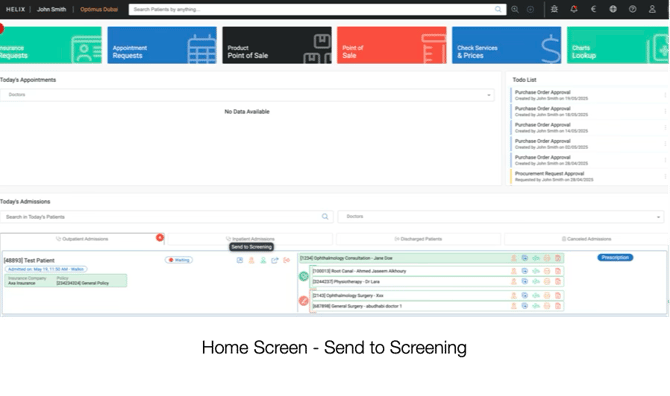
To Send a Patient to Screening:
-
Click the “Send to Screening” button next to their name
-
Verify that the patient’s status now shows as “Screening”
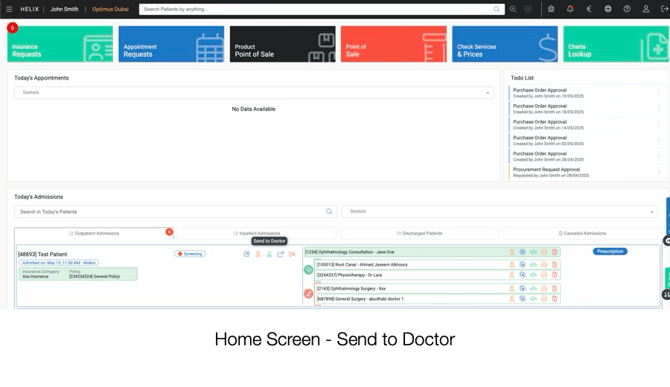
To Send a Patient to the Doctor:
-
Once screening is complete, click “Send to Doctor”
-
Verify that the patient’s status updates to “In Service”
Best Practices
-
Always ensure screening is complete before sending to doctor
-
Only send patients when they are physically entering the relevant room
-
This status log helps doctors prepare in advance and supports internal flow tracking