
🧭 Overview
Room configuration involves:
-
Creating rooms with their basic details (name, type, department, etc.).
-
(Optionally) Creating Room Types to categorize rooms (e.g., Single Bed, Operating Theatre).
-
Assigning rooms to doctors or departments if needed.
-
Using these rooms for procedures, surgeries, or other bookings.
Once configured, rooms appear in the Room Booking Calendar for easy scheduling.
📝 Navigation Guide
Step 1: Create a Room
📍 Path: Control Panel → Structure → Rooms
-
Click + Add Room (top right).
-
Fill in the form:
-
Name (Required) — e.g., “Operating Room 1”
-
Room Number (Optional)
-
Room Type (Optional) — choose from your predefined list (Refer to step 2)
-
-
-
Department (Required) — e.g., Surgery, Radiology, Dermatology, Pharmacy
-
Doctor(s) (Optional) — link doctors to this room
-
Type — choose functional type: Waiting Area, Clinic, Investigation, Surgery, Inventory Store, or Inventory Main Store
-
Occupancy (Required) — e.g., number of patients it can occupy at once
-
-
Click Submit.
- For rooms to appear in Room Booking window, ensure the type is selected as procedure.
-
Repeat for each additional room.
Step 2: (Optional) Create Room Types
📍 Path: Control Panel → Structure → Types
-
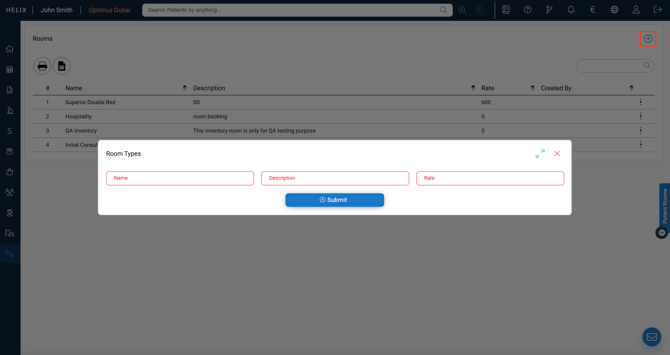
Click + Add Room Type.
-
Enter:
-
Type Name — e.g., “Single Bed,” “Procedure Room”
-
Description (Required)
-
Rate (Required) — pricing for room use
-
-
Click Submit.
-
Your new type will now be available in the Room Type dropdown when creating rooms.
Step 3: Edit or Delete a Room
-
Go to Control Panel → Structure → Rooms.
-
Find the room in the list.
-
Click the ⋮ three-dot menu:
-
Edit — Update details or assign a new room type.
-
Delete — Permanently remove the room (requires confirmation).
-
Step 4: Where Rooms Are Used in Helix
Configured rooms are available in:
-
Room Bookings (for therapies, investigations, or procedures) if type as procedure selected.
-
Surgery Booking (operating theatres, procedure rooms): if type as surgery selected.
-
Inventory Management (Main Stores and Sub-Stores): only type selected as 'inventory main store' appear while adding opening stock.
Step 5: View the Room Booking Calendar
📍 Path: Bookings → Room Booking
The Room Booking Calendar works similarly to the Appointment Calendar, but:
-
Columns = Rooms
-
Rows = Hours of the day
-
You can:
-
Filter by Date
-
Filter by Doctor
-
Switch between Day and Week View
-
Scroll if there are more rooms than the screen can display
-
❗Common Errors & Fixes
| Issue | Cause | Resolution |
| Room not appearing in Room Booking Calendar | Not assigned to department or missing in configuration | Edit room details and ensure department is set |
| Cannot choose Room Type | Room types not created | Create types in Control Panel → Structure → Room Types |
| Room double-booked | Multiple booking allowed in settings | Adjust booking permissions in system settings |
✅ Pro Tips
-
Create Room Types if you have different pricing or usage rules.
-
Assign rooms to doctors for specialty-based bookings.
-
Use clear names for rooms so staff can quickly identify them in the calendar.
-
After adding or editing rooms, log out and back in to see the changes.