
Offers are a flexible way to manage seasonal promotions, department-level campaigns, or specific service discounts directly through the Control Panel.
Overview
Offers in Helix make it easy to apply structured discounts while maintaining financial control.
Clinics can:
-
Target offers by service type, category, or specific services.
-
Limit offers to selected branches or departments.
-
Require internal approval for higher discounts.
-
Display promotions in the Helix Apex mobile app.
Each offer can run for a set duration and apply automatically at billing if the criteria are met.
🧭 Step 1: Create a New Offer
Path: Control Panel → Patient Billing → Offers
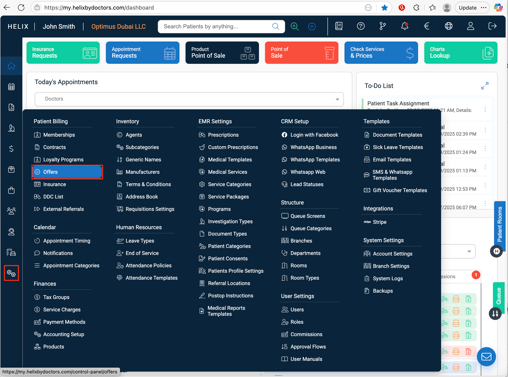
-
Click ➕ Add (top-right corner).
-
Fill in the following details:
-
Branch & Departments – Choose one or multiple branches and departments where the offer applies, or select All.
-
Offer Name – Enter a clear name for easy identification.
-
Discount Value – Enter the discount percentage or a fixed amount.
-
By default, the system applies % discount.
-
Toggle Fixed to convert it into a flat AED discount.
-
-
-
Click Next to continue setup.
⚙️ Step 2: Define Offer Criteria
-
🎯 Target Services
Select where this offer should apply. You can use any combination of:-
Service Types (e.g., Consultation, Surgery, Packages)
-
Categories / Sub-categories
-
Specific Services
-
-
Start / End Dates
Define the period during which the offer is active. -
Apply Automatically (optional)
Turn ON this switch to let Helix automatically apply the offer whenever eligible services are added to an invoice. -
Require Approval (optional)
Turn ON this switch to send an approval request to users who have discount-approval permissions.
Once approved, the discount is applied to the invoice. -
Show in Apex (optional)
Turn ON this switch to display the offer in the Helix Apex mobile app.-
Add a short description and an image to make it more appealing.
-
💾 Step 3: Save and Review
-
Click ✅ Submit to save the offer.
-
The offer is now visible in the Offers list view.
-
Repeat the same process to create multiple offers as needed.