
Part 1: Creating a Medical Template
Step 1: Go to the Medical Template Settings
-
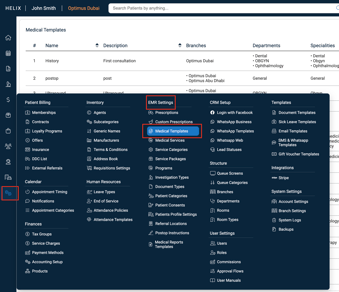
Navigate to Control Panel > EMR Settings > Medical Templates
-
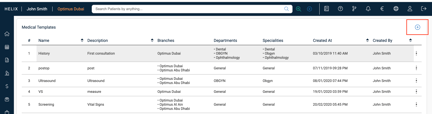
View existing templates or click the ➕ icon at the top right to create a new one.
Step 2: Enter Template Information
-
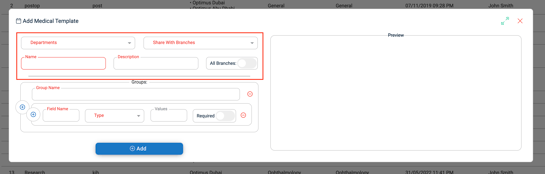
In the “Add Medical Template” form, fill out:
-
Departments (where the template will be used)
-
Share With Branches (choose branches or toggle All Branches to make it global)
-
Template Name and Description
-
Step 3: Add Field Groups
-
Under the Groups section:
-
Enter a Group Name
-
Add Field Names, select Type (Text, Number, Dropdown, etc.), define Values if needed, and mark fields as Required where applicable.
-
You can add multiple groups and fields.
-
-
A real-time Preview of your template appears on the right.
Step 4: Save the Template
-
Click Add once you're done.
-
The template is saved and becomes available for use by practitioners in the selected departments.
Part 2: Using a Medical Template
Step 1: Open the Patient’s Medical Record
-
Navigate to a patient record with a service linked to a department that uses the medical template.
Step 2: Select a Template
-
In the Choose Medical Templates dropdown, select the desired template.
-
The selected template will appear below with all configured fields.
Step 3: Fill and Save
-
Enter the medical information directly into the template fields.
-
Click Save once complete.
-
The filled-out template is saved in the patient’s Medical Report and Medical History.
✅ Tips
-
Only users with access to control panel & EMR settings (e.g., Admin or Clinical Ops) can create or edit medical templates.
-
Templates must be assigned to at least one department to appear in the medical record.
-
Toggle All Branches to allow cross-branch usability of a template.
-
Medical practitioners can only view templates assigned to their department during consultation.
-
Don’t forget to hit Save after filling in the template — this ensures the data reflects in the patient’s medical history.