
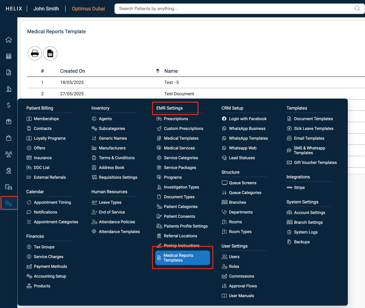
🔧 Where to Create Medical Report Templates
-
Go to Control Panel
-
Navigate to EMR Settings > Medical Report Templates
📝 How to Create a New Template
-
Click on the ➕ Add button
-
Enter a Title for the report template
-
Add the Body Content using the rich text editor (you can include tables, styled text, placeholders, etc.)
-
Click Save Template
The template will now appear in the template dropdown when filling in a patient's medical report.
💡 Pro Tip:
You don’t need to assign these templates to any branch or department. Once saved, they are available globally across all users in the clinic.
🧑⚕️ How to Use a Template During a Patient Visit
-
Open the Medical Record screen of the patient
-
Under Choose Medical Templates, select Report
-
A new field will appear called Select Form
-
From this dropdown, choose the report template you previously created
🧾 What Gets Auto-Filled?
Once selected, the following are automatically added to the report:
-
Clinic logo, header, and footer
-
Patient demographic details (name, DOB, ID, contact info)
-
Doctor's name
You can now freely edit the template content to suit the specific patient case.
📝 Final Steps & Options
Once you're done editing the report, you’ll see a set of action buttons at the bottom of the screen:
-
Save & Send for Approval – Use this when the report needs to be reviewed and approved by another user (like a senior doctor or department head). They’ll receive a task/notification to approve it.
-
Approve – If you're authorized to finalize the report yourself, use this to directly approve it.
-
Save – Use this to save your work as a draft if you want to come back and continue editing later.
-
Preview PDF – Opens a preview of the report layout as a PDF.
-
Generate PDF – Downloads the report as a PDF file, ready for printing or saving.
-
Send by Email – Allows you to email the report directly from within Helix.
-
-
Generate Signatures – Once the report is approved, this option becomes available. It automatically adds the doctor’s signature and stamp to the report.