
🧭 Overview
-
WhatsApp Templates – Meta-approved message formats used for patient reminders, confirmations, and campaigns. Required to initiate or resume conversations outside the 24-hour WhatsApp window.
-
SMS Templates – Predefined text messages for alerts like appointment reminders or payment notifications.
-
Email Templates – Branded emails with placeholders for personalization, used for reminders, campaigns, and notifications.
👉 Templates save time, improve accuracy, and ensure compliance.
📝How to Create & Manage Templates
1. WhatsApp Templates
Purpose
-
Used when replying after 24h of inactivity, initiating new conversations, or sending bulk WhatsApp campaigns.
-
Must be Meta-approved before use.
Creating a WhatsApp Template
-
Navigate toControl Panel → CRM → Social Media Manager → Whatsapp → Add(+)
-
Click + Add Template.
-
Fill details:
-
Template Name – descriptive name (e.g., “appointment_reminder”).
-
-
-
Category – choose type (Utility, Marketing, etc.).
-
Language – select the language of the message from dropdown.
- Header Format - pick a format from the drop down list. Use Text for Utility, and text/image/video/document for Marketing
Depending on the header selected, add header text or media files to upload.
-
-
-
Message Body – enter text, keeping it short and professional.
-
Variables/Placeholders – insert fields like Patient Name, Appointment Date, Doctor, etc with samples.
- Placeholders auto-fill with the patient’s actual details so every recipient gets a personalized dynamic message.
- Footer: Text Format.
- Action buttons: Call Phone Number, Copy Offer Code, Visit website.
Phone format: country code only (no leading zeros/“+”).
-
-
Submit for Meta approval.
-
Once approved, template is available under CRM Inbox and Bulk WhatsApp Messaging.
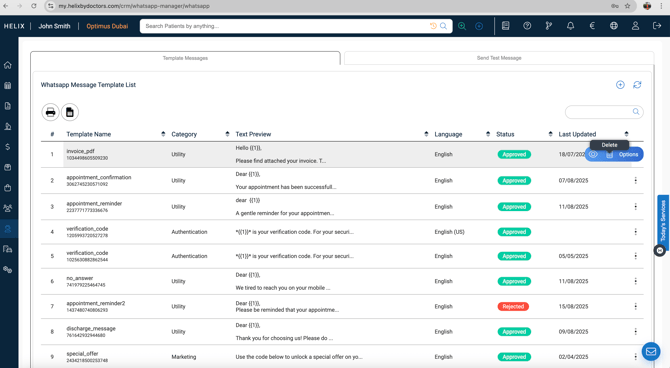
WhatsApp Templates — List & Status
- Path: CRM → WhatsApp → Template Messages
- What you see: A list of all templates you created, including a Status column showing Pending / Approved / Rejected.
- Only Approved templates can be used.
- List actions (works like a report):
- Top left: Export to Excel and Print PDF.
- Top right: Search bar, Add and a Refresh button above it.
- Template: Delete or View Templates (3 dots like icon beside every template)
2. SMS Templates
Creating a SMS Template
-
Navigate to Control Panel → Templates → SMS & Whatsapp Templates.
-
Click + Add Template.
-
Fill:
-
Template Name – unique and descriptive.
-
Message Body – concise (within SMS character limit).
-
Placeholders – for dynamic data e.g., {PatientName}, {AppointmentDate}.
- Placeholders auto-fill with the patient’s actual details so every recipient gets a customized message.
- Type the placeholder exactly as defined(spelling/case/format). e.g., use patientName(one word)
- Click Submit
-
Manage Templates
- New template appears in the list showing Created On, Title, and Created By.
- Row menu (⋮ on the right): Edit or Delete.
List/Report Tools
- Search-as-you-go bar (top-right).
- Export to Excel and Print PDF (top-left).
3. Email Templates
Creating an Email Template
-
Navigate to Control Panel → Templates → Email Templates.
-
Click + Add Template.
-
Fill:
-
Template Name – internal reference. For new templates, without entering anything, enter the rest of the details.
-
Subject Line – shown to recipients.
-
Body – formatted email body (supports pasting HTML & building your own content using placeholders).
-
Content: Add below placeholders in the email body per your template requirement(refer to the video)
- Columns
- Button
- Divider
- Heading
- Text
- Image
- Social
- Menu
- HTML
- Blocks: Add blocks(columns) per your template requirement
- Body: Decide the formatting of the body
-
-
-
Click Save.
-
Once created, you'd see the template with the following options in the list:
- Created On, Subject, Created By
- Row Menu: Edit or Delete
- List tools: Search bar, Export to Excel and Print pdf
✅ Pro Tips
-
Keep templates short and clear; avoid unnecessary words.
-
Use variables for personalization → increases patient engagement.
-
For WhatsApp: always pre-submit and approve templates well in advance; Meta approval may take time.
- Ensure all details are filled correctly while whatsapp template creation to increase chances of approval.
-
Group templates logically (Reminders, Follow-ups, Promotions) so staff can find them quickly.
-
Test Email templates with your own account before sending to patients.
-
Always double-check placeholders → an empty field looks unprofessional.