
Audience: Nurses
Purpose: Guide nurses through the complete documentation of a patient's general medical history during screening.
When to Perform This Step
This step is part of the screening process and is a Healthcare Authority requirement.
Each patient must have their medical history fully documented in the EMR at least once.
It is persistent across visits and can be updated as needed.
Accessing the General Medical History Form
-
Log into Helix as a nurse
-
In the Today’s Admissions section, click “Screening” next to the patient’s service
-
Once the screening window opens, scroll to the General Medical History section
Sections to Complete
All history sections can be expanded using the coloured buttons (green/red) next to each title.
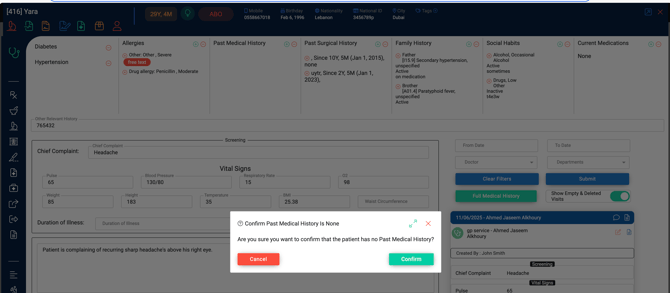
If a patient has no history, click the minus (-) button, confirm, and ensure the word “None” appears.
Adding Medical History
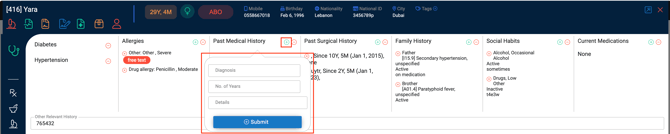
Selecting No History

Diabetes
-
Click the red button next to “Diabetes”
-
Toggle the switch on if the patient has diabetes
-
Select:
-
Type (Type 1, Type 2, etc.)
-
Number of years
-
Control status (controlled, uncontrolled, unknown)
-
Additional notes
-
-
Click Save
Hypertension
-
Follow the same steps as for Diabetes
-
Select number of years and control status
-
Click Save
Allergies
-
Click the green button next to “Allergies”
-
For each allergy:
-
Select type, allergen, severity, and details
-
Click Submit
-
-
To remove all allergies, click the Minus (-) button and confirm
Past Medical History (Systemic Conditions)
-
Click the green button next to “Systemic”
-
Select from the ICD-10 diagnosis list
-
Add number of years
-
Click Submit
-
Repeat for multiple conditions
-
Use Minus (-) button to indicate no systemic history
Past Surgical History
-
Click the green button next to “Past Surgeries”
-
Choose a surgery from the list
-
Enter years since surgery; system will calculate approximate date
-
Adjust day/month if needed
-
Add notes and Submit
-
Repeat as needed
-
Use Minus (-) button if no surgical history
Family History
-
Click the green button next to “Family History”
-
Select known conditions from the list
-
Click Submit
-
Repeat or use Minus (-) button to indicate none
Social Habits
-
Click the green button next to “Social Habits”
-
Fill in as applicable
-
Submit and repeat as needed
-
Use Minus (-) button if no social history applies
Current Medication
-
Click the green button next to “Current Medication”
-
Choose medications from the system list
-
Add notes if applicable
-
Submit
-
Use Minus (-) if patient is not on any medication
Other Relevant History
-
Enter any additional free-text medical history as needed
Notes & Functionality
-
Persistent Record: This section is saved permanently in the patient’s chart. You do not need to re-enter it every visit.
-
Dynamic Updates: Time-based fields (e.g. “2 years diabetic”) are automatically incremented by Helix over time.
-
Search Tips:
-
If an allergy or surgery is missing from the list, use “Other” and write details manually
-
For custom entries, you may use “Add Item” in relevant dropdowns
-
Compliance Reminder
All sections must be reviewed and documented per regulation.
Ensure accuracy and completeness. If unsure, ask the patient or flag for doctor review.