
The Chart of Accounts in Helix provides a structured financial framework for managing all accounting and revenue categories within your business. It is the foundation for financial reporting, analysis, and organization.
If you'd like to extract a pre-populated template or view your existing Chart of Accounts in Excel format, you can do this through the Trial Balance report. This allows you to review your current structure and plan for any additions or changes to sub-accounts.
Accessing the Chart of Accounts
To view or manually manage your Chart of Accounts:
-
Go to the main menu panel.
-
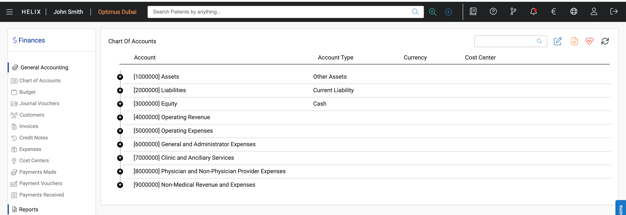
Navigate to Finance > Chart of Accounts.
-
You’ll see categorized account groups such as Assets, Liabilities, Revenue, and Expenses.
-
From here, you can manually add sub-accounts under the relevant account group.
Extracting the Chart of Accounts Template
To extract an Excel template that shows your existing Chart of Accounts and serves as a base for planning or editing:
-
Go to the main menu panel.
-
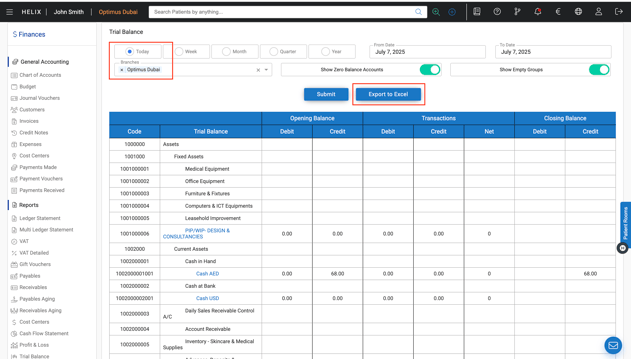
Navigate to Finance > Reports > Trial Balance.
-
Select your branch (e.g., HQ) and time period.
-
Click Submit to generate the report.
-
Once the data loads, click Export to Excel.
This report will give you:
-
All accounts currently listed under your Chart of Accounts
-
Their codes, categories, and balances (if any)
-
A structured template to help you define or reorganize your financial chart moving forward
Pro Tip:
Use this export as your base template when planning new financial accounts or auditing your current setup. The structure aligns with Helix’s internal configuration, making it easy to map out changes or additions.