
Audience: Nurses and Doctors
Purpose: Guide staff on how to issue consumable items to patients, doctors, or rooms, ensuring correct stock tracking and billing.
When to Use This Feature
Consumables should be issued during or immediately after a service when materials (e.g. gloves, Botox, dental items) are used.
This process ensures accurate inventory tracking and allows for proper billing if applicable.
Steps to Issue a Consumable
-
Log into Helix as a nurse or doctor
-
Open the Screening or Medical Record page of the patient
-
In the top-left area of the screen, click “Consumables”
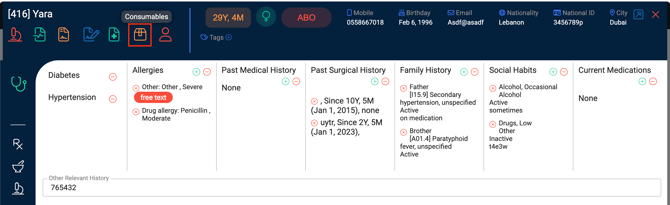
Select the Issue Type
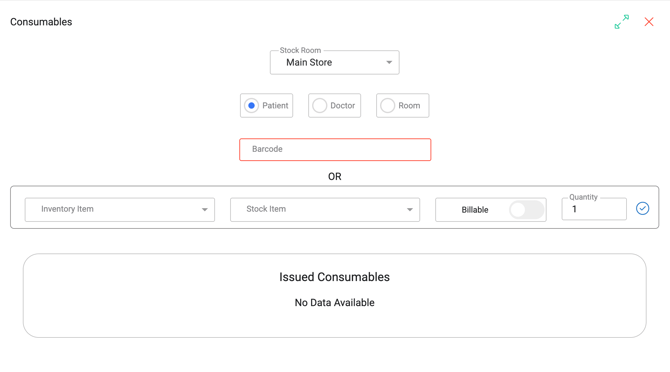
Choose where the item is being used. You must select one of the following:
-
Patient: Item is used directly on the patient (e.g., Botox vial)
-
Doctor: Item is used by the doctor across multiple patients (e.g., dental resin)
-
Room: Item is used in the room by any staff (e.g., gloves, syringes)
Select and Issue the Item
-
Choose the stock room the item will be issued from
-
Scan the barcode (if available), or
-
Choose the item from the drop-down list
-
If the item is out of stock, it will not appear
-
-
Select the barcode, choose UOM (unit of measure), and enter the quantity
-
The item will appear in the Pending Consumables table
-
Repeat steps for multiple items as needed
-
Once all items are listed, click “Issue Consumables” to finalise
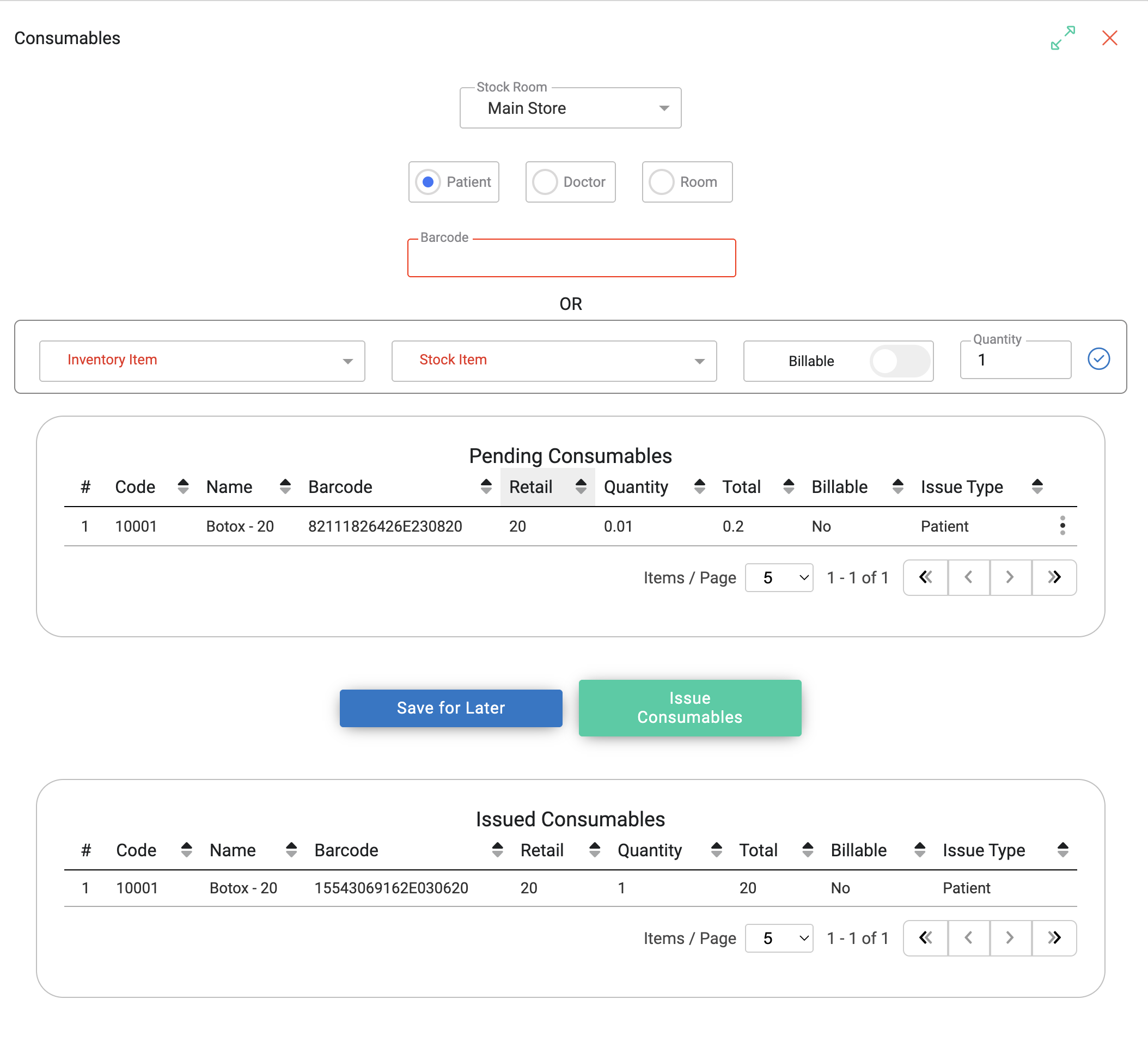
Verifying the Issued Consumables
After issuing:
-
Navigate back to the patient’s file
-
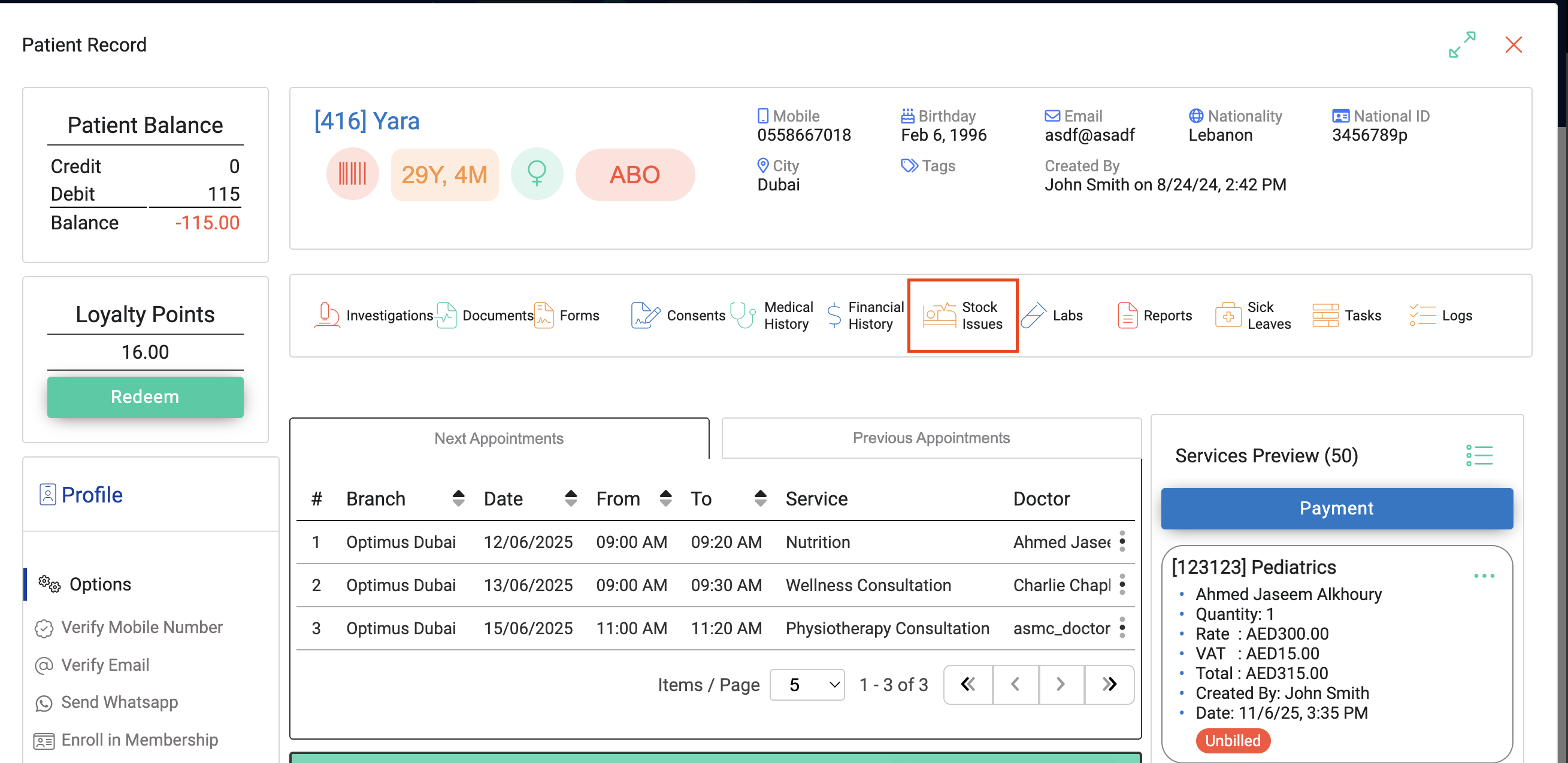
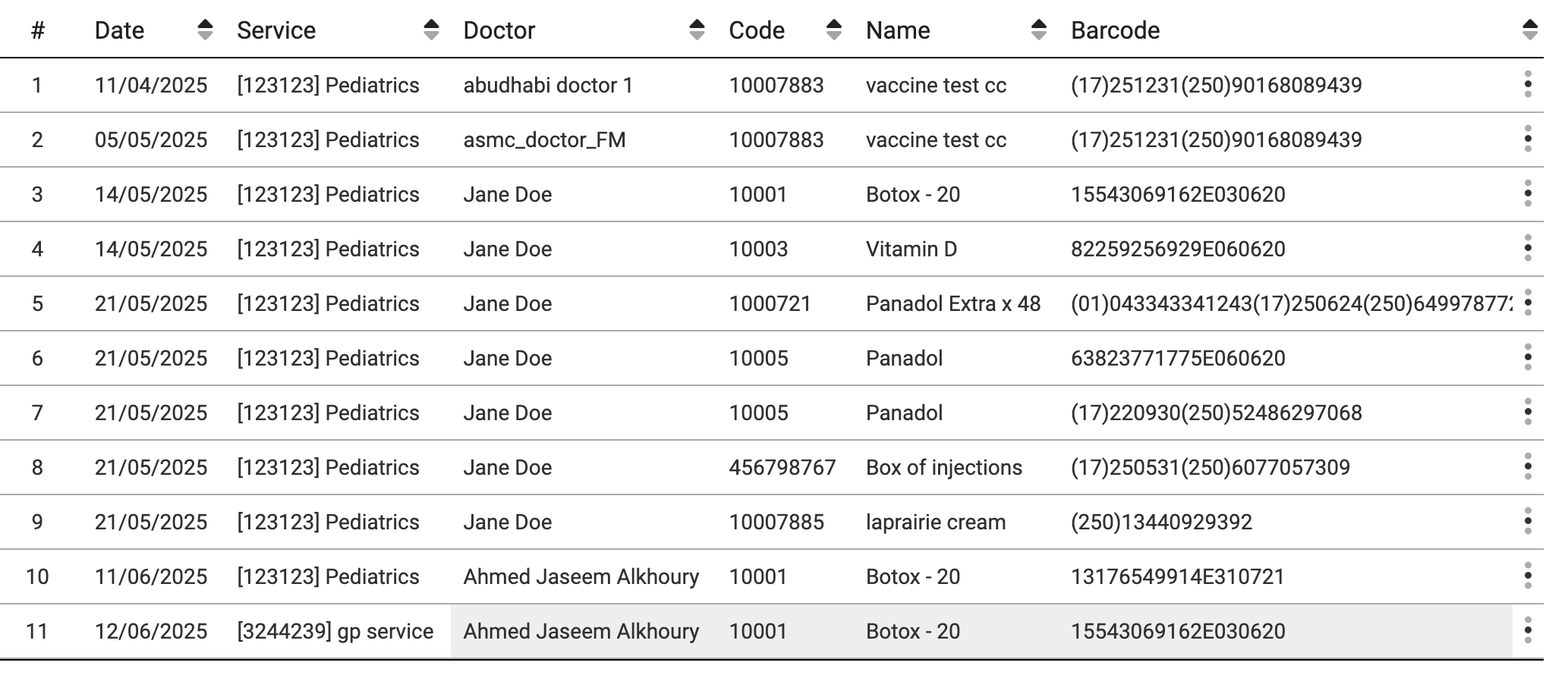
Click “Stock Issue” (mid-page)
-
You’ll see all issued items with details, including:
-
Type (Patient, Doctor, or Room)
-
Item name and quantity
-
Linked barcode
-
Billing Notes
If a consumable was marked as billable (this is sdone when creating/editing an item in the inventory screen):
-
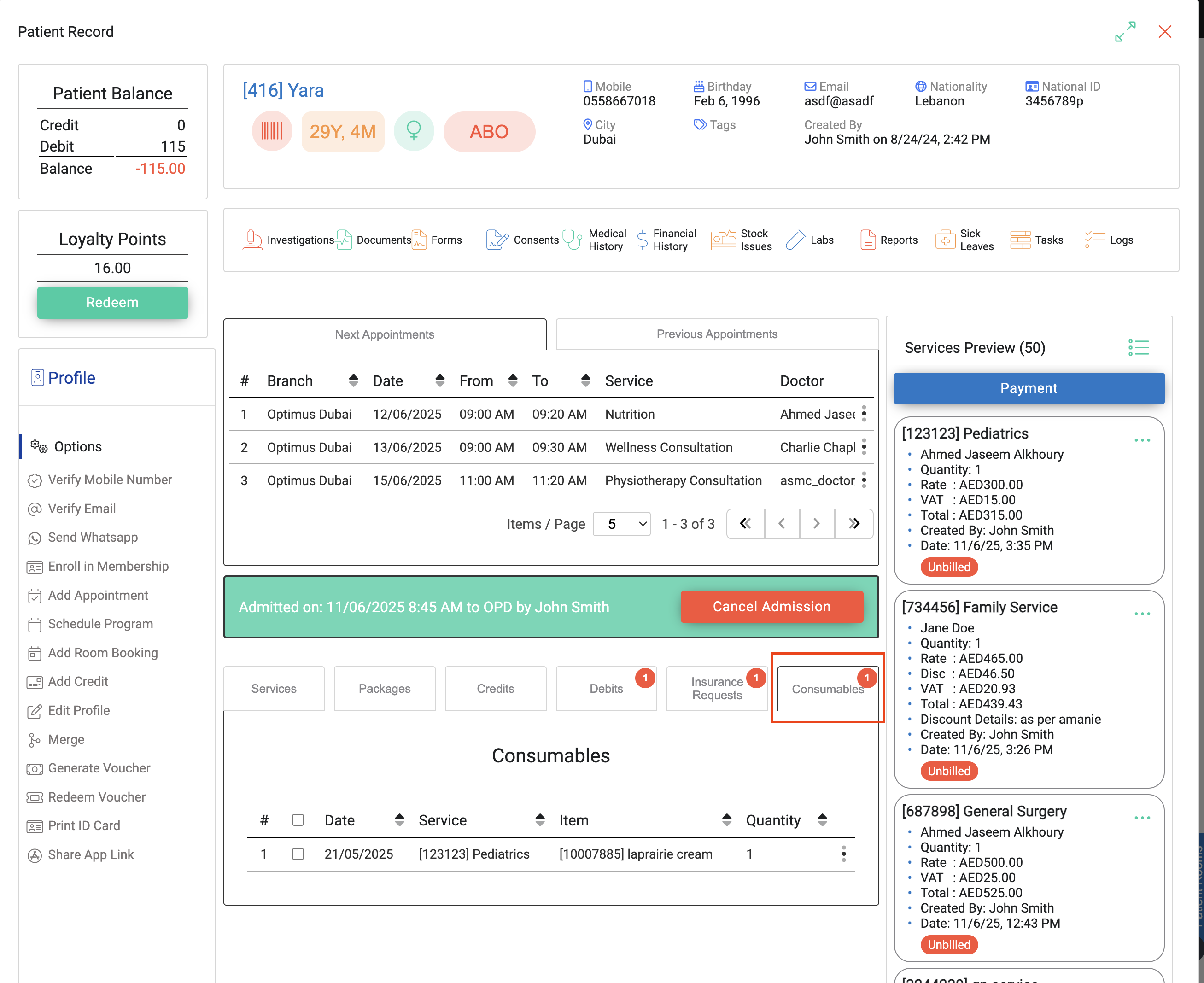
It will appear in the “Consumables” tab at the bottom of the patient record
-
A notification will trigger billing on the Reception side
-
These consumables are billed separately from services
-
They generate Point of Sale (POS) invoices
-
These can be found in the patient’s Financial History
-
Key Reminders
-
Always verify stock availability before issuing
-
Billable items must be tracked and invoiced properly to avoid revenue leakage
-
Use the correct usage category (Patient, Doctor, Room) for compliance and analytics