
🧭 Overview
Once an appointment is saved, it appears as a light-grey block inside the relevant doctor's column. Each block contains core information like patient name, mobile number, and appointment times, and includes icons to indicate status and provider preference. Quick actions like rescheduling, editing, and status updates are accessible directly from the block without needing to navigate away.
📝 Navigation
1. Identify Appointment Block Info
The appointment appears as a light‑grey block within the doctor’s column. Coloured frames on the left and right edges reflect the appointment category. Categories and colours are set in Control Panel → Appointment Categories.
Each block contains:
-
Patient File Number
-
Patient Name
-
Mobile Number
-
Start & End Time
-
Status Icon
-
Preferred Provider Indicator (Star)
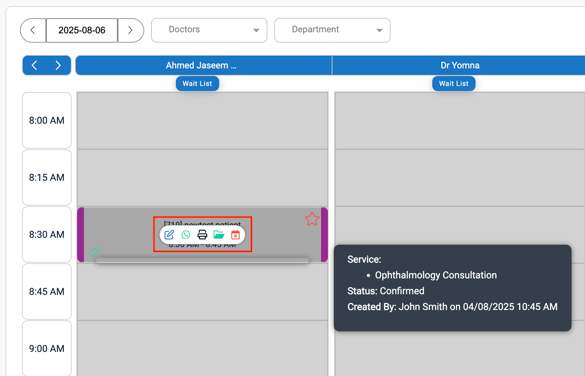
A red star indicates preferred provider for the patient whereas empty star signifies no such preference. If you hover over the appointment, then you may see the details like Service, Status, Created by and Edits made recently.
2. Change Appointment Duration
-
Hover over the bottom edge of the block.
-
Click and drag down to extend, or drag up to shorten.
-
A pop-up will appear → enter a reason → click Confirm.
3. Reschedule the Appointment
-
Click and drag the entire block to another time slot or to a different doctor column.
-
Drop it in the new slot.
-
In the pop-up, provide the reason for the move → click Confirm.
- You can also edit slot directly by clicking on the booked appointment and changing the from and to duration.
-
Rescheduling and duration edits are tracked in the appointment log for audit purposes.
4. Edit the Appointment Details
-
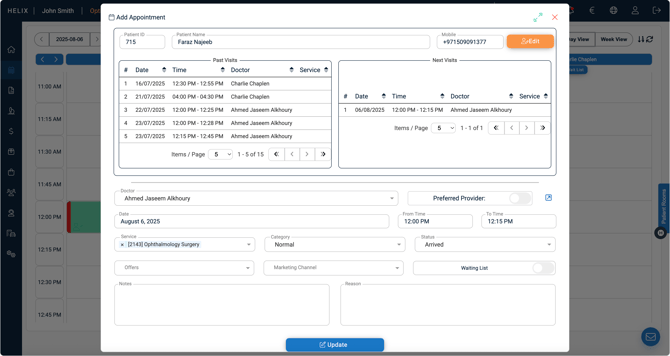
Hover over the block and click the first blue icon (Edit).
-
The booking window opens with all appointment details pre-filled.
-
You can update: doctor, service, time, category, status, notes, and patient info (via mini-form by clicking on Edit button beside mobile).
-
Enter a reason for the update (mandatory).
-
Click Update to save changes.
5. Quick Action buttons
|
Description |
Action |
|
Edit |
Open the booking window to update details |
|
|
Send the patient a WhatsApp message(if integrated) |
|
|
Print an appointment letter (requires a template in Control Panel or the branch’s default template switch enabled) |
|
Open File |
Open the full patient file |
|
Delete |
Cancel the appointment |
5. Status Indicators
Based on the status selected, one can see different icons at the bottom left of the block. For example, Double tick signifies confirmed status, Question mark signifies unconfirmed status, phone with a slash on top of it signifies that the patient's busy, etc.
Once a patient is admitted, block color changes from light grey to green and the status switches to Arrived automatically.
Appointments created for earlier times on the same day appear in dark grey.
5. Mandatory & Non-mandatory fields
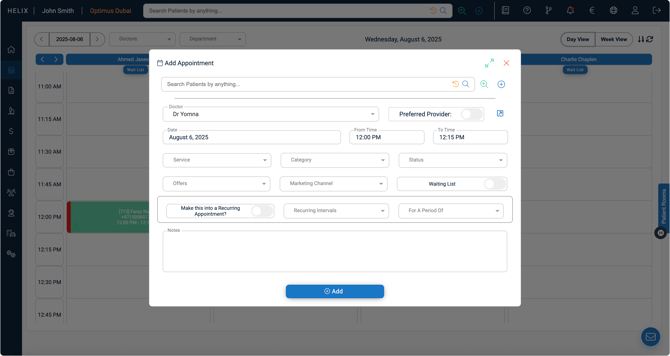
✅ Required Fields:
-
Patient: Select from search or add new
-
Doctor: Select the provider
-
Date & Time: Set appointment time
-
Service: Select medical service/procedure
-
Appointment Category: Assign category (color-coded)
-
Status: Choose Confirmed, Unconfirmed, No Answer, etc.
⚙️ Optional Fields:
-
Preferred Provider
Toggle ON to mark the selected doctor as the patient’s preferred provider. A red star will appear on the appointment block once saved. -
Wait List
Toggle ON to queue without assigning a fixed time -
Offer
Attach a promotional offer or package to the appointment, if applicable. -
Marketing Channel
Track source of booking (e.g., Walk-in, Referral, Instagram) -
Notes
Add any remarks -
Nearest Availability
Automatically fills in the first available time slot for the selected doctor by clicking on the arrow like icon(only works if Allow Multiple Booking is disabled in Control Panel). -
Make this a Recurring Appointment
Toggle ON to create a series of appointments.-
Choose how often it repeats (e.g., twice per week or monthly).
-
Set the overall duration (e.g., for 3 months).
-
Helix will preview all appointments in the series before saving.
-
❗Common Errors & Fixes
| Issue | Cause | Resolution |
| Can’t edit appointment | Past appointment or restricted role | Check user role or adjust in settings |
| WhatsApp not working | Integration with Whatsapp not covered | Contact Helix to enable WhatsApp integration |
| Incorrect patient info shown | Info not updated during booking | Edit the block → Click orange Edit Patient button → Update & Save |
| Unable to print appointment letter | No template available | Ensure templates are added in Control Panel → Templates → Document Templates |
✅ Pro Tips
-
Use Nearest Availability to speed up slot selection (when multiple booking is OFF).
-
Create Recurring Appointments for long-term treatment plans like physiotherapy or counseling.
-
Hover to view the log popup — every edit, move, and status update is recorded.
-
Use Appointment Categories to color-code different services (configured in Control Panel).
-
If patient’s doctor preference isn’t set during booking, just click the hollow star on their block afterward.