
Audience: All users
Purpose: Guide users in reviewing and updating their personal account information within the Helix system.
Accessing Your Profile
To open your profile settings:
-
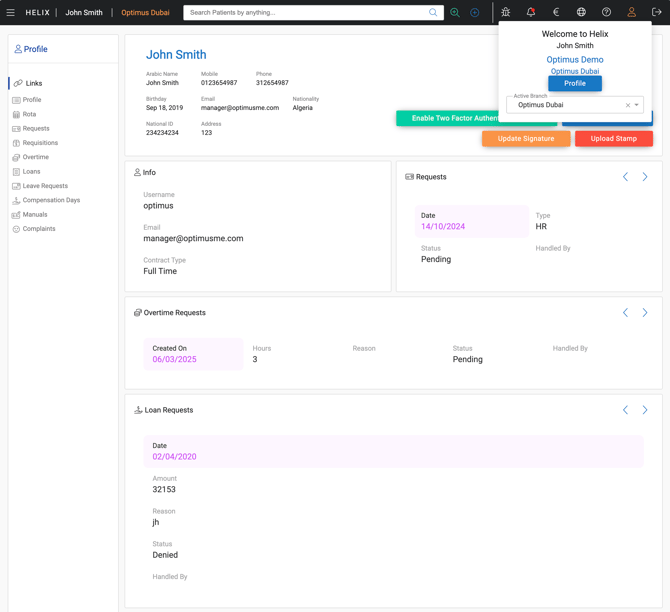
Click on your username in the top-right navigation bar.
-
Select “Profile” from the dropdown menu.
This opens your personal profile screen, where you can view and manage your account details.
Branch Assignment
By default, you are logged into the branch where your user account was created.
If your role allows, you can switch between branches using the branch selector.
Viewing and Updating Profile Information
Your profile is divided into several key sections. All of these are controlled by your administrator except updating your signature or stamp:
-
Basic Information
-
Full name (view-only)
-
Username (view-only)
-
-
Contact Details
-
Mobile number
-
Email address
-
Emergency contact details
-
-
Password Management
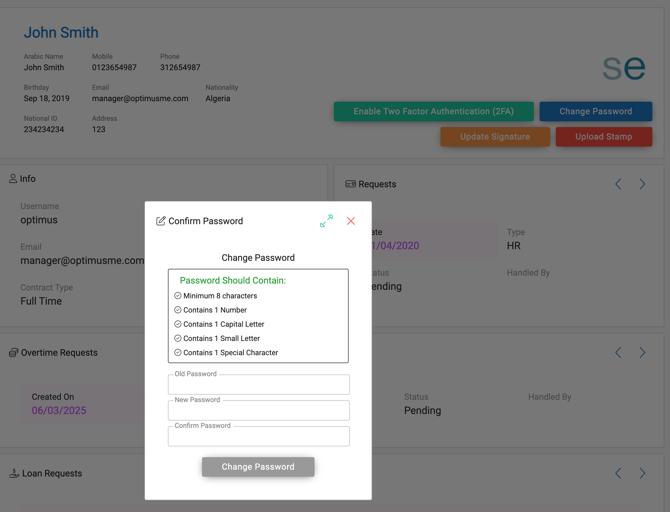
To change your password:-
Click “Change Password”
-
Enter your current password
-
Enter and confirm your new password
-
Click “Update” – Helix will log you out and prompt you to log in with your new password
-
Administrator-Only Fields
The following fields cannot be changed by users and must be updated by your administrator or HR department:
-
Full Name
-
Username
-
Role and Department Assignment
-
Branch Access
-
Employment and System Permissions
-
Medical License and EclaimLink Credentials
If you need updates to any of the above, contact your system administrator or HR.
Notes on Profile Accuracy
-
Always ensure your contact and emergency information is up to date.
-
Do not share your credentials with others.
-
Use strong passwords and change them regularly.
- Some navigation options shown in this guide may not be visible if your user role doesn't have permission to access them.