
🧭 Overview
You can access the calendar via Bookings → Appointments from the main menu. The layout is column-based, where each practitioner appears in their own section. The calendar supports both Day View and Week View, and includes controls to filter by Doctor, Department, and date. Bookings are made by simply clicking into a time slot.
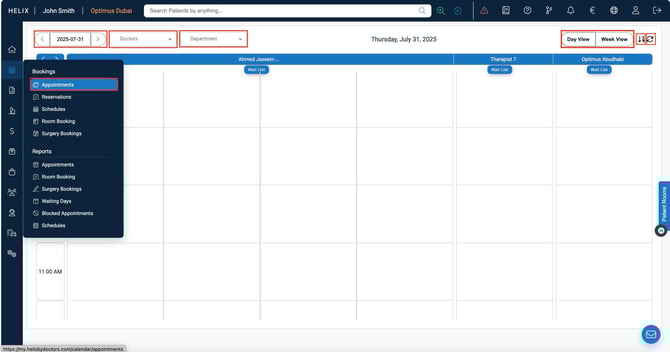
➕Button Functions
| 📅 Date Selector | Select or jump to a specific date using the calendar dropdown or arrow buttons |
| Doctors Dropdown | Choose one or more doctors to display in the calendar view |
| Department Dropdown | Filter the calendar to show only specific departments |
| 🕘 Day/Week View Toggle | Switch between Day View and Week View |
| ⏪/⏩ Arrows (Blue) | Navigate horizontally when there are more columns(service providers) than screen space |
| Wait List | Appears under each doctor’s name — shows patients queued for same-day appointments |
| 🔁 Refresh Button | Reload the calendar to reflect any recent changes |
| 📥 Sort/Arrange Icon | Reorder doctor columns to your preference (click → drag → Save → re-login to apply) |
📝 Navigation
. Open the Calendar
-
Log into Helix and go to Bookings → Appointments from the sidebar.
2. Set Filters and View
-
Use the Date Selector to pick a specific day.
-
Apply filters from the Doctors and Department dropdowns.
-
Choose either Day View or Week View depending on your preference.
3. Explore the Layout
- Each column = one doctor
- Time slots reflect the start/end time of the clininc and slot interval set in your Control Panel(Appointment Timing section under Calendar).
- Use the blue < and > arrows on the left to scroll if you have more providers than columns visible on your screen.
4. Rearrange Doctor Order
-
Click the sort icon (⇅) near the top right to rearrange provider columns.
-
Drag doctor names into the desired order, then click Save.
-
Log out and log back in to apply your personalized layout.
5. Book a New Appointment
-
Click any empty time slot (e.g., 10:30 AM under "Therapist 7") to open the booking popup.
-
Enter patient and appointment details to book(Covered here).
- Appointment categories can be set up through Control Panel under Calendar Settings.
6. Use the Wait List
-
Click the Wait List button beneath a provider's name to view or manage queued patients.
- A red badge with a number indicates active waitlist entries.
-
Waitlists can be persistent (carry over from previous days) or non-persistent (today only).
- Persistence is toggled in Control Panel under Branch Settings
❗Common Errors & Fixes
| Error | Cause | Resolution |
|---|---|---|
| Changes to doctor column order not applied | Save was missed or logout skipped | After reordering, click Save and re-login |
| Waitlist badge is empty | Waiting List toggle wasn't selected while adding appointment | Ensure patient is marked as Waiting List |
| Unable to add appointment | Mandatory fields unselected | Ensure mandatory fields like Service, Category and Status are selected |
✅ Pro Tips
-
Use Week View for a broader view of provider availability across days.
-
The Wait List helps manage overflow — especially for walk-ins or urgent consults.
-
After rearranging providers, always log out and back in to apply your new layout.
-
Use the Refresh button 🔁 to reload calendar data after schedule or appointment changes.