
🧭 Overview
The Home Screen is the central dashboard of the Helix application. It brings together key information and features in one place, giving you quick access to daily operations. Here's a breakdown of the main areas:
-
Header Bar / Top Bar
Found at the top of the screen, this bar includes global navigation tools such as the universal search, advanced patient search, add patient button, knowledge base, support portal, release notes, system notifications, currency converter, language settings, and your profile. These tools are accessible across all pages of the system.

-
Quick Access Tiles
Just below the top bar, you’ll see color-coded tiles that provide fast entry points into major modules like Insurance Requests, Appointment Requests, Point of Sale (POS), Check Services & Prices, and Charts Lookup.

-
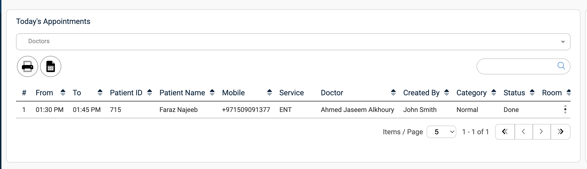
Today's Appointments
This section displays a list of all appointments scheduled for the current day. It includes details such as time, patient ID, patient name, contact number, service, assigned doctor, creator, and appointment category. You can also filter by doctor and print the schedule.
-
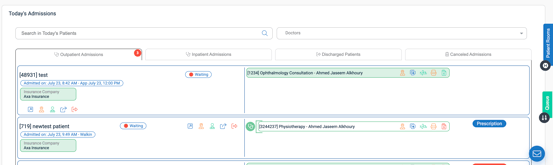
Today's Admissions
Located below the appointments section, this view shows all patients currently admitted—both outpatient and inpatient. You can also toggle to see discharged or canceled patients. Icons here allow you to take quick actions like opening the chart, adding services, generating signatures, or viewing visit details.
-
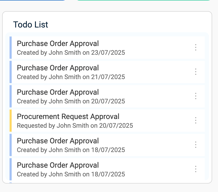
To-Do List
Found on the right side of the screen, the to-do list shows tasks assigned to you, such as approvals or follow-ups. Each item is timestamped and color-coded by task type, helping you stay organized and responsive.
🖥️ Top Bar Navigation (Global Controls)
The top right corner of the screen contains essential system-wide tools. Here's what each icon represents:
| Icon/Label | Description |
|---|---|
| 🔍 Search Bar | Lets you search for patients using name, ID, mobile, or other identifiers. |
| ➕ Magnifying Glass | Opens the Advanced Search window for detailed patient search options. [Read more → How to Use Advanced Patient Search] |
| ➕ Add Circle Icon | Opens the Add Patient form to register a new patient. [Read more → How to Add a New Patient] |
| 📘 Knowledge Base | Opens the Helix Knowledge Base in a new tab to browse help articles. |
| ❓ Support Portal | Opens the Helix Support Portal to raise tickets or chat with support. |
| 📄 Release Notes | Shows system updates, version history, and release notes sorted by date. |
| 🔔 Notification Bell | Displays system notifications like task reminders or refund approvals. |
| 💱 Currency Converter | Shows live conversion rates for USD, EUR, GBP, and SAR. |
| 🌐 Language Selector | Lets you switch between English, Arabic, French, and Spanish. |
| 👤 Profile Button | Opens your profile settings. Also includes Branch Info if you have access to multiple branches. |
💡 Pro Tips
-
Hover over any top bar icon to view a tooltip with its function.
-
Use filters on both Today’s Appointments and Admissions to quickly narrow down your view.
-
Click the printer icon in Appointments to print the daily schedule.
-
Use the color-coded tiles to quickly jump between frequently used modules.