
🔎 Where to View Patient Debit Summary
To quickly check a patient’s outstanding balance:
-
Open the Patient File.
-
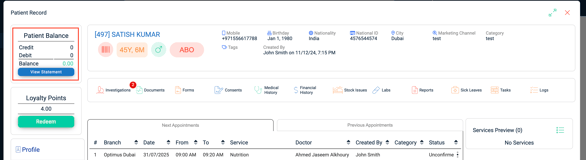
On the top-left, the Patient Balance section displays:
-
Credit
-
Debit
-
Balance (calculated as Credit - Debit)
-
🧾 How to Record a Patient Debit
When a service has been rendered but not paid immediately (i.e., credit), follow these steps to record the amount as a patient debit:
-
Open the Patient File.
-
On the right-hand panel, locate the Service Preview and click “Payment”.
-
In the Invoice Preview, select the relevant services.
-
Scroll down to the Payments section.
-
In Payment Method, choose Patient Debit.
-
Click Issue Invoice (or Issue & Print Invoice).
-
The amount will now be added to the Patient Debit section and reflected in:
-
Top-left Balance
-
Debits tab (a red badge will appear showing outstanding amount)
-
💰 How to Record a Patient’s Repayment
When a patient returns to pay their outstanding balance:
-
Open the Patient File.
-
Go to the Debits tab.
-
On the specific debit entry, click the three-dot menu and select “Record Payment”.
-
A popup will appear — fill in:
-
Payment Method (e.g., Cash, Visa)
-
Amount
-
Date
-
Notes (optional)
-
-
Click Submit.
-
A Receipt Voucher will automatically generate — available to print or download.
-
The payment will now reflect under the Repayments section, and the patient balance will update to 0.
🗂 Additional Notes
-
All debit-related activity is tracked under the Debits tab in the patient’s file.
-
A red notification badge helps flag any existing outstanding dues.
-
If a repayment fully settles the amount, the badge disappears, and the balance resets.