
Overview
In Helix, packages that have already been invoiced cannot be deleted directly. To remove such a package, the linked invoice must first be cancelled. Once the invoice is cancelled, the entire package is automatically deleted from the patient file, and its services can no longer be consumed.
This article explains the correct and supported process to remove an invoiced package from a patient.
When Can an Invoiced Package Be Removed?
You can remove an invoiced package only if:
-
The package has already been invoiced
-
Your user role has permission to Cancel Invoices
-
You intend to delete the entire package (partial removal is not supported)
Step 1: Add the Package and Generate the Invoice
-
Open the Patient File.
-
Navigate to the Packages tab.
-
Select the required Package and Doctor.
-
Click Add Package.
-
Select all services included in the package.
-
Collect the payment and issue the invoice.
Result:
-
All services in the package are marked as Paid
-
The package becomes active in the patient file
Step 2: Locate the Invoice in Patient Financial History
-
Open the Patient File.
-
Go to Financial History.
-
Locate the invoice created for the package.
-
Click the three-dot (⋮) menu on the right side of the invoice.
Step 3: Cancel the Invoice
-
Select Cancel Invoice from the options menu.
-
If this option is not visible, your user role does not have the required permission.
-
-
Enter a Reason for Cancellation.
-
This step is mandatory for audit and tracking purposes.
-
-
Click Confirm.
Note:
Cancelling invoices is generally not considered best accounting practice. However, this is the required step in Helix when the intention is to remove an invoiced package.
What Happens After Cancelling the Invoice?
Financial Impact
-
The invoice is removed from the patient’s Financial History
-
If the Finance & Accounting module is enabled:
-
The related Journal Voucher (JV) entry is also removed
-
This ensures financial records remain accurate
-
Step 4: Verify Package Removal in the Patient File
-
Return to the Packages tab in the Patient File.
-
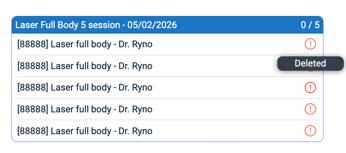
The cancelled package will display a red (!) icon.
-
Hovering over the icon shows the status as Deleted.
Result:
-
The package is fully removed
-
No services from the package can be consumed going forward
Important Limitations
-
Package removal applies only to the entire package
-
Helix does not support:
-
Partial package deletion
-
Partial package refunds
-
-
If even one service session from the package was already consumed:
-
Cancelling the invoice will still delete all services (consumed and unconsumed)
-
Partial package refunds are currently not supported and are planned as a future enhancement.
Pro Tips 💡
-
Verify permissions first:
If you do not see the Cancel Invoice option, check your role permissions before proceeding. -
Always document the reason clearly:
Use meaningful cancellation reasons to support audit trails and internal reviews. -
Avoid cancelling invoices for accounting corrections:
If the goal is only to correct amounts or taxes, consider credit notes instead of cancellation. -
Confirm with the patient before cancellation:
Cancelling an invoice removes all package entitlements permanently. -
Do not cancel partially used packages unless intended:
Once cancelled, all sessions—used or unused—are deleted and cannot be restored.