
🧭 Overview
Appointments in Helix are connected to the patient’s medical records and billing. They can be created for new or existing patients and customized with time slots, services, and visit types.
➕ Accessing Patient Appointments
There are multiple ways to access an appointment:
- From the Home Screen:
Use the Quick Access Tile labeled Appointments to see all the booked appointments for today.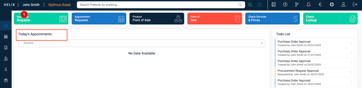
- From the Calendar Module:
Navigate to Main Menu > Calendar.
Select a date and time slot, then click Add Appointment.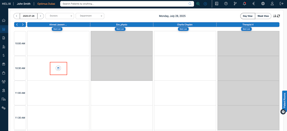
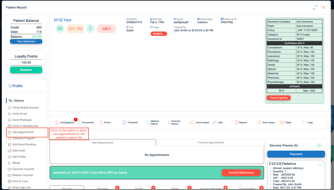
- From Patient Profile:
Open an existing patient file and click Add Appointment from the left menu bar.
📝 Steps to Schedule an Appointment
-
Open Appointment Form from calendar:
-
Main menu > appointments
-
Click Add Appointment from any of the entry points shown in the video below.
-
-
Select Patient:
-
Search for the existing patient by name, MRN, or ID.
-
If the patient is new, use the Add Patient form.
-
-
Choose Department & Doctor:
-
Select the department and the doctor providing the service.
-
-
Select Service:
-
Pick the specific service or procedure the patient is visiting for.
-
-
Set Date & Time:
-
Choose from available time slots.
-
-
Add Notes (Optional):
-
Include remarks, instructions, or requirements for the visit.
-
-
Confirm Appointment:
-
Click Add or Confirm to finalize the booking.
-
❗ Common Errors & Fixes
| Error Message | Cause | Resolution |
|---|---|---|
| Doctor Not Available | Slot already booked | Choose another available time or doctor. |
| Invalid Patient Details | Missing or incorrect patient data | Verify patient details before booking. |
| Service Not Selected | Service field left empty | Select the appropriate service for the visit. |
✅ Pro Tips
-
Check the doctor's availability using the Calendar view before scheduling.
-
Use color-coded appointments to differentiate categories (e.g., follow-ups vs. new patients).
-
Always verify patient details to prevent duplicate bookings.