
Audience: Receptionists, Nurses, Doctors, Admins, and other authorised users
Purpose: Enable users to locate and manage patient records efficiently using Helix’s built-in search tools.
Accessing the Patient Search
The global patient search bar is located at the top of the Helix interface and is always visible. This allows quick access to patient records from anywhere in the system.
 ]
]
Basic Search
The basic search allows you to search using any known patient information. You can search by:
-
Patient Name
-
Mobile Number
-
Patient ID
-
National ID or other unique identifiers
Start typing, and Helix will display real-time matching results.
Advanced Search
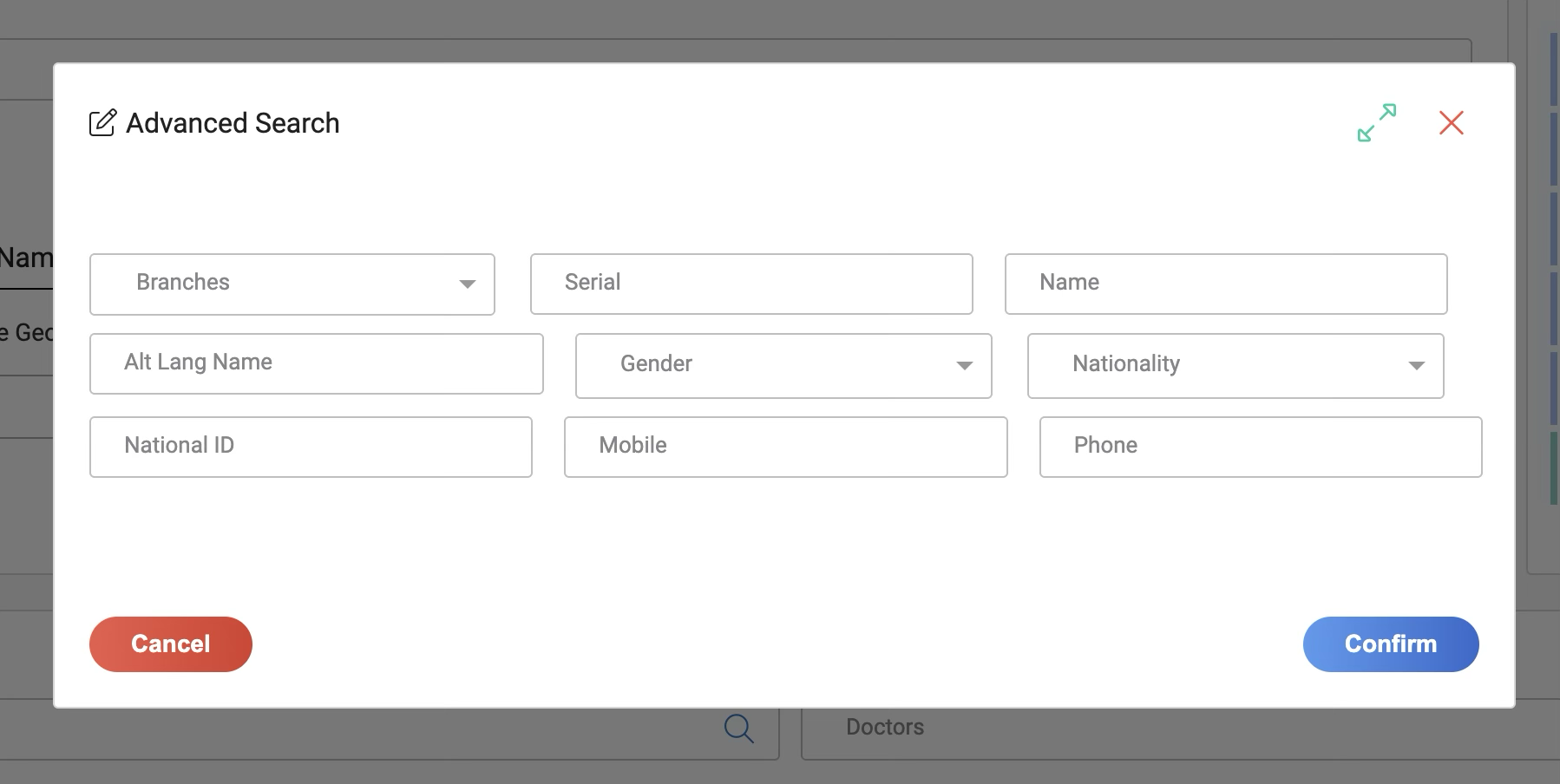
For more specific or filtered results, click on the “Advanced Search” option near the search bar.
Advanced filters include:
-
Date of Birth
-
Gender
-
Contact Number
-
Patient Category
-
Visit History
-
Service Type
-
And other demographic filters
This is useful when there are many patients with similar names or incomplete information.
Selecting and Managing Patient Records
Once results appear:
-
Click the three-dot (⋮) context menu next to the patient’s name.
-
Choose from available options:
-
Select: Loads the patient record into your current workflow
-
Open File: Opens the full patient profile, including demographics, documents, visits, billing, and more
-

Best Practices
-
Always verify identity using at least two identifiers (e.g. name + phone number or name + ID).
-
Report any suspected duplicates to your system admin for review. These can be merged to ensure data accuracy.
-
If search results don’t appear, double-check spacing, spelling, or try using partial keywords.
-
Advanced Search is ideal for patient-heavy clinics or administrative tasks requiring specific record filtering.