
Audience: Nurses
Purpose: Guide nurses through the process of capturing and re-capturing digital consent forms from patients using an iPad.
When to Use This Feature
-
All consent forms should be signed before a procedure or service requiring patient authorisation
-
Forms are signed once, but can be re-signed as needed
-
These are stored in the patient’s EMR and are legally required in many clinical workflows
Signing a Consent Form (Initial Signature)
-
Log into Helix on an iPad or tablet using your nurse credentials
-
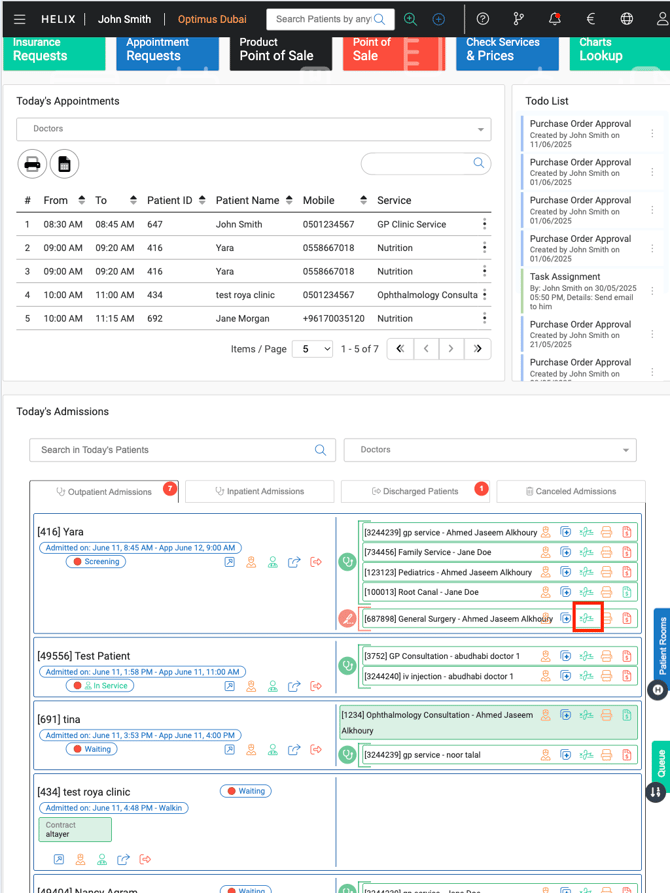
Navigate to Today’s Admissions and locate the patient
-
Click the “Sign Consent” button next to the relevant service
-
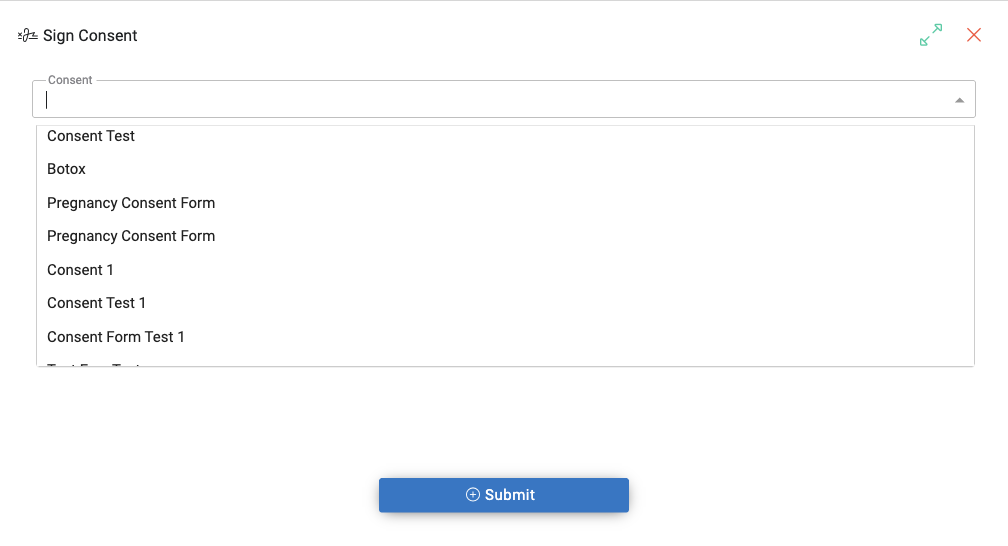
In the pop-up window, choose the appropriate Consent Form from the dropdown
-
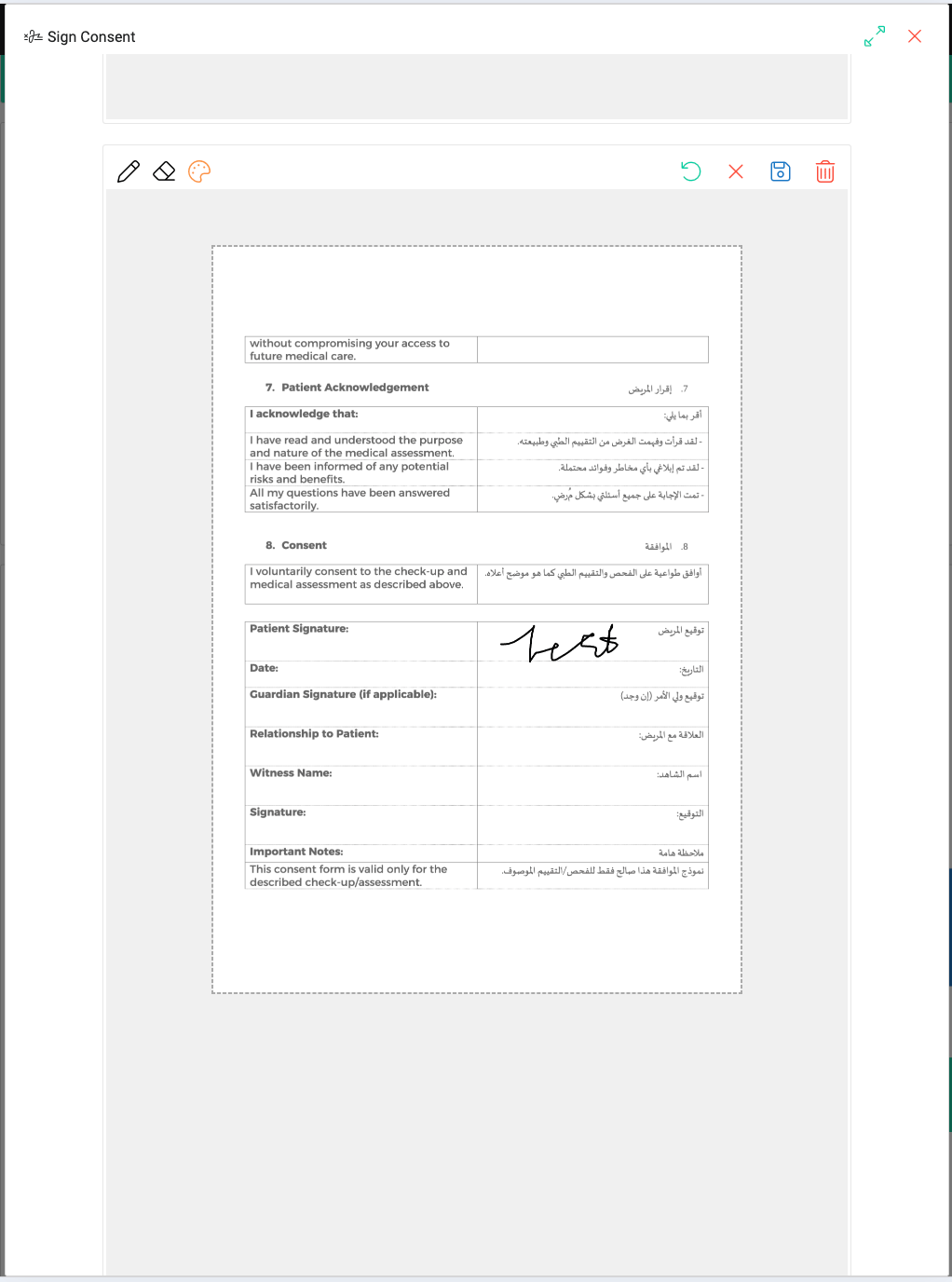
Hand the iPad to the patient to digitally sign the form
-
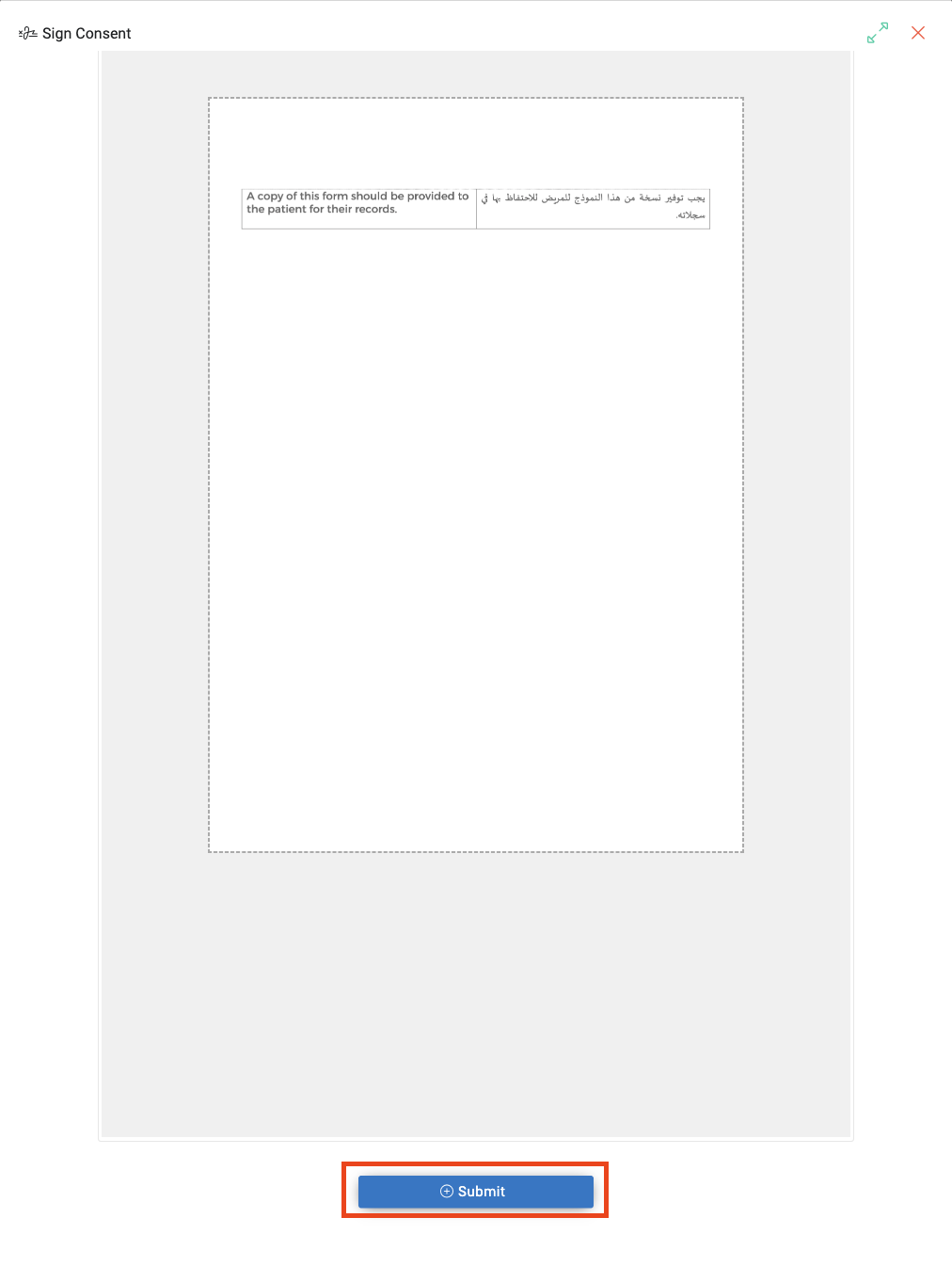
Scroll down and click Submit to save the form into the patient record
Re-signing a Consent Form
If a form needs to be re-signed (e.g., expired, amended):
-
Log into Helix on an iPad
-
Open the Screening page for the patient
-
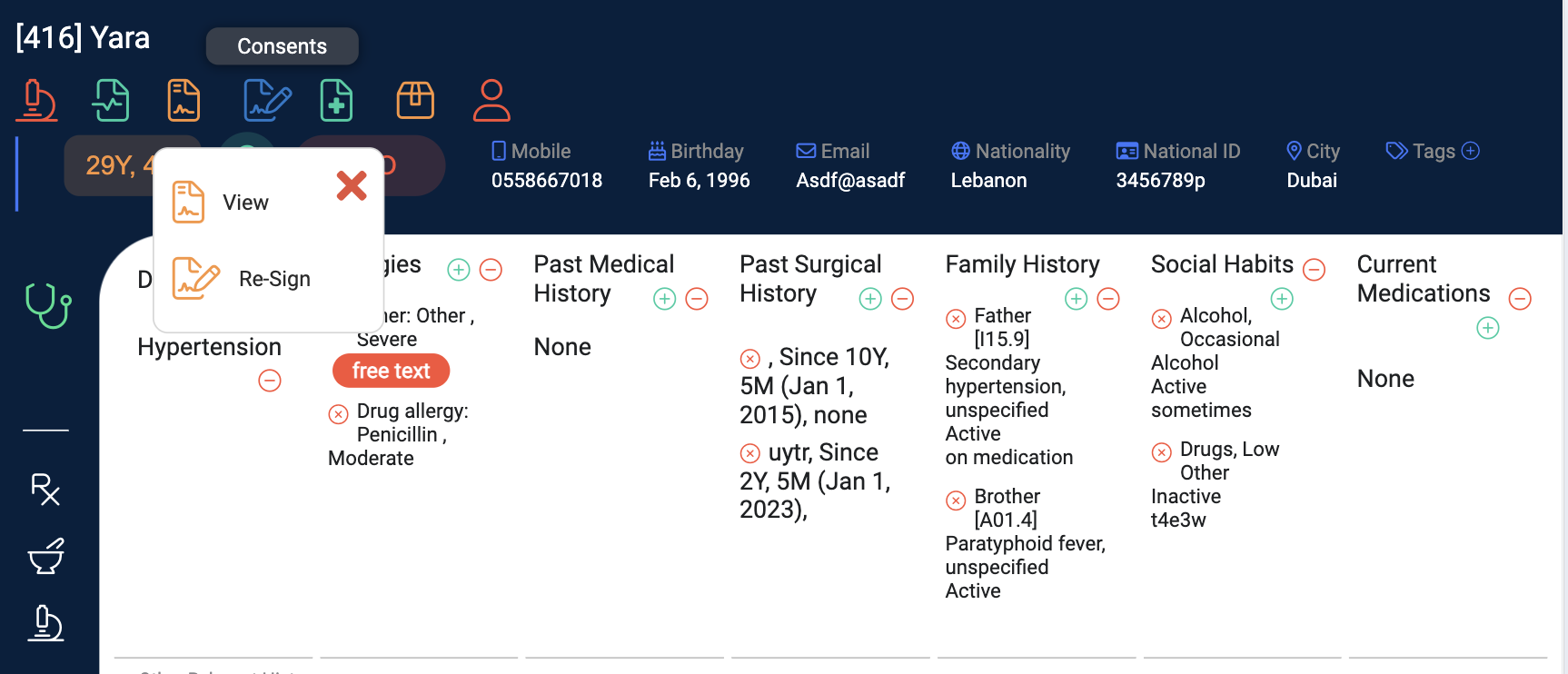
At the top-left corner of the screen, click “Consents”
-
Select “Re-Sign”
-
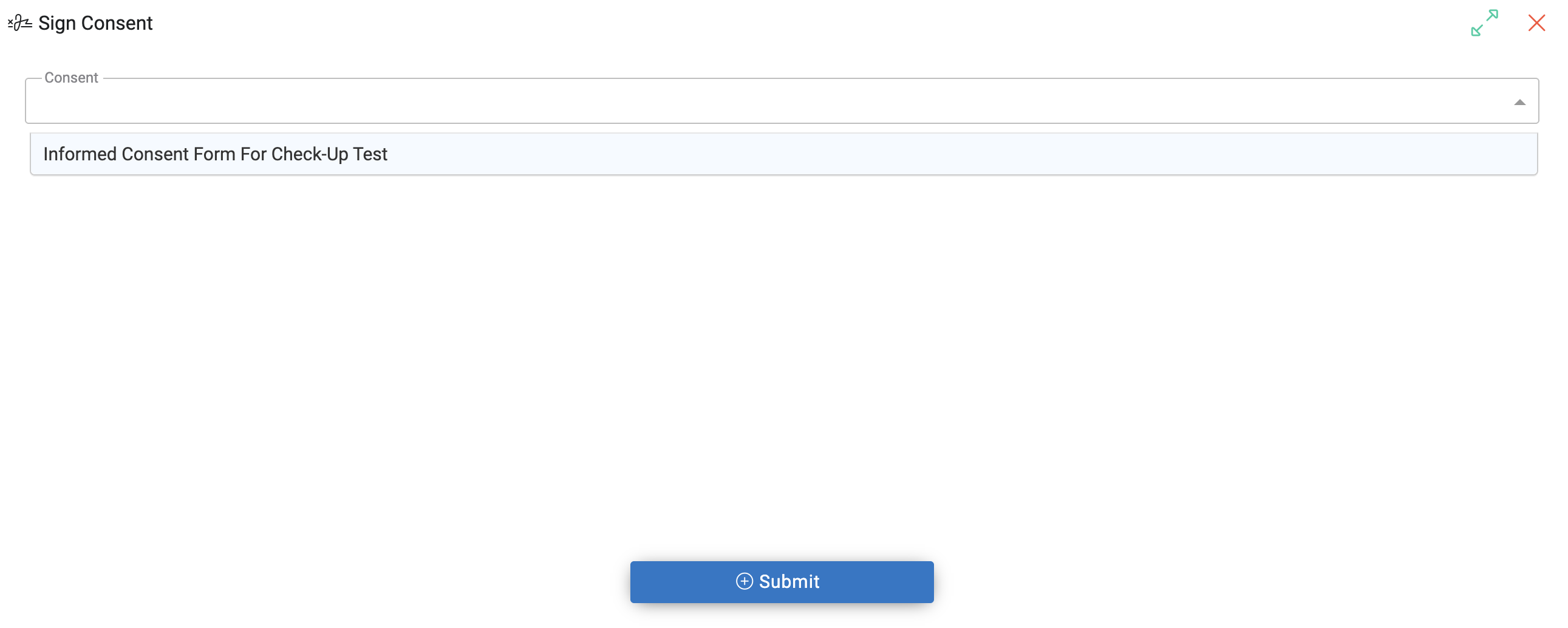
Choose the relevant form from the dropdown (only consent forms that have been signed will appear here)
-
Hand the iPad to the patient for a new signature
-
Click Save to finalise the update
Important Notes
-
Always confirm that the correct form is selected before handing the device to the patient
-
Ensure the patient is present and clearly understands the content before signing
-
Only iPads support in-app digital signature for consent capture
-
Once signed, forms are time-stamped and saved into the EMR