
🧭 Overview
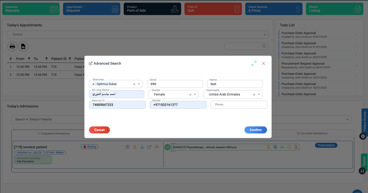
Advanced Patient Search is designed for detailed queries. Whether you're looking for a patient by partial name, phone number, ID, or appointment history, the advanced search provides a flexible way to filter results.
➕ Accessing Advanced Search
You can access Advanced Search directly from the Home Screen:
-
Click on the Magnifying Glass with Plus (+) icon next to the standard search bar in the top bar.

📝 Steps to Use Advanced Search
-
Click the Advanced Search Icon (🔍➕) from the top bar.
-
Enter Filters:
-
Name (Full or Partial)
-
Medical Record Number (MRN)
-
Phone Number or Email
-
National ID or Passport Number
-
Appointment Date Range (if applicable)
-
-
Use Additional Filters:
-
Department or Assigned Doctor
-
Patient Category (e.g., VIP, Insurance)
-
-
Click Search:
-
The results will display a list of patients matching the criteria.
-
-
Select the Patient:
-
Click the patient’s name to open their full profile.
-
❗ Common Errors & Fixes
| Error Message | Cause | Resolution |
|---|---|---|
| No Results Found | Filters too specific or incorrect | Remove some filters or double-check data entry. |
| Search Timeout | Too many records to display | Refine your filters to narrow down the search results. |
| Invalid Field Entry | Wrong format for phone/ID fields | Correct the format and re-run the search. |
✅ Pro Tips
-
Use partial names combined with other filters (e.g., date of birth) to narrow down the results.
-
For quick checks, start with the basic search bar; use advanced search only when needed.
-
Remember to clear filters after a search to avoid incorrect results for future queries.