
🧭 Overview
-
Consolidates messages from multiple channels (e.g., WhatsApp, Facebook/Instagram via Meta onboarding).
-
Every action on a conversation (escalate/assign/follow-up) creates a Task and shows an icon on the conversation for easy tracking.
-
Supports lead-only actions (Create Patient, Link to Existing Patient).
-
Enforces WhatsApp messaging windows (24-hour rule) and template sending when chats are inactive for >24 hours.
-
Searching and multi-filtering make it easy to find the right thread quickly.
📝 Navigation
-
Open Helix or CRM.
-
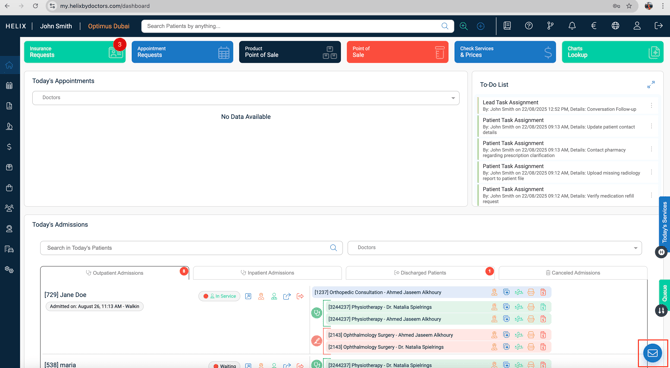
Click the message bubble (bottom-right) to open CRM Inbox.
-
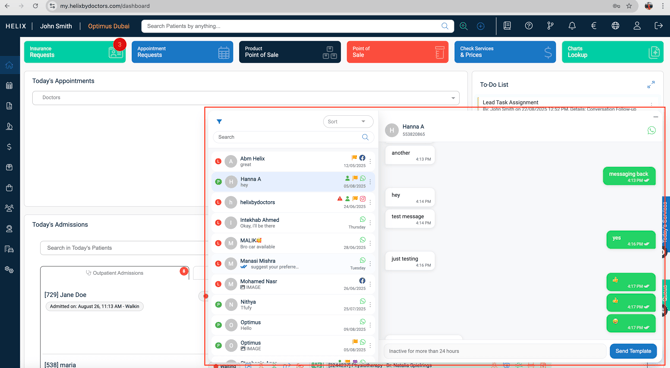
Left panel = conversation list; main panel = active thread; top/right areas = filters & actions.
Here's how you can access the inbox in Helix(bottom right icon):
Here's how the Inbox looks once you click on the icon:
How to Use
A) Read & Reply
-
Select a conversation → the history opens.
-
Type a free-text reply or choose a saved template (if enabled).
-
Chat like normal: with text, emoji, attach image/video/document, record voice notes.
-
Click Send → the reply is logged in the thread and in the contact record.
- Opening the chat and clicking on the name icon:
- Patient → opens Patient Profile.
- Lead → opens Lead form.
Messaging rule:
If the contact messaged first and it’s within 24h of the last interaction, you can reply freely.
After 24h of inactivity, the thread is inactive (read-only). To re-engage, you must send a Meta-approved WhatsApp template (see “Start/Resume a WhatsApp Conversation” below).
B) Conversation Actions (create tasks & show icons)
- Escalate
- Assign
- Follow up
- Flag
- Delete
1) Escalate (creates a Task)
-
Click Escalate → Task pop-up opens with defaults:
-
Task Title auto-fills as “conversation decoration” (editable).
-
Priority auto-set to crucial (changeable).
-
Assign To: choose one user (cross-branch allowed; no multi-select).
-
Due Date: pick a date.
-
Comments: add details.
-
-
Click Create.
-
Result: a warning icon appears on the conversation. Click it to view task details (you can add/delete the task, change status/priority). Deleting the task removes the icon.
2) Assign (creates a Task)
-
Click Assign → same Task window as Escalate.
-
Fill Task Name, Priority, Assignee (single), Due Date, Comments → Create.
-
Result: a green person icon appears. Click to view/edit; deleting the task removes the icon.
3) Follow Up (creates a Task)
-
Click Follow Up → Task window opens with:
-
Task Name auto-captures the conversation.
-
Assignee defaults to you (changeable).
-
Set Priority, Due Date, Comments → Create.
-
-
Result: a purple calendar-like icon appears. Click to view/edit; deleting the task removes the icon.
4) Flag
-
Click Flag → confirm Yes.
-
Result: an orange flag displays on the conversation.
5) Delete
-
Click Delete to remove the conversation from the Inbox.
C) Lead-Only Row Actions (when the conversation belongs to a Lead)
-
Create Patient – opens Patient Registration; fill and create a patient.
-
Link to Existing Patient – opens search; find and select a patient to link the conversation.
D) Filters (top area)
Use filters to narrow results by:
-
Conversation Date (From/To)
-
Channels: WhatsApp / Facebook / Instagram
-
Flagged (urgent)
-
Contact Status: patients / leads
-
Assigned Status
-
Read / Unread
-
Responded / Pending
-
Escalated
-
Due for follow-up
You can combine multiple filters and also use search.
Start/Resume a WhatsApp Conversation (Templates & the 24h Window)
Rule of thumb:
Within 24h of the last inbound/outbound message → reply freely.
After 24h (inactive) or to initiate a new chat → you must send a WhatsApp template (created in Helix and approved by Meta).
Case 1: Conversation exists in Inbox but is inactive (>24h)
-
In CRM → Inbox, open the inactive conversation.
-
Click the blue “Send Template” button (bottom-right).
-
Pick your onboarded number → select a pre-approved template → Send.
-
The patient must reply to fully re-open the conversation.
-
The template text itself does not appear in the chat history; you’ll see a “message sent” notification.
Case 2: Conversation does not exist in Inbox
-
Use search to find the patient or open the patient’s file.
-
On the left side, click Send WhatsApp.
-
Pick your onboarded number → choose a pre-approved template → Send.
-
The patient must reply to activate the conversation.
-
The template does not appear in the thread; you’ll see a “message sent” notification.
Lead Auto-Creation from WhatsApp (Good to Know)
-
Trigger: A new contact messages the clinic via WhatsApp.
-
Result: A Lead is automatically created in CRM → Leads.
-
Placement: Appears on the Kanban board in the first column: “New.”
-
Next: Manage details, stages, and tasks in the Leads & Tasks KB.
Inbox Hygiene
-
Use Flag for urgent threads.
-
Use Filters to focus (e.g., Due for follow-up or Escalated).
-
Delete only when a conversation truly isn’t needed; otherwise Resolve to keep the audit trail clean.
Icon Reference (at a glance)
-
⚠️ Warning – Escalated Task present
-
🧑 Green person – Assigned Task present
-
📅 Purple calendar – Follow-Up Task present
-
🚩 Orange flag – Flagged conversation
✅ Pro Tips
-
Escalate vs Assign: Escalate for priority handling; Assign for ownership.
-
Use Follow Up for your own reminders (it auto-assigns to you).
-
Keep threads flagged sparingly — use it only for true urgencies.
-
If 24h passed, Send Template first; wait for the patient reply to chat normally.
-
New WhatsApp sender? Look for their Lead auto-created in Leads → “New”.
-
Convert fast: Create Patient or Link to Patient from the lead conversation row.
-
Combine filters (e.g., Channel = WhatsApp + Due for follow-up) for targeted worklists.
-
Clear your icons by closing tasks — it keeps Inbox tidy and ownership obvious.