
Overview
Helix Signa connects your iPad & Tablet to your clinic’s Helix account, enabling real-time communication between both systems.
Once set up, consents initiated from Helix (web) can be sent directly to the tablet for patient review, signing, and submission.
All signed forms are automatically stored in the patient’s Consents section inside Helix.
1. Download and Set Up the Helix Signa App
-
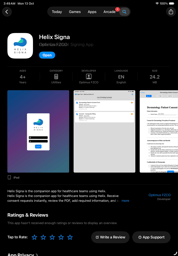
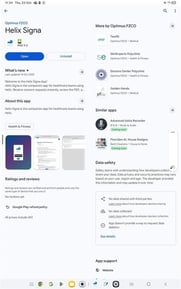
On your iPad, open the Apple App Store, or on your Android Tablet, open the Google play store.
-
Search for “Helix Signa” (Developer: Optimus FZCO).
-
Tap Download and then Open once installation is complete.
-
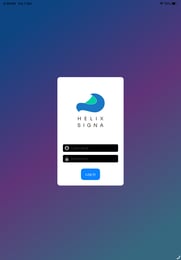
The login screen appears.
-
Enter your Helix Username and Password (same as your web credentials).
-
Tap Log In.
-
2. Enroll the Device
After your first login, the system prompts:
“Link this iPad/Tablet to your Helix account. You can revoke it later.”
-
Tap Enroll to link the device.
-
Once enrolled, the iPad/Tablet is connected to your clinic’s Helix account.
-
You’ll see a List of Pending Consents screen.
-
Any consent forms sent from Helix will appear here automatically.
-
-
The 🔒 icon (top-right) allows you to log out of the device at any time.

3. Sending a Consent Form from Helix Web
-
On your desktop or laptop, open Helix Web App.
-
From the Home Screen → Today’s Admissions, locate the patient.
-
Click the Sign Consent icon beside the admission.
-
You’ll be prompted:
“Do you want to sign the consent form using a tablet?”
-
Yes → to sign on the iPad/Tablet (Helix Signa App).
-
Sign Here → to sign directly on your computer screen.
-
-
Choose Yes to proceed via iPad/tablet.
-
Next window:
-
Select Consent Form from the dropdown.
-
Select Device (choose the iPad/Tablet you enrolled earlier).
-
Click Confirm.
-
Within a few seconds, the consent form will appear on the Helix Signa iPad/Tablet app.
4. Signing the Consent Form on the iPad/Tablet
Once the form appears on the iPad/Tablet:
Top Toolbar Functions
-
👁 View – Scroll through and read the consent form.
-
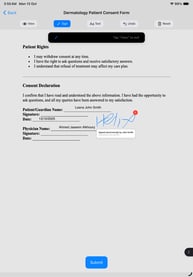
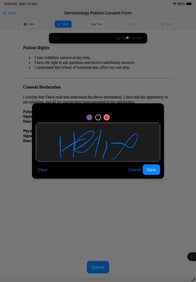
✍️ Sign – Tap Sign, then tap on the black box to open the signature pad.
-
Sign using your finger or stylus.
-
You can change colors, clear, and re-sign if needed.
-
Tap Save to apply the signature.
-
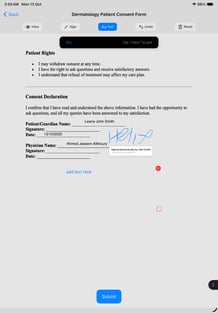
Drag and place the signature anywhere on the form.
-
-
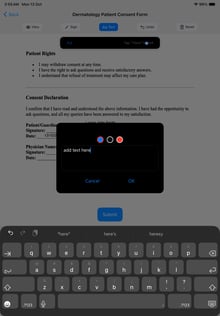
🅰️ Text – Tap Text to open a typing box.
-
Type any additional notes or details needed.
-
Adjust font color, position, and save.
-
-
↩️ Undo – Undo the last action.
-
♻️ Reset – Remove all added signatures/text to start fresh.
Bottom Toolbar
-
Submit – Tap to finalize and upload the signed consent to Helix.
5. Submitting and Saving the Consent
-
After the patient signs and you review the form, tap Submit.
-
Wait a few seconds — the system automatically uploads the signed consent.
-
The consent disappears from the “Pending Consents” list, confirming it has been sent back to Helix.
6. Viewing the Signed Consent in Helix
-
Go back to your Helix Web App.
-
Refresh the page (wait a few seconds if just submitted).
-
Open the Patient File → Consents tab.
-
You will now see the signed PDF stored under the patient’s record.
-
You can view, download, or print the signed document.
-
-
The signed consent is also accessible from the Screening and Doctor’s Chart pages.
Pro Tips
💡 Pro Tips
-
Always keep the iPad/ tablet logged in to receive consent forms instantly.
-
If the form doesn’t appear, check Wi-Fi connectivity and ensure the device is enrolled.
-
For multi-branch clinics, ensure the iPad is linked to the correct branch before sending.
-
Tap Reset before a new patient signs to clear any old data.
-
Signed consents are auto-time-stamped and stored permanently in the patient’s file.