
🧾 Overview
The To-Do List widget provides a centralized view of all your assigned tasks in Helix. Whether you’re approving a purchase order, reviewing a lab report, or completing patient-related follow-ups, this panel ensures that all pending actions are clearly visible and easily manageable. Users can open tasks, leave updates, notify task creators, and mark tasks as complete—all from one interface.
📍Where to Find It
-
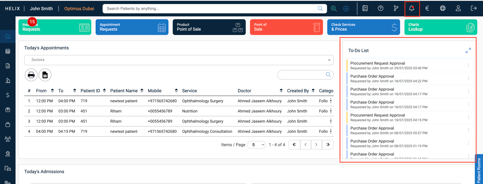
You’ll see the To-Do List widget on your home screen beside Today’s Appointments.
-
If a task has been assigned to you, it will automatically populate here.
-
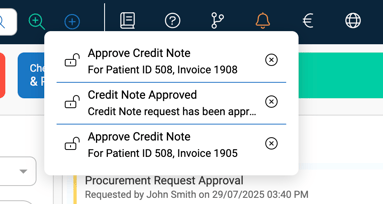
You'll also get a bell icon notification at the top bar when a new task is created.
📋 What’s Displayed on Each Task Card
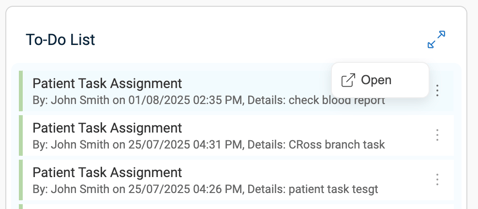
| Field | Description |
|---|---|
| Module Tag | A colored label (e.g., CRM, Inventory, Patient) indicating task origin |
| Title | A short description of the task |
| Added By | Who assigned the task |
| Date & Time | When the task was created |
| Details | A short instruction or note |
| ⋮ Menu | Open or Delete task actions |
🧭 Types of Tasks You Might Receive
-
Patient-related tasks (e.g., check labs, review vitals)
-
Purchase order approvals
-
Procurement requests
-
Leave request approvals
-
Document/report reviews
⚡ Task Actions (Inside the Task Window)
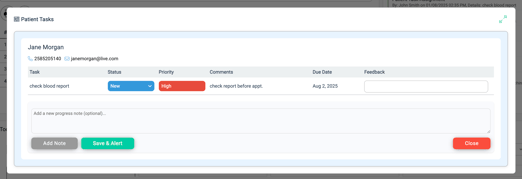
When you click Open, you can:
| Section | What You Can Do |
|---|---|
| Header | View the patient or requestor’s name, contact details, and task status |
| Priority & Due Date | Check urgency and deadline |
| Comments / Notes | Add internal notes with timestamps using Add Note |
| Save & Alert | Notify the person who assigned the task with your update |
| Mark as Done | Close the task and remove it from the list |
🔔 Notifications
-
Clicking Save & Alert sends a bell alert to the person who created the task.
-
They can then:
-
View your comments
-
Mark the task complete
-
Reassign or follow up as needed
-
🗑️ How to Delete a Task
-
Click the ⋮ three-dot menu next to a task.
-
Select Delete
-
Confirm to remove it from your list.
⚠️ Only delete if the task is no longer relevant.
✅ Pro Tips
-
Always update your task status (New, In-Progress, Stuck, Completed).
-
Use Add Note to timestamp important updates.
-
Close tasks once done—this keeps your task panel tidy and avoids confusion.
-
Check the bell icon regularly for new tasks or follow-ups.