
Overview
This feature is designed to help medical and administrative staff keep track of all admitted patients for the day, across different categories. It enables quick actions such as accessing patient files, discharging patients, or reviewing admission status.
🔍 Accessing the Admissions Panel
From the Home Screen, scroll to locate the Today's Admissions section. This panel displays cards representing individual patient admissions.
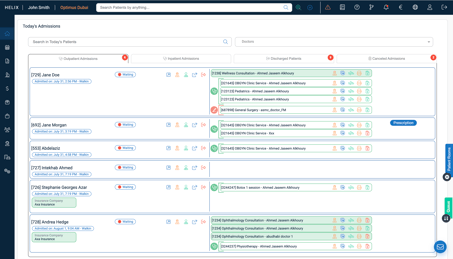
📋 Tabs in Today’s Admissions
-
Outpatient Admissions – Displays today's walk-in patients.
-
Inpatient Admissions – Lists patients admitted for longer care, often with room assignments.
-
Discharged Patients – Shows patients who were discharged today.
-
Canceled Admissions – Lists patients whose admission was cancelled.

📇 What You See on Each Admission Card
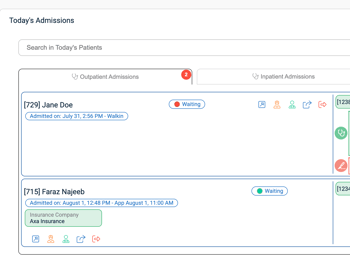
Each patient admission card displays the following:
-
Patient ID and Full Name
-
Admission Type (e.g., Walk-in)
-
Admission Time
-
Insurance Company & Contracts (if applicable)
-
Status (e.g., Waiting, In Service)
-
Scheduled Services with Service ID and Assigned Provider.
🛠️ Top Row Icons on Each Card (Quick Actions)
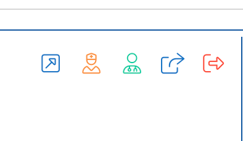
Left Side of the Admission Card:
-
Open Patient File – Access the patient's file directly.
-
Change to Nurse/Screening Stage – Move patient to screening.
-
Change to Doctor Stage – Assign patient to doctor's queue.
-
Update Status/Stage – Update patient’s current stage or status.
-
Discharge Patient – Initiate discharge.
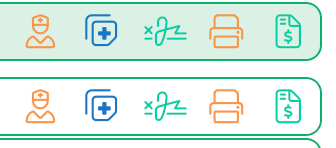
Right Side of the Admission Card:
-
Start Screening Stage – Begin nurse procedures.
-
Open Medical Record – Enter documentation screen for the doctor.
-
Sign Consent Forms – Access and sign digital consents.
-
Print Label – Generate and print patient ID labels.
-
Invoice Icon – Shows red if unbilled, green if billed.
🔄 Filter & Search Options
At the top of the panel:
-
Search Bar – Filter patients by name, ID, admission type, or insurance.
-
Doctor Dropdown – Filter by assigned provider.
-
Tabs – Quickly toggle between Outpatient, Inpatient, Discharged, or Cancelled.
🔢 Pagination & Page Size
-
Shows 5 items per page by default.
-
Use navigation arrows to move between pages.
-
Adjust the number of rows per page using the Page Size selector.
✅ Pro Tips
-
Use filters to quickly locate patients by type or status.
-
Hover over icons for tooltips describing their function.
-
Always check the Discharged and Canceled tabs for accurate daily logs.
-
Look out for red invoice icons to catch unbilled records.