
Audience: Doctors
Purpose: Enable doctors to efficiently document consultations using Verto's voice-to-text functionality.
Overview
Verto allows medical professionals to dictate their notes during a consultation. This voice input is transcribed and inserted directly into the relevant sections of the patient’s medical chart.
Steps to Use Verto Dictation
-
Login as a Doctor
-
Open a Patient Record
-
Choose an admitted patient and click “Open Medical Record” next to their service.
-
-
Access the Medical Chart
-
A new chart window will open, specific to the doctor’s specialty.
-
Ensure you can see the Verto icon inside the chart.

-
-
Start Voice Dictation
-
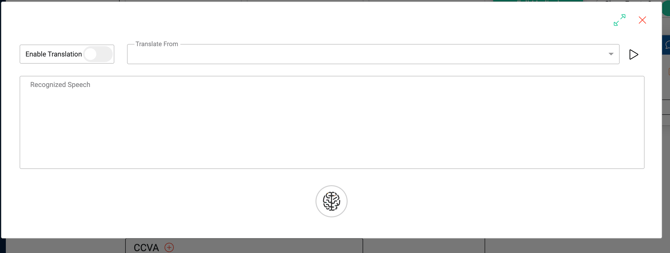
Click the Verto icon.
-
In the floating window, click the Play button (top right).
-
Begin speaking — Verto will capture everything you say in real-time.
-
-
Review and Edit the Transcription
-
Click the Stop button (middle bottom) when finished.
-
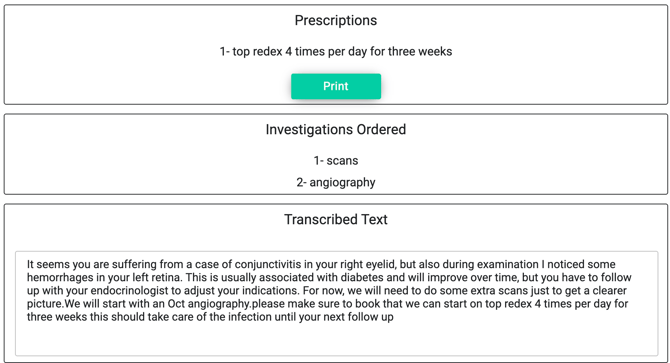
Check your chart: all spoken content should be automatically inserted into the correct locations.
-
You can also see the editable transcription text box where you may:
-
Manually correct errors
-
Add or delete details
-
-
-
Complete the Process
-
Optionally, print prescriptions and investigations.
-
Click Save at the bottom of the chart.
-