
🧭 Overview
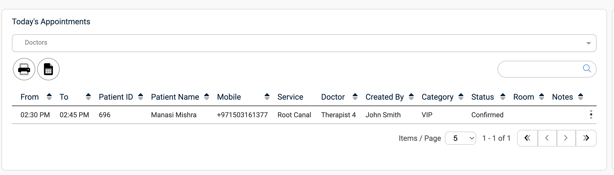
This panel displays a chronological list of all appointments booked for the current day. It helps users keep track of scheduled visits, patient information, and appointment details—all in one view.
📋 Data Displayed in the Appointment Table
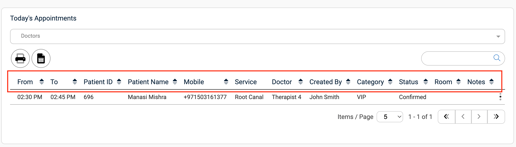
Each appointment entry includes the following columns:
-
From & To Time – Start and end time of the appointment
-
Patient ID – Unique system ID assigned to the patient
-
Patient Name – Full name of the scheduled patient
-
Mobile – Contact number of the patient
-
Service – Type of consultation or procedure
-
Doctor – The assigned provider for the appointment
-
Created By – The user who booked the appointment
-
Category – Tags like “Normal,” “VIP,” or “Tourist” for patient segmentation
-
Status – The confirmation status (e.g., Confirmed)
-
Room – Assigned consultation room (if applicable)
-
Notes – Any custom notes added during booking
⚙️ Action Buttons
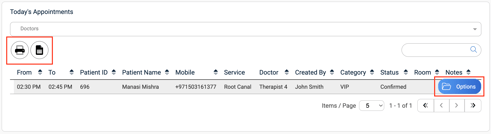
Located above and within the appointment table:
-
Print Icon – Prints a physical copy of the day’s appointment list
-
Export Icon – Downloads the list as an Excel file for offline use
-
Options (⋮) – Appears when you hover over a row; selecting this will open the patient’s full file directly for quick access
🔄 Filter & Search Options
-
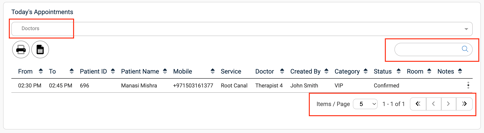
Doctor Dropdown – Filter appointments by a specific doctor
-
Search Bar – Search by patient name, ID, or contact info
-
Pagination & Page Size
-
By default, 5 appointments are displayed per page
-
Use the pagination arrows to move between pages (first, previous, next, last)
-
Increase the number of rows displayed using the page-size selector when more data is available
-
✅ Pro Tips
-
Use the doctor filter to declutter the view for specialists
-
Click the patient file option (⋮) for instant access to full medical and billing records
-
Always verify appointment Status (e.g., Confirmed) before preparing the consultation room or notifying the doctor
-
Export the Excel sheet to manage manual queues or share offline with clinical staff
-