
Overview:
The Inventory module in Helix is designed to help clinics manage and monitor all stock items used across departments. From medicines and medical supplies to general consumables like stationery, this module tracks procurement, addition, stock adjustment, usage, transfers/movements, returning items and reporting — all in one place.
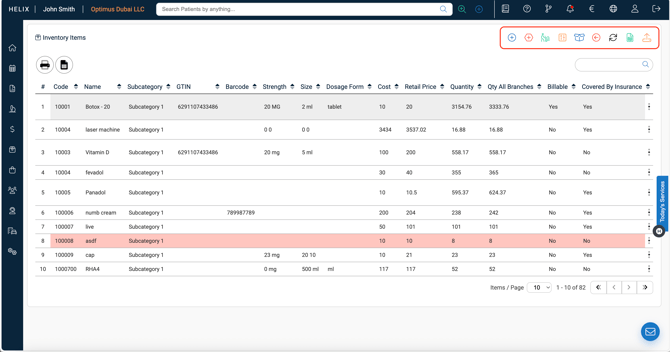
📦 Inventory Functionalities
Accessible via: Main Menu → Inventory
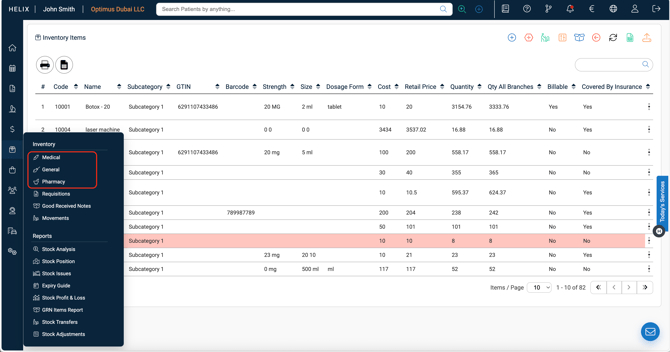
1. Medical / Pharmacy / General
-
Add items needed by each department.
-
Items must be added before issuing/consuming.
-
Bulk upload supported using the item list template.
- Medical - anything used by medical practitioners to do a service/procedure
- Pharmacy - any item sold over the counter (tablets, medicines, creams, etc)
- General - any item used within the clinics operations (eg: paper, staplers, pens, etc)
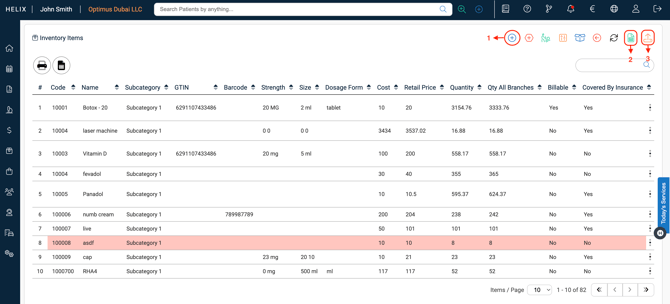
1. Manual item addition
2. Return Items
-
Used to return expired or excess stock.
-
Creates a vendor credit for the returned item (tracked under Purchasing).

3. Stock Adjustments
-
Make quantity changes to existing items (e.g., corrections).

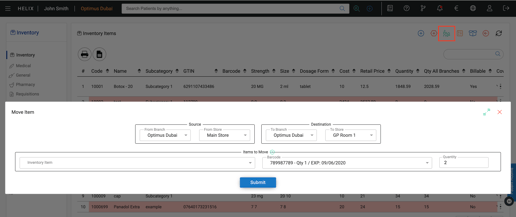
4. Move Items
-
Move stock between branches or rooms within the clinic.
-
Requires room setup in Control Panel > Structure > Rooms.
5. Opening Stock
-
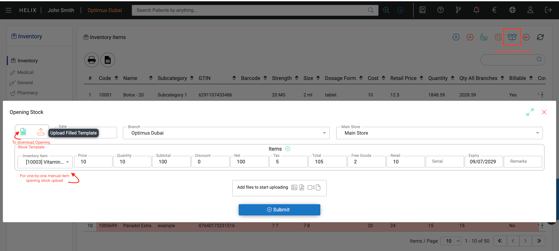
This represents the current stock of each item available at the clinic before you start using the inventory module.
-
Bulk upload of current item quantity available in the clinic - Use Opening stock template.
- After downloading the Excel template, do not modify, add, or remove any rows or columns—simply fill in the necessary information as required.
- Ensure all data entered is unique and contains no duplicate entries.
- Use the exact item codes that were assigned during the initial item list bulk upload.
- Do not use decimals or commas. Quantity column should be labeled "0" if there is no value to fill in.
- Expiry Date format: YYYY-MM-DD
6. Requisition
-
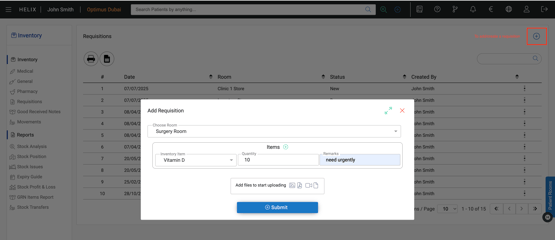
Raise a request for new stock. You can add the room, item and quantity.
-
Moves to Purchasing → Purchase Requisition for approval and PO generation.
7. Good Received Notes (GRN)
-
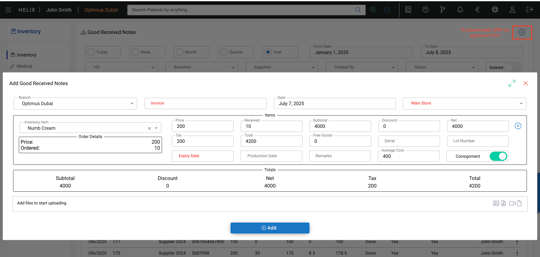
After PO approval and item delivery, use GRN to mark goods received.
-
Triggers accounting for expense and supplier payment.
- You can use this to record all the goods received or partial goods received by selecting the PO.
- You can also create purchase invoices of the GRN issued and get a report of all the GRN issued so far and their status.
8. Movements
-
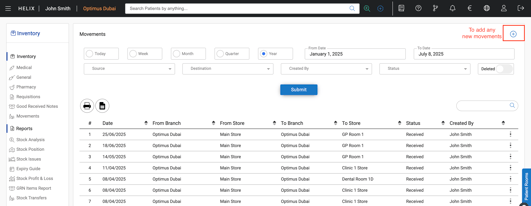
Log of all item transfers or movements (e.g., between rooms/branches).
📊 Inventory Reports
Accessible via: Main Menu → Inventory → Reports
| Report | Purpose |
|---|---|
| Stock Analysis | Complete breakdown of issued stock, GRN, returns, etc. |
| Stock Position | Shows total stock by branch, room, and location. |
| Stock Issues | Tracks stock consumed by patient, service, or category. |
| Expiry Guide | Lists items nearing expiry. |
| GRN Items Report | Closed GRNs per item/patient. |
| Stock Transfer | Log of transfers within/between branches and stores. |
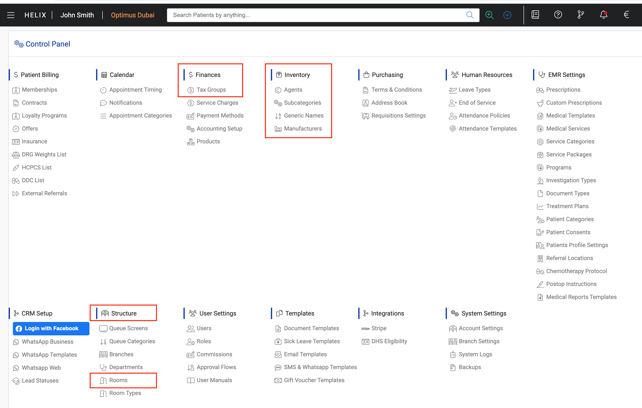
⚙️ Control Panel Setup for Inventory
Before using the Inventory module, the following configurations must be done from the Control Panel:
| Section | Field | Purpose |
|---|---|---|
| Inventory | Agents | Add supplier POC information for ordering. |
| Category | Classify items as Medical, Pharmacy, or General. | |
| Subcategories | Further group items (e.g., Painkillers under Pharmacy). | |
| Generic Names | Define the generic term for medicines (e.g., Paracetamol). | |
| Manufacturers | Optional — to track who manufactures the items (e.g., Abbott). | |
| Finance | Tax Group | Define if an item is taxable and assign accordingly. |
| Structure | Rooms | Create rooms/stores where inventory will be stored. |
| Finance (Chart of Accounts) | Inventory Accounts | Assign accounts for: unbilled, COGS, consignment, and transfers. |
✅ Pro Tips
-
Complete Control Panel Setup First: Before using the Inventory module, configure the necessary settings in the Control Panel — especially Categories, Subcategories, Generic Names, Manufacturers, Tax Groups, Accounting Setup, and Rooms. This ensures accurate item classification and correct ledger mapping.
-
Use Bulk Uploads for Faster Setup: Save time by using the Item List and Opening Stock templates for bulk uploading items and current stock quantities. This is especially useful during the initial onboarding phase.
-
Standardize Item Categorization: Use the Medical, Pharmacy, and General categories consistently. It ensures clean reporting and avoids confusion in stock tracking across branches.
-
Track Expiry & Returns Regularly: Use the Expiry Guide and Return Items sections to routinely manage expired stock and initiate returns. This helps maintain compliance and accurate valuation.
-
Create & Use GRNs Efficiently: Ensure a GRN (Goods Received Note) is created as soon as items are received against a PO. This step is essential for accounting to recognize the expense and for the item to appear in stock.
-
Utilize the Stock Movement Report: Keep an eye on the Movements section to track where and when items are moved between rooms or branches. Helps with audits and real-time inventory validation.
-
Monitor with Reports: Use Stock Analysis, Stock Position, and Stock Issues reports to stay on top of usage patterns, low stock alerts, and consumption trends by department, service, or patient.