
🧭 Overview
Each doctor’s column in the Appointment Calendar includes a Wait List button. Clicking it reveals patients queued for that provider. This is especially useful for clinics that accept walk-ins or have fluctuating schedules. Entries can be edited, promoted to appointments, or deleted as needed.
📝 Navigation
1. Open a Doctor’s Waitlist
-
In the Appointments Calendar, locate the doctor’s column.
-
Click the Wait List button under Doctor's name.
-
A highlighted red badge signals new entries.
- The waitlist panel opens, showing current entries.
2. Understand the Waitlist View
Each row includes key information:
| Date | Date the patient is waiting for |
| From / To | Assigned time slot |
| Patient ID | Medical record or serial number |
| Patient Name | Full name of the patient |
| Mobile | Contact number |
| Service | Requested service or procedure |
| Doctor | Provider the patient is waiting to see |
| Status | Current status (e.g., Unconfirmed, No Answer) |
| Notes | Any remarks added when the patient was placed on the list |
| Created By | User who added the patient |
| Created At | Date and time of creation |
3. Take Action on Waitlist Entries
Click the ⋮ (three-dot menu) on the far right to:
-
Open Patient File: Launches the patient file for quick access or completion of details.
-
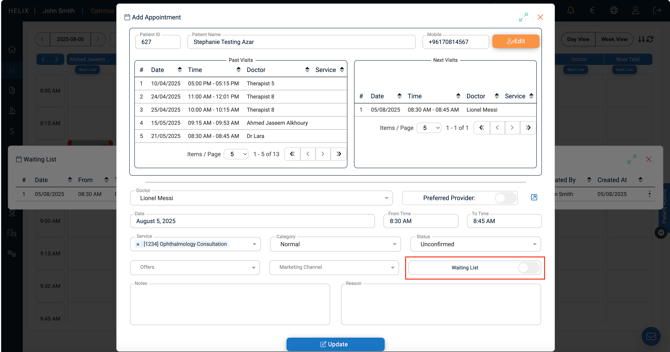
Edit Appointment: Opens the booking form. Toggle off the Wait-List switch to convert into a booked appointment. Click Update to confirm.
-
Delete: Removes the patient from the waitlist.
4. Promote from Waitlist to Calendar
-
When a time slot becomes available:
-
Click Edit Appointment.
-
Toggle Waiting List Off.
-
Click Update.
-
The appointment now appears on the calendar.
-
5. Persistent vs Non-persistent list
-
Navigate to Control Panel → Branch Settings → Appointments & Scheduling
-
Toggle Persistence ON if you want entries to carry over across days
-
Leave OFF if you want to display only today's list
❗Common Errors & Fixes
| Issue | Cause | Resolution |
| Patient not showing on calendar | Wait List toggle not turned OFF | Edit entry and switch OFF Wait List before updating |
| Red badge doesn’t reset next day | Persistence is enabled | Go to Waitlist Settings and disable persistence |
| Wrong patient edited | Similar names or old entries | Always verify using mobile number or patient ID in list |
| Cannot open patient file | Missing data or access rights | Ensure user role has permission to open patient files |
✅ Pro Tips
-
Use the Wait List as a flexible buffer for walk-ins or patients requesting earlier slots.
-
The red badge is your visual cue — don’t leave it ignored!
-
Add detailed Notes when adding patients to the waitlist (reason, urgency, preference).
-
Set Persistent Waitlist ON for specialty clinics or recurring queues; OFF for single-day queues.
-
Convert waitlist entries to real appointments only when time becomes available to avoid double-booking.