
Audience: All users
Purpose: Provide users with a detailed understanding of how to navigate the Helix platform, including layout, modules, and action elements.
Home Screen Overview
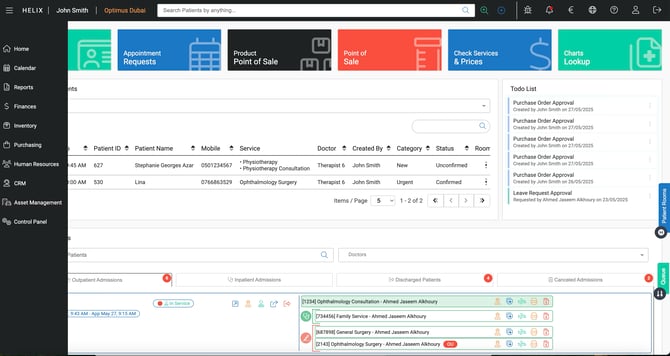
Upon successful login, the Helix home screen is displayed. It consists of three primary components:
-
Top Navigation Bar:
Located across the top of the interface, this includes:-
User Profile menu
-
Notifications
-
Global Search bar
-
Quick Add Patient button
-
Bug Report & Feature Request tools
-
Release Notes access
-
Exchange Rate display
-
Language selector
-
Logout button
-
-
Left-Side Menu:
This is your primary navigation tool and displays the modules you have access to, based on your assigned role permissions. Each role sees a different set of modules. -
Main Content Area:
Displays content relevant to your role. By default, this area shows:-
Today's appointments
-
Today's admissions
-
To-do lists and assigned tasks
-
Module Access via the Left Menu
The left-side menu grants access to all available modules within Helix. These typically include:
-
Calendar
-
Manage bookings
-
Access to various system reports and analytics
-
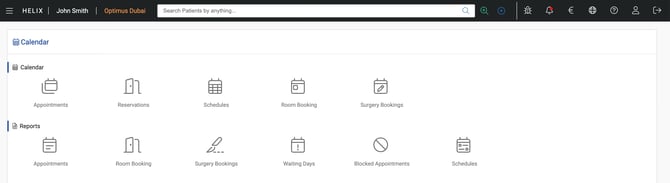
Reports
- Access system reports and analytics
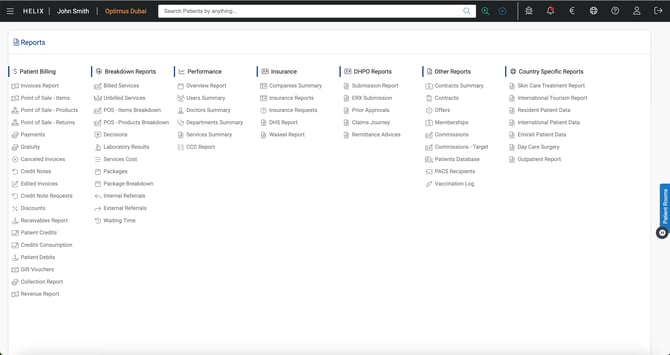
-
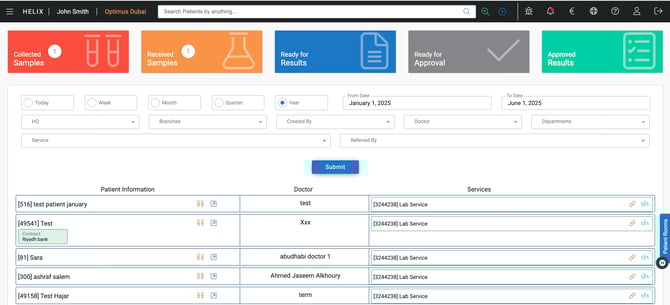
Laboratory
- Patient registration, search and lab management
-
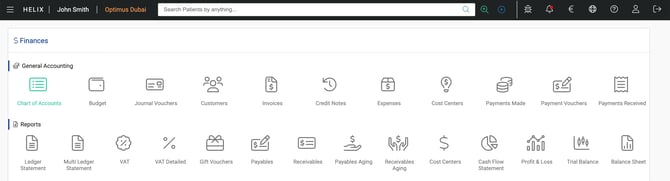
Finances
- Access chart of accounts, expenses, finacial reports etc.
-
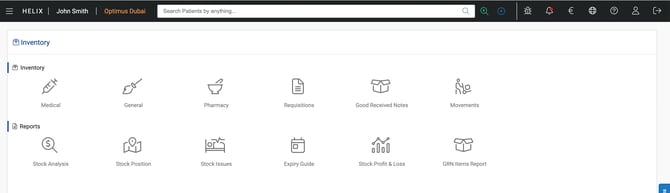
Inventory
- Stock managment and consumption
- Stock related reports
-
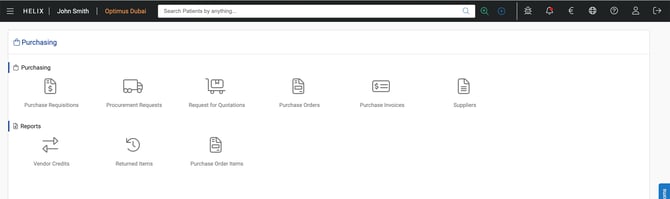
Purchasing
- Manage suppliers, items, requesition request, purchase orders, GRNs etc.
- Supplier related reports
-
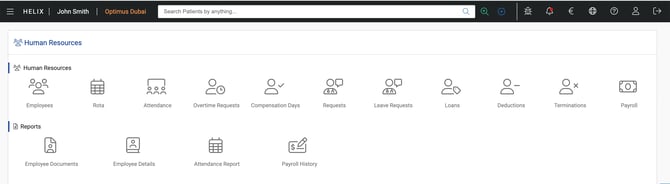
Human Resources
- Staff management, attendance, payroll
- Employee related reports
-
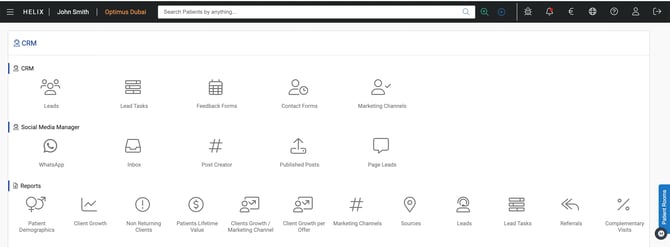
CRM
- Lead management, marketing and payient communications
- Client demographics and marketing reports
-
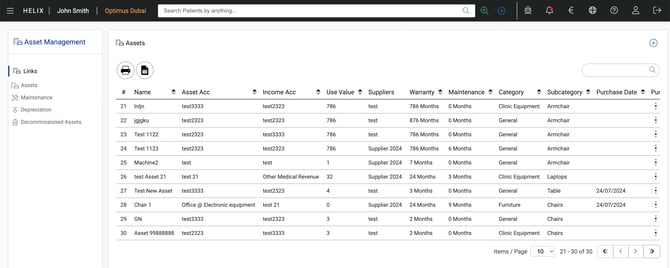
Asset Management
- Asset management, maintenance scheduling and asset decomissioning
-
Control Panel (admin-only)
- System configuration and management
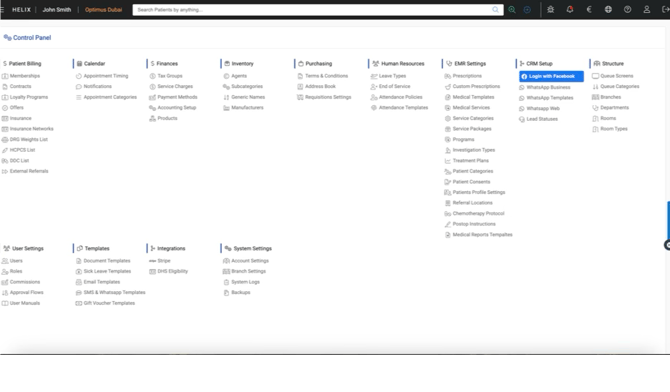 Only modules you are permitted to access will be shown.
Tabs, Action Buttons, and Context Menus
Each module typically has multiple views (tabs), such as “List,” “Report,” “Approval,” etc. Within these, you’ll find:
-
Action Buttons: Located in the top-left of tables or lists (e.g. Add, Edit, Delete, Post, Export to Excel, Print to PDF)
-
Search Bar: Found in the top-right corner of each table, allowing for in-page filtering
-
Context Menu (⋮): Located to the left of each item row. This menu provides record-specific actions such as Edit, View, or Archive
Pagination Controls
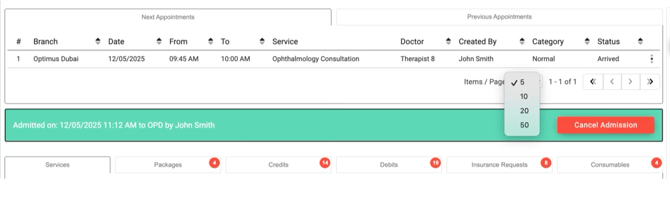
For longer lists, pagination is found at the bottom-right of the table. Use it to navigate between result pages.
Notes and Best Practices
-
Role-Based Access: You will only see modules and functions you are permitted to access. If something is missing, speak to your system administrator.
-
Multi-Tab Friendly: Helix supports multiple browser tabs. You can work across different modules or patients simultaneously.
-
Use Search + Filters: The search bars within tables are optimised for speed. Use filters where available for large data sets.
-
Use Report Bug / Feature Request: Located in the top bar, this allows you to submit issues or suggestions directly to support.