
🌐 Overview
-
Consent Templates are uploaded and configured in the Control Panel.
-
Templates use placeholders to automatically pull patient and provider details (name, ID, signature, etc.) into the form.
-
During admission, staff can initiate consent signing and select whether to sign on a connected tablet or the PC.
-
All signed consents are stored under the patient file and visible to doctors and nurses throughout the system.
🧭 Navigation
-
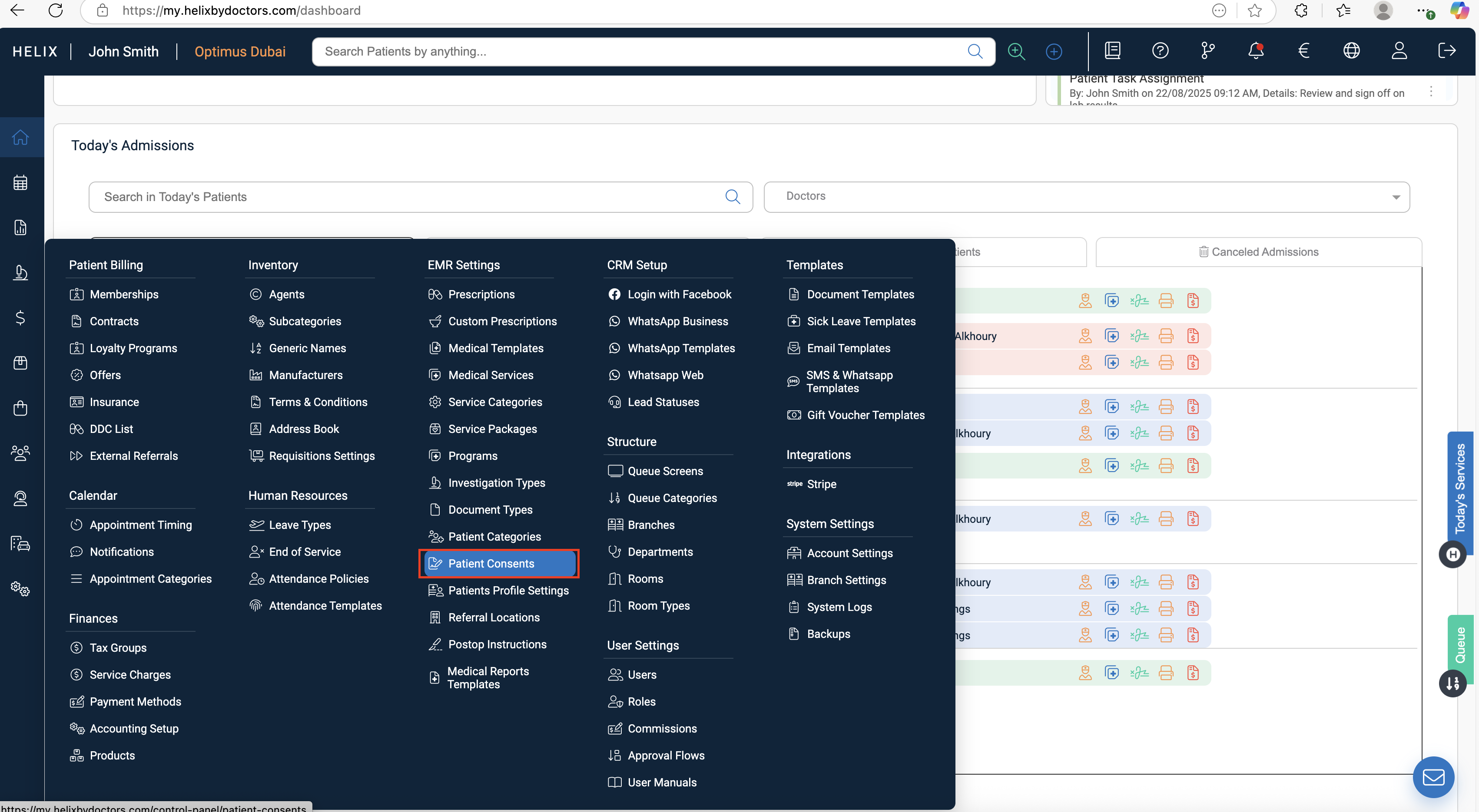
Consent Templates: Control Panel → EMR Settings → Patient Consents
-
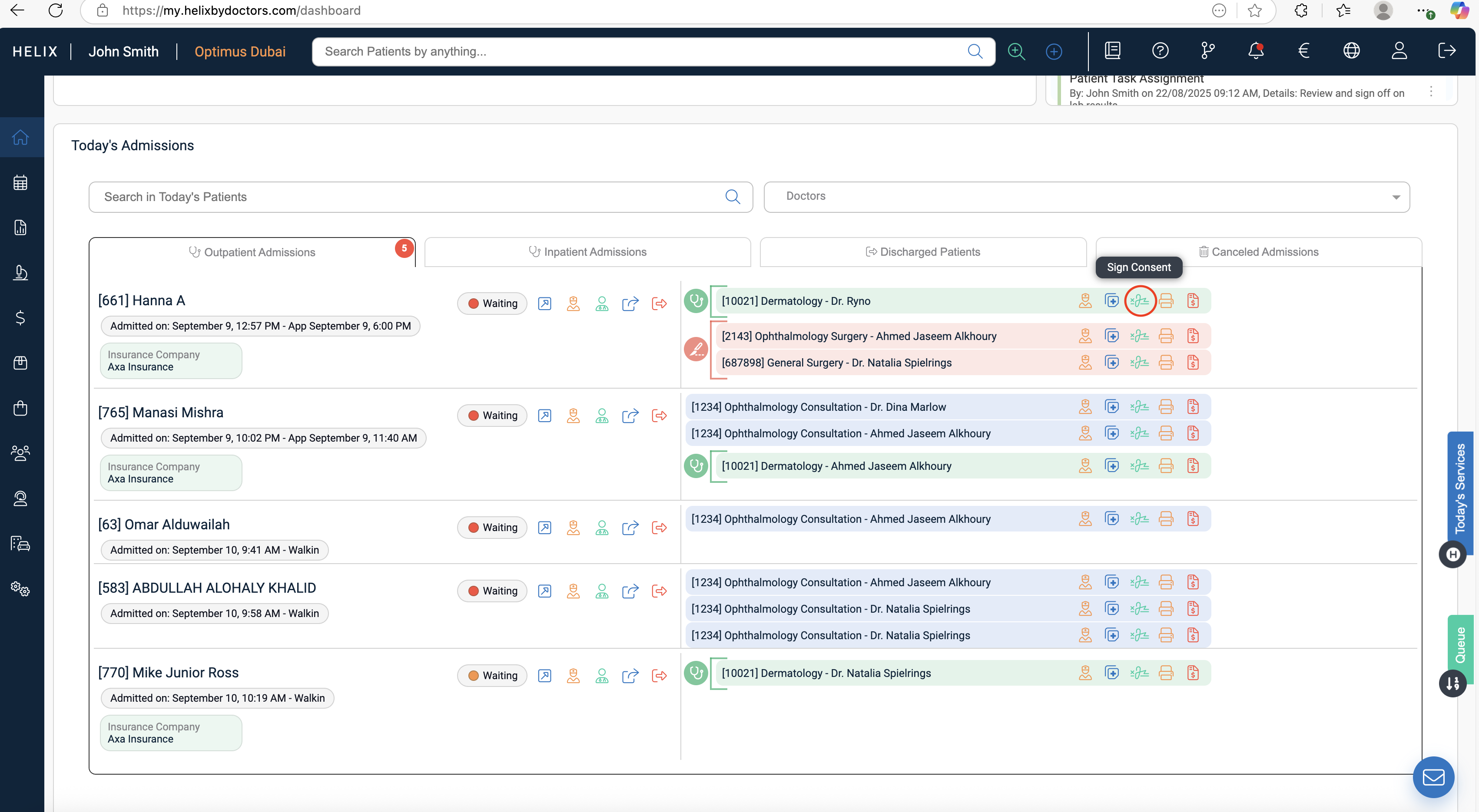
Sign Consent: Home → Today’s Admissions → Sign Consent
⚙️ How to Configure Consent Templates
-
Go to Control Panel → EMR Settings → Patient Consent.
-
Click + Add (top-right).
-
Fill in details:
-
Title – name of the consent (e.g., Surgery Consent, Data Privacy).
-
Branches – select branch(es), or enable All Branches.
-
-
Upload the consent as a PDF.
-
Preview opens automatically.
-
Use green arrows (top-left) to move between pages for multi-page files.
-
-
Insert Placeholders:
-
From the dropdown, select a placeholder (e.g., Patient Name, ID, Nationality, Provider Stamp/Signature).
-
Click on the PDF to place it where needed.
-
-
Create custom placeholders if required:
-
Type the placeholder name in the dropdown.
-
Click Add item → place it on the PDF.
-
-
Once all placeholders are placed, click Submit.
-
Important: Log out and back in for the new template to apply.
🔑 What Are Placeholders?
-
Placeholders are dynamic fields that automatically pull information from Helix into the form.
-
Examples:
-
Patient Name, Patient ID, Nationality, Doctor's name
-
Doctor Signature (if uploaded in the provider’s profile)
-
-
For custom placeholders, users must enter values manually during the signing process.
🖊️ How to Sign a Consent Form
1. Confirm Admission
-
Go to Home.
-
In Today’s Admissions, locate the patient.
2. Start Consent Process
-
Click Sign Consent.
-
System asks: “Do you want to sign the consent form using a tablet?”
Option A — Sign on Tablet (e.g., iPad):
-
Choose Yes.
-
Select the consent form from the list.
-
Select the device (iPad connected to Helix).
-
Consent opens on the iPad → patient signs.
-
Tap Submit → signed consent is saved.
Option B — Sign on PC:
-
Choose Sign here.
-
Select the consent form.
-
Consent opens on your PC screen.
-
Patient signs directly on the PC.
-
Click Submit → signed consent is saved.
3. Where Consents Are Stored
-
Saved in Patient File → Consents (middle ribbon).
-
Also visible in:
-
Screening page.
-
Doctor’s page.
-
-
Doctors can re-sign a consent if required.
📊 Management & Best Practices
-
Always upload consents as clean PDFs for clear placement of placeholders.
-
Ensure provider stamps/signatures are uploaded in their profile for automatic population.
-
Use custom placeholders only when necessary (requires manual input during signing).
-
Train staff on both tablet and PC signing options for patient flexibility.
💡 Pro Tips
-
📝 Keep consent templates branch-specific if forms vary by location.
-
📎 Always log out/in after new template creation to refresh changes.
-
📱 Use a tablet for smoother signing in front of patients.
-
✅ Double-check placeholder placements to avoid blank fields.
-
🔍 Review signed consents under the Patient File before finalizing admission.