
🧭 Overview
-
The Appointments section (Next & Previous tabs) lets reception and clinical staff review, edit, and import upcoming or past bookings, with live search, pagination, and quick row actions.
-
The Services & Billing panel activates once the patient is admitted, enabling staff to add services, issue packages, bill consumables, track insurance requests, and manage credits, debits, and memberships — all with real-time status tags and role-based controls.
Together, these sections form the core operational hub inside the Patient File, covering scheduling, clinical service capture, financial tracking, and insurance handling in one place.
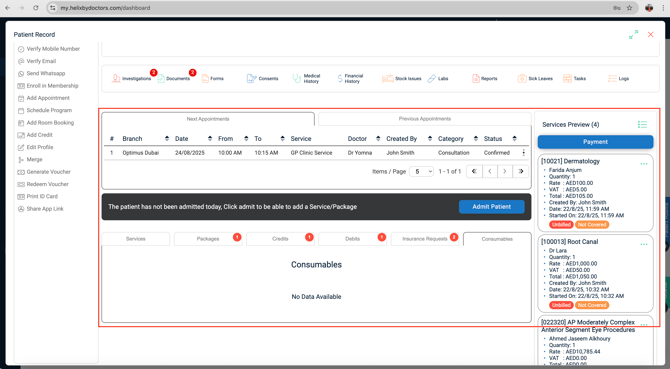
📝 Appointments & Admission Navigation
Row‑level Actions (⋮) — Next Appointments
Before admission
-
Edit – Opens the booking window so you can modify time, service, status, etc. (See “Editing an Appointment” KB for full steps.)
After admission
-
Edit – Same as above.
-
Add Service – Appears only after admission and only if reception chose No in the admission pop‑up. Disappears once clicked. It copies the original booked service into the current visit under the same doctor.
Pagination & Search
-
Default view shows 5 appointments per page; change to 10 / 20 / 50 via the dropdown (bottom‑left).
-
Use arrows to move next / previous / first / last page.
-
Live Search‑as‑you‑type bar (top‑right) filters the list instantly.
Specifics
-
Next Appointments lists future bookings only.
-
Previous Appointments lists past bookings, retaining the same columns, colours, and row actions for quick reference or re‑print.
Result: Reception or clinical staff can review, edit, or import any upcoming or past booking without leaving the Patient File.
Common Columns
| Column | Description |
|---|---|
| Branch | Branch where the appointment was booked. |
| Date | Date of the appointment. |
| From / To | Start and end time of the appointment. |
| Service | Service(s) booked with the doctor. |
| Doctor | Provider assigned to the slot. |
| Created By | User who booked the appointment. |
| Category | Appointment category (colour coded). |
| Status | Current status — Confirmed, Unconfirmed, No‑Show, Arrived, etc. |
📝 Services Navigation
The Services & Billing panel is at the bottom‑centre of the Patient File. It powers service addition, packages, consumables billing, insurance requests, credits, debits, and membership visibility.
Tabs & Purpose
| Tab | Requires Admission? | Purpose |
|---|---|---|
| Services | Yes | Add clinical services to the current visit. |
| Packages | Yes | Add a predefined package; Helix expands it into its component services. |
| Consumables | No | Lists billable consumables issued during the visit (added from Screening/Chart). |
| Insurance Requests | No | Submit & track pre‑authorisation requests. |
| Credits | No | View and manage the patient’s credits. |
| Debits | No | View and manage the patient’s debts. |
| Memberships | Read‑only |
Shows patient’s active memberships and remaining allowances. |
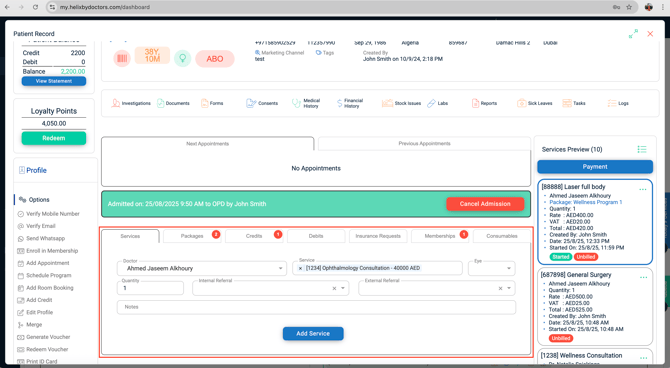
Services — Adding a Service Manually
-
Choose the doctor
-
Dropdown lists all providers; this becomes the performing doctor.
-
-
Pick the service(s)
-
Multi‑select allowed.
-
Ophthalmology prompts for Left / Right / Both Eyes.
-
Dental opens Teeth and Surfaces (both multi‑select).
-
-
Quantity
-
Adjust if more than one unit is needed (e.g., 2 × ear cleaning).
-
-
Referrals (optional)
-
Internal Referral – pick another in‑house doctor.
-
External Referral – choose from the external‑referral list (orange text will show in the service box).
-
-
Notes
-
Free text visible to the doctor.
-
-
Add Service
-
The service appears in the right‑hand service list with Code | Name | Doctor | Qty | Price | Discount & other financial details.
-
(Service actions – row menu – are detailed later in this KB.)
-
Automatic First Service at Admission
If the patient was pre‑booked, reception may let Helix insert that booked service automatically via the Add & Submit option in the admission pop‑up.
External Referral Master (Control‑panel setup)
-
Control Panel → Patient Billing → External Referral
-
Click + Add (top‑right).
-
Required: Name and Type (Business or Individual).
-
Optional: Clinic Name, Mobile, Alt. Mobile, Email, Alt. Email, Address.
-
Submit – referral appears in the list.
-
List supports Search‑as‑you‑type, Print PDF, Export Excel.
-
Row menu lets you Edit or Delete entries.
-
Working with Packages in the Patient File
Adding a Package
-
Patient must be admitted → Packages tab becomes active.
-
Select Package – dropdown lists every configured package.
-
Select Doctor (top field).
-
That doctor auto‑fills the Doctor column for every component.
-
Override any line by opening its Doctor dropdown and picking another provider.
-
-
Quantities – all quantities of the same component line are started in the same session; normally fixed by the package; change only if you need extra units.
-
Add Package – scroll down and click Add.
-
All components appear on the right‑hand service list.
-
Each service is framed blue, shows the Package Name, a green tag “Pending Service— press here to start” and a red tag “unbilled”.
-
A badge appears on the Packages tab showing the number of packages issued for the patient.
-
Starting Package Sessions (two ways)
| Method | How | Extra options |
|---|---|---|
| Green tag | Click “Pending — press here to start” inside the service box. | None — starts immediately with today’s date and the doctor pre‑assigned. |
| Play (▶) button | In the package summary box (bottom‑left), click ▶. | Dialog lets you change Start Date (usually today) and the doctor, then Confirm. |
After starting:
-
Service box shows the start date, a green “Done” button, and a red “Undo” button.
-
Package summary counts Sessions Done / Total.
Show invoiced / uninvoiced services
-
Top‑right of the service list, use Show All to reveal all services (invoiced and un‑invoiced) added to the patient — every package component (pending, started, or invoiced). You can start a session from here via the same green tag.
Billing Package Components
-
Bill each component like any standard service.
-
Once invoiced, a bill icon appears beside the play button.
Set up a Service Package (Admin)
What a package is
-
A bundle of separate medical services you combine and sell at a different price.
-
You may change a service’s price inside the package (e.g., Consultation 500 → 300) without changing the master cash price list.
Prerequisite
-
Make sure every package component already exists as an individual Medical Service.
Create the package
-
Control Panel → EMR Settings → Service Packages
-
Click the + button (top‑right).
-
In the pop‑up:
-
Package Code – internal code.
-
Package Name – clear name (tip: include # of sessions in the name).
-
Expiry (optional) – number (1–12) + unit (day/week/month/year).
-
Inactive (optional) – turn on to hide from reception (kept in account; turn off later to reuse).
-
Add services to the package
-
Use the grid with columns: Service, Quantity, Rate, Service Charges, …, Total.
-
Service: pick from existing medical services.
-
Quantity:
-
If the package repeats the same service across sessions, add one row per session with Quantity = 1 (e.g., 5‑session laser = 5 rows).
-
-
Pricing:
-
Grid initially shows values from the service setup.
-
You cannot change base rate fields, but you can change the Total per row to reach your package price (affects only inside the package).
-
-
Rows:
-
Click + at the right of a row to add another line.
-
Use the delete button on a row to remove it.
-
Save & manage
-
Click Add to save the package.
-
You’ll see it in the list with Package Name and Created By.
-
Use the ⋮ menu next to a package to Edit or Delete.
-
The page also works as a report: Export to Excel / Print PDF (top‑left) and Search‑as‑you‑type (top‑right).
Package Workflow — Follow‑up Sessions
-
Admit the returning patient
-
In the admission pop‑up, choose No (do not add a new booked service).
-
-
Start the next package session
-
Open the Packages tab.
-
Click the ▶ Play icon (or green “Pending – press here to start” tag).
-
Select Date (usually today) and Performing Doctor.
-
Press Confirm — the session is now counted as Done.
-
-
No billing required
-
The package was fully invoiced when sold, so nothing appears in the billing queue.
-
-
Clinical access
-
As soon as the session is started, it shows up in the nurse’s Screening page and the doctor’s Medical Chart, ready for clinical notes.
-
Credits Tab — What You See
Each credit entry appears as its own row with:
-
Serial (unique ID) • Date • Payment Method • Amount • Used • Balance • Notes • Created By • Refunded By / Refund Method (if later refunded)
Tabs behave like mini‑reports — Export Excel, Print PDF, search‑as‑you‑type, pagination.
Visual indicators
-
A badge appears on the Credits tab showing the number of credits the patient has/had (even after use or refund to preserve historical transactions).
-
Patient Balance (top‑left) lists the total credit amount.
-
Any refund, use, or deletion adjusts this balance immediately.
Available Actions (⋮)
-
Delete – removes the credit completely.
-
⚠️ Use with caution: the collection entry disappears from all reports.
-
-
Refund – preferred method.
-
Prompts for confirmation → choose refund Payment Method → Confirm.
-
Credit row is marked as refunded (highlighted in red); wallet balance drops by the refunded amount.
-
-
Print – prints the original credit receipt.
-
Print Refund Voucher – visible only after a refund.
-
Edit – modify amount, notes, or payment method (permissions controlled by role).
Refund Follow‑Up — to re‑print a refund voucher later
-
Reports → Patient Credit Report
-
Set the date range, enable Show Refunded, then Submit
-
Locate the entry → row menu → Print Refund Voucher
Debits (Patient Debit) — Workflow
How a debit is created
-
At billing, choose Payment Method = Patient Debit → the invoice closes; a debt entry is generated automatically. (More details in Billing & Invoicing KB.)
Visual indicators
-
A Debt badge appears on the Debits tab showing the number of debts (does not decrease even if repaid, to preserve history).
-
Patient Balance (top‑left) lists the total outstanding amount.
-
Any repayment or deletion updates this balance immediately.
Debits Tab
1) Debits sub‑tab
-
Shows one row per debt: Serial # · Date · Created By · Invoice # · Amount · Outstanding · Notes / Payments.
-
Tabs behave like mini‑reports — Export Excel, Print PDF, search‑as‑you‑type, pagination.
Record Payment (row menu)
-
Enter the amount (full or partial).
-
Pick the payment date and method (default Cash).
-
Add notes, Submit.
-
A receipt voucher prints; the balance and top‑level Patient Balance update.
2) Repayments sub‑tab
-
Lists every payment made against debts.
-
Row menu → Print to reprint a receipt.
-
Same mini‑report tools (Export/Print/Search/Pagination).
Key Rules & Housekeeping
-
Refunds — You cannot refund Patient Debit.
-
Refund the original invoice instead, then delete the debit entry.
-
-
Cancelling Debt — Reports → Patient Debit Report → filter by date → locate the debit → row menu → Delete (or Edit / Open Invoice as required).
-
Invoice integrity — The source invoice keeps Payment Method = Patient Debit forever; paying off the debt does not alter it.
Insurance Requests Tab — Overview
Sub‑tabs (all act like mini‑reports with Export Excel, Print PDF, search, pagination):
-
Pending Requests — services waiting to be sent.
-
Sent Requests — already submitted to DHA e‑claim.
-
Approved Requests — authorisations returned approved.
-
Rejected Requests — authorisations denied.
Note: DHA integration applies to Dubai clinics only. Clinics outside Dubai manage authorisations manually (see “Manual Approval” below).
Automatic creation of a request
-
Insurance data must be stored in Patient Registration and the insurance setup completed (covered in Insurance & RCM KB).
-
Add a service that requires pre‑authorisation.
-
The right‑hand service list shows a blue tag: “Pending for Approval”.
-
A badge on Pending Requests shows the count.
-
Send a request (Pending → Sent)
-
Open Pending Requests.
-
Tick one or many rows (or Select All).
-
Click Send for Approval → Confirm.
-
A form opens:
-
Diagnosis Codes — press ➕ Add, choose Type (Admitting / Principal / Secondary), select the code; repeat ➕ for more lines; use – to delete.
-
Attachments — press ➕ Add, choose Type (e.g., Document, Image), upload PNG/JPG/PDF; add as many as needed.
-
-
Review the auto‑filled insurance details (should capture automatically if setup is correct; otherwise review setup). Click Save.
-
Request moves to Sent Requests.
-
Use Update Approved Requests (top‑right) to refresh responses.
After the payer responds
Approved Requests (per service) show:
-
Deductible (patient share)
-
Type (Full / Partial)
-
Claim Amount (insurer will pay)
-
Approval No (authorisation code)
-
Expiry (last valid date)
Rejected Requests show similar details plus Reject Reason.
Manual approval / editing (all regions)
-
In the service box on the right, open the row menu (⋮).
-
Click the blue 👍 Enter Pre Authorisation ID button.
-
(Optional) Force request a pre‑approval for a service that does not require approval (e.g., obstetric consult) via Request Pre Authorization.
-
Enter/adjust:
-
Approval Type (Full / Partial)
-
Approval #, Expiry Date
-
Claim Amount or Co‑Payment (auto‑captures based on setup & Patient Registration)
-
-
Save — service moves to the correct tab (Approved/Rejected) and the bill calculates using the entered figures.
Key Points
-
Pending → Sent → Approved/Rejected is the standard flow.
-
Export/Print/Search/Pagination tools are identical across all four sub‑tabs.
-
If DHA integration is inactive, staff must use the 👍 Authorisation ID dialog to log approvals manually.
Insurance Requests from the Home Screen
Bulk‑manage approvals:
-
Open the list
-
Home → top‑left tiles → Insurance Requests.
-
The same four sub‑tabs show (Pending, Sent, Approved, Rejected) for all patients in the branch.
-
-
Filter before you act
-
Filter bar lets you narrow by: Date Range, Created By, Doctor, Department, Service or Service Type.
-
Click Submit to apply; Clear to reset.
-
-
Work exactly as in the patient file
-
Select rows → Send for Approval (or use row menu for Edit / Delete / Manual Authorisation).
-
Export, Print, Search‑as‑you‑type, and Pagination are identical.
-
-
When to choose each view
| View | Best for | Notes |
|---|---|---|
| Home Screen → Insurance Requests | Batch handling of many patients | Filters make it easy to process dozens of pending items at once. |
| Patient File → Insurance Requests tab | Focusing on one patient | No filters needed; everything relates to the open patient. |
Tip: Patients do not need to be admitted to create, send, or update insurance requests — choose the view that fits your workflow.
Home Screen View:
Patient File View:
Updating Insurance Details (Patient Registration)
-
Open Patient Profile → Edit Profile
-
Insurance & Contract (top‑right):
-
Company (insurer)
-
Payer (under that insurer)
-
Out‑Patient Network — mandatory
-
(Optional) In‑Patient / Day‑Care Network
-
Category — pick from list; if missing, press + to create
-
Give the category a clear name
-
Enter Co‑Payment details exactly as shown on the insurance portal (per eligibility)
-
-
-
Member Details
-
Insurance ID or Emirates ID — mandatory
-
Policy No. — if available
-
Attach Eligibility Screenshot (PNG/JPG/PDF)
-
-
Save — click Update
-
If the policy is expired, a pop‑up warns on file open and all services default to Cash.
-
Adding a Service under Insurance
-
Admit the patient (or open their file if already admitted).
-
In Add Service:
-
Doctor — choose performing provider.
-
Insurance Filter (card‑icon):
-
Blue (default) — shows only services covered by the chosen insurer/network.
-
Grey — shows the full cash price list.
-
-
-
Select Service from dropdown.
-
(Optional) Flip Cash switch to bill that service at cash price → shows orange “Not Covered” tag.
-
Ophthalmology: choose Left / Right / Both eyes.
-
Dentistry: pick Tooth and Surface fields.
-
Quantity — adjust if > 1.
-
Internal Referral — pick clinic doctor (if applicable).
-
External Referral — populated from Control Panel → Patient Billing → External Referrals.
-
-
Add Service — it appears on the right with: code, name, doctor, qty, price, and tags:
-
Pending for Approval (blue) — requires pre‑auth; item reflects in Insurance Requests → Pending.
-
Not Covered (orange) — cash‑only; never appears in Insurance Requests.
-
-
Force authorisation for “No Approval Needed” services: open row‑menu (⋮) → Request Authorisation to push it into Pending manually.
Billing Rules
| Service Tag | Billing Allowed? | Notes |
|---|---|---|
| Approved | ✔ | Appears in Approved tab; co‑pay/deductible auto‑applied. |
| Not Covered | ✔ | Cash invoice at retail price. |
| Rejected | ✔ | Bill as cash or delete/replace. |
| Doesn’t Require Approval | ✔ | Direct billing possible. |
| Pending for Approval | ✖ | Must be approved/rejected or set to cash before invoice. |
Important: In Dubai, request/response flows use e‑claimlink; in other regions without integration, manage approvals manually via the 👍 Authorisation ID button.
Memberships
Tab appears only when the patient is enrolled.
-
Read-only summary of the active membership showing: Service name, Used sessions, Used Total sessions in the plan, Allocation, Remaining sessions. Figures update automatically each time a membership component is completed.
-
For enrolling or editing memberships, follow the enrollment steps covered earlier; when enrollment completes, a gold membership tag appears in the patient profile.
Consumables
What appears here
-
Automatic capture: Every billable consumable issued from Screening or the Doctor’s chart shows here immediately—one line per item.
-
Columns: Date of issue, Linked Service name, Item code and name, Quantity issued.
Line actions
-
Delete (bin icon): removes the issue record and returns quantity to stock.
-
Select (checkbox): choose one or multiple lines for billing.
Invoice selected consumables (POS)
-
Tick desired lines → Issue Invoice button appears.
-
Invoice window opens with items pre-listed (Rate, Qty, Discount if any, Total).
-
You may enter Notes, change Payment Method or apply Patient Credit, and add a Referring Doctor (optional).
-
Click Submit → normal billing flow; a Point of Sale (POS) invoice is generated and printed.
Find the POS invoice later
-
Patient File → Financial History → Point of Sale Invoices → row menu Print.
-
Note: POS invoices for consumables follow a separate serial sequence and do not merge with service invoices.
Service Actions — Service Action Menu (⋮)
Before billing
| Icon / Name | What it does | When it shows |
|---|---|---|
| Print Label | Prints a service label (MRN, name, phone, DOB/age, gender, e‑mail, service code/name, doctor, and “Referred by …” if external referral). | Always |
| Done (green check) | Marks service complete → green Done tag appears. | Always |
| Edit Rate (pencil) | Enter a new total amount for this service (does not alter master price). | Only if the role has permission and Account Settings → “Edit ServiceRecord Price” = ON |
| Discount / Offer (%) | Apply Offer or manual Discount (amount or %). Detail box is mandatory. Invalid offers show a warning. Limits & approvals are enforced by Roles & Approval Flows. | Always (limited by role/approval rules) |
| Free of Charge (coin) | Sets price to 0 in one click. | Only if the role has “Free of Charge” permission |
| Change to Cost (double‑tag) | Bills fixed cost instead of retail price. | Only if the role has permission and a Fixed Cost is set in the Medical Service |
| Start Service (▶) | Opens Select Room → choose a room → Start Service (adds green Started tag). | Always |
| Delete (black X) | Removes the service; any nursing / chart notes remain (read‑only). | Always |
Insurance‑specific (shows only when the service is under an insurance network)
| Icon / Name | Purpose |
|---|---|
| Request Pre‑Authorisation (red stamp) | Sends the service to Pending Request. |
| Enter Pre‑Authorisation ID (👍) | Manual entry/edit of Approval #, Claim Amount, Co‑payment, Expiry Date (use when approval is obtained outside Helix). |
Surgery add‑ons — show only for DRG codes
| Icon | Action |
|---|---|
| Add CPT (square +) | Multi‑select CPT codes → Confirm. |
| Add HCPCS / Consumables (red pills) | Add each consumable line individually; set Quantity; delete with red minus. |
CPT codes reflect on the invoice. Both CPT and HCPCS reflect in the claim submission.
Status Tags (live)
-
Unbilled (red) • Pending Preapproval (blue) • Approved (green) • Started (green) • Done (green) • Not Covered (orange) • Rejected (red) • Invoice (green) • Pending Service, press here to start (green; package component not yet begun)
Use Show All (top‑right of Services panel) to toggle visibility of all services, invoiced or not.
After billing — Service Action Menu (⋮)
-
Print Label • Done • Free of Charge • Start Service
Patient Rooms panel (vertical tab on the right edge)
-
Click Patient Rooms → list of rooms appears at left: Room Name (patient count).
-
The patient appears once the service is started in a room (Start service option).
-
-
Select a room to view its occupants:
-
Tags · MRN · Name · Arrival Date/Time · Doctor · Service · Appointment source (walk‑in/booked)
-
⋮ Options per patient: Discharge, Send to Room (pick another room), Sign Consent, Open Patient File, Open Record (doctor’s chart)
-
Summary (What controls you’ll see & why)
Buttons, tags, and extra icons depend on three factors:
-
Service setup (fixed cost, room‑based, surgery flag, insurance requirements)
-
Patient context (cash vs insurance, package/membership)
-
User permissions / approval flows (rate editing, discount limits, free‑of‑charge)
Use this matrix to predict which controls are available for any given service line in the Patient File.
✅ Pro Tips
-
Use Previous Appointments for quick visit history.
-
At admission, select Add & Submit to auto-import booked service.
-
Missed at admission? Use Add Service from appointment row menu.
-
Multi-select services to save clicks.
-
Always check status tags (Unbilled, Started, Approved, etc.).
-
Use Packages for repeat sessions (laser, physio, etc.).
-
Bill Consumables before discharge to avoid revenue loss.
-
Manage money smartly: Credits = refunds/top-ups, Debits = patient dues.
-
Patient File for one-off insurance; Home Screen for bulk approvals.
-
Memberships tab auto-tracks allowances—no manual edits.
-
Start room-based services with ▶ Play so patients show in Patient Rooms.