🧭 Overview
This guide follows the on-screen layout from top to bottom and left to right, so any user can easily locate and understand each sections.
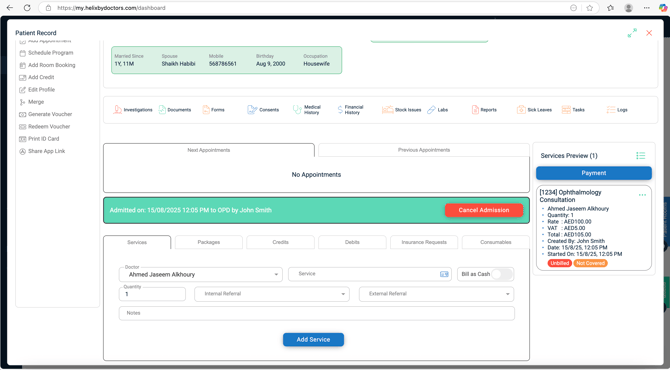
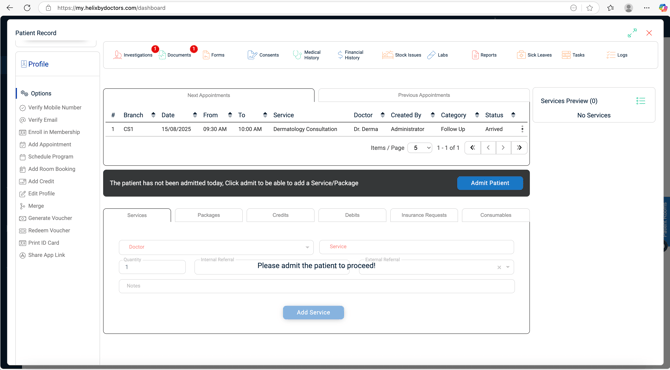
Here's the screenshot of a patient file/record screen:
1. Left Panel – Patient Balance & Profile Actions
Patient Balance Panel (Top-Left)
-
Credit – Total funds available in patient’s wallet.
-
Debit – Outstanding amount owed by the patient.
-
Balance – Net result (Credit – Debit).
-
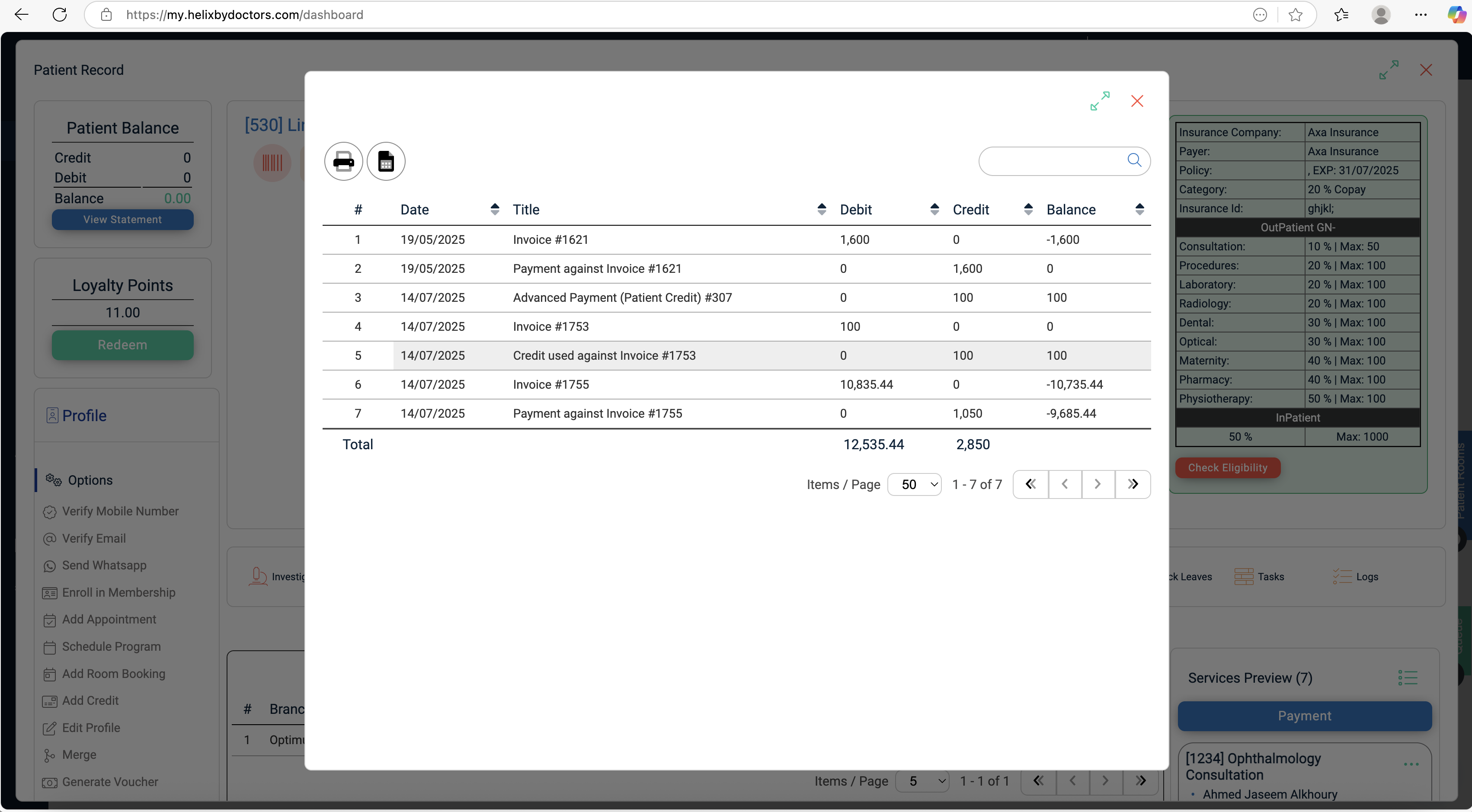
View Statement – Opens a detailed financial statement, with search, filters, PDF/Excel export.
1. Click to open the Patient Statement window.
2. Table columns: Date • Title • Debit • Credit • Balance.
3. Search‑as‑you‑type field (top‑right) lets you filter the table instantly.
4. Buttons (top‑left): Print PDF and Export to Excel.
5. Pagination controls at the bottom: choose to display 5, 10, 20, 50 items per page and arrows to jump to next, previous, first, or last page.
Profile Actions Menu (Below Balance)
Quick-access options for common tasks:
| Action | Function |
|---|---|
| Verify Mobile / Email | Sends a code to confirm patient contact info. |
| Send WhatsApp | Opens template selector for pre-configured messages. |
| Enroll in Membership | Assigns patient to a membership plan. |
| Add Appointment / Booking | Creates new clinical or room/surgery bookings. |
| Schedule Program | Books recurring programs. |
| Add Credit | Increases patient wallet balance. |
| Edit Profile | Opens demographic edit form. |
| Merge | Combines duplicate patient records. |
| Generate / Redeem Voucher | Manage gift vouchers. |
| Print ID Card | Prints patient’s ID. |
| Share App Link | Sends app download link to patient. |
2. Top Header – Patient Demographics
Located at the top center, displaying key patient identifiers:
-
Patient File Number & Name (clickable link to profile)
-
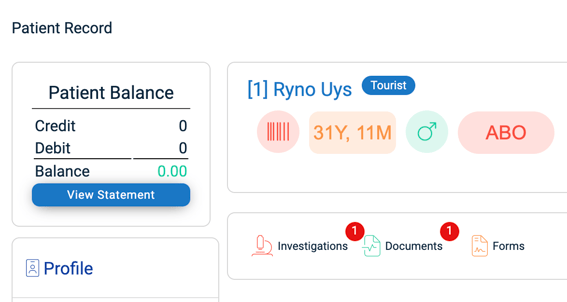
Tags:
-
Status indicators [(VIP/Tourist based on status selected while registering patient, Membership if patient has enrolled for the plan, etc.)
-
-
Personal Details:
-
Arabic Name
-
Mobile Number
-
Birthday
-
Nationality
-
National ID
-
City
-
Marketing Channel
-
Category (internal classification)
-
-
Created By: Staff member, date & time of creation.
- Uploaded patient documents appear as numbered red circle in Documents section of the patient file
- Insurance Table:
Displays insurance details at the top rection of the screen which include:
Insurance Company, Payer, Policy Number, Expiry Date, Co‑payment breakdown, Insurance Card Number, Network, Inpatient Coverage
- Contract Tag:
If a contract is assigned in the patient profile, it's name appears as a green tag.
- Spouse Information:
Displays spouse information entered while registering a patient:
Spouse Name • Mobile • Date of Birth • Occupation • Date Married
3. Ribbon Navigation (Below Header)
Shortcut buttons for all patient-related records:
| Ribbon Button | Purpose |
|---|---|
| Investigations | Upload/view diagnostic scans & reports. |
| Documents | Upload/view official patient documents. |
| Forms | Fill or sign digital forms. |
| Consents | View signed consent records. |
| Medical History | Access visit timelines & clinical notes. |
| Financial History | Review invoices, refunds, POS sales. |
| Stock Issues | Track consumables issued to patient. |
| Labs | View internal lab results. |
| Reports | Access saved clinical or discharge reports. |
| Sick Leaves | Issue sick-leave certificates. |
| Tasks | Assign and track patient-related tasks. |
| Logs | Record and view interaction logs. |
4. Appointments Panel (Middle Section)
Two tabs:
-
Next Appointments – Future bookings.
-
Previous Appointments – Past visits.
Displayed Columns:
-
Branch
-
Date & Time
-
Service
-
Doctor
-
Created By
-
Category (e.g., Follow-Up)
-
Status (e.g., Confirmed, Arrived)
Controls:
-
Items/Page dropdown for pagination
-
Row menu (⋮) for appointment-specific actions
5. Services & Billing Panel (Bottom Section)
Available after patient admission:
Tabs:
-
Services – Add clinical services.
-
Packages – Assign service bundles.
-
Credits / Debits – Manage patient financial balances.
-
Insurance Requests – Track pre-approvals.
-
Consumables – View/invoice issued items.
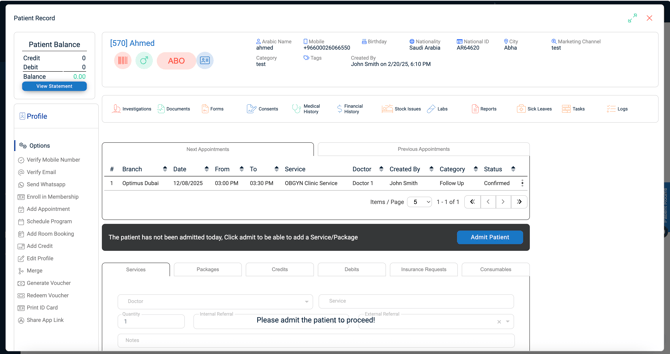
Current State: If the patient is not admitted, a black banner appears:
"The patient has not been admitted today, Click admit to be able to add a Service/Package"Click Admit Patient to unlock these tabs.
Non-Admitted Patient Profile:
Admitted Patient Profile along with service addition: