
🧭 Overview
It provides quick-access tools for carrying out common administrative, communication, and membership-related actions directly from the patient’s profile.
This covers 'How to perform common Profile Actions in Helix' like:
- Verify Mobile Number
- Verify Email
- Send Whatsapp
- Enroll in Membership
- Add Appointment
- Schedule program
- Add Room Booking
- Add Credit
- Edit Profile
- Merge
- Generate Voucher
- Redeem Voucher
- Print ID Card
📝 Navigation Guide
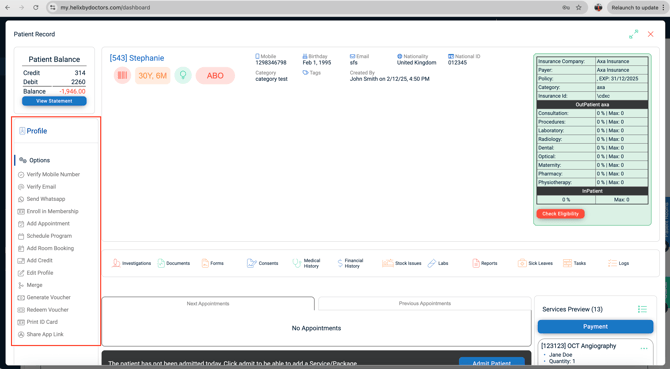
1. Verify Mobile Number
Purpose: Confirm that the mobile number stored in Patient Registration is correct.
Steps:
-
Click Verify Mobile Number.
-
A pop-up will ask you to confirm sending a verification code via SMS or WhatsApp (depending on your integration).
-
If both SMS and WhatsApp integrations are active, WhatsApp takes priority.
-
-
Click Confirm – the code is sent.
-
A second pop-up prompts you to enter the received code.
-
Enter the code and click Confirm to complete verification.
Note: Setup requirements for SMS/WhatsApp integrations are explained in the CRM KB.
2. Verify Email
Purpose: Confirm that the patient’s registered email address is valid.
Steps:
-
Click Verify Email.
-
Confirm that you want to send a verification code to the stored email address.
-
Click Confirm – the code is emailed.
-
Enter the code in the pop-up and click Confirm to verify.
Note: Email integration setup is detailed in the CRM KB.
3. Send WhatsApp
Purpose: Quickly send pre-approved messages to the patient.
Steps:
-
Click Send WhatsApp.
-
A Meta-approved template list (configured in CRM) will appear.
-
Select a template and preview the message.
-
If the template includes an image, you can replace it before sending.
-
Click Send to deliver the message.
4. Enroll in Membership
Purpose: Add the patient to an active membership plan.
Setup (Control Panel):
-
Go to Control Panel → Patient Billing → Membership.
-
Click + Add (top-right).
-
Complete:
-
Branch(es): Select one or multiple branches that can sell this membership.
-
Name: Enter the membership title.
-
-
Click Submit – the membership appears in the list.
Configure Membership:
-
In the membership list, open the ⋮ menu and select Open.
-
Complete the three configuration tabs in order:
A. Department Discount
-
Click + to add a rule.
-
Select Department, Service Type, Category/Subcategory (optional).
-
Enter Discount % and click Submit.
-
Repeat to add more rules.
B. Complementary Services
-
Click + to add free services.
-
Multi-select services, enter Count (sessions), and set Frequency.
-
Click Submit.
C. Billing Preferences (Mandatory)
-
Select Revenue Account.
-
Choose Tax Group.
-
Set Price and Duration (Months/Years).
-
Auto-Activate: Toggle ON if activation should occur after a spend threshold is met, and set the Threshold.
-
Optional: Set Global Discount % for all services while active.
-
Click Submit.
Tip: Log out and back in after saving to ensure the membership is available for enrollment.
Membership List View:
-
Columns: Branches, Name, Global Discount %, Auto Activation (Yes/No), Threshold.
-
Controls: Search-as-you-type, Export to Excel, Print PDF, Pagination (10/20/50 rows).
Enroll a Patient:
-
Open the patient’s file → click Enroll in Membership.
-
Select the plan from active memberships.
-
Complete the billing screen (choose payment method, optionally apply patient credit).
-
Assign referring person and click Submit.
-
A gold membership tag appears in the patient’s profile.
5. Add Appointment
Purpose: Schedule a future appointment.
Steps:
-
Click Add Appointment.
-
The standard Calendar booking window opens.
-
Fill in patient, doctor, date/time, service, category, status.
-
Click Add to save.
6. Add Booking (Room/Surgery)
Purpose: Reserve a room or surgery slot.
Steps:
-
Click Add Booking.
-
Select patient, doctor, room, service(s), date, start/end time, category, status, notes.
-
Click Add to save.
7. Add Credit
Purpose: Add funds to the patient’s wallet.
Steps:
-
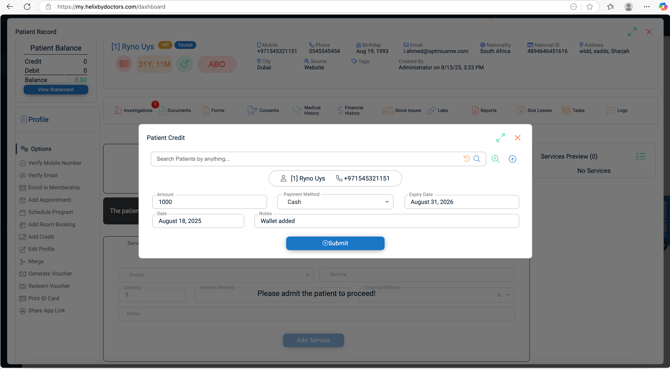
Click Add Credit.
-
Enter amount, payment method, payment date, notes.
-
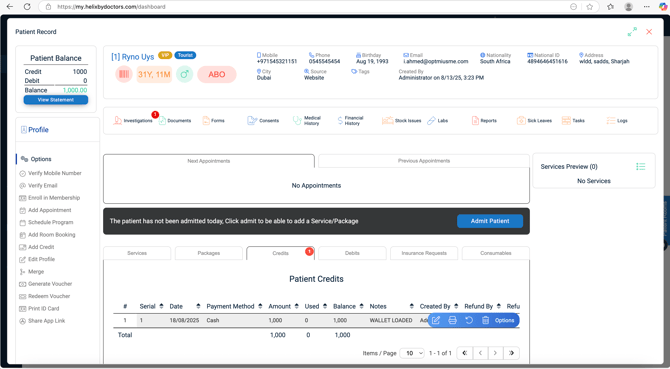
Click Submit – credit is added, and Balance updates.
-
Manage credits in the Credits tab (Delete, Refund, Print, Edit via ⋮ menu).
8. Edit Profile
Purpose: Update demographic or registration details.
Steps:
-
Click Edit Profile.
-
The Patient Registration form opens in edit mode.
-
Make changes and click Update.
See: Patient Registration KB for detailed field descriptions.
9. Merge
Purpose: Combine duplicate patient records.
Steps:
-
Open the patient file you want to keep.
-
Click Merge in the Profile Actions list.
-
Search for duplicate files (via Search or Advanced Search).
-
Select duplicates, click Select to review.
-
Click Merge, confirm irreversible action.
Result: All data from duplicates merges into the primary file.
The system combines every piece of data—financial history, medical history, upcoming and
past appointments, unbilled services, credits, debts, insurance requests, packages,
investigations, and uploaded documents, etc — into the surviving file.
10. Generate Voucher
Purpose: Sell a gift voucher to a patient.
Steps:
-
Open buyer’s patient file → click Generate Voucher.
-
Choose voucher template and fill in details (amount, method, expiry, recipient).
-
Click Generate to preview and print.
-
Click Save – a tax invoice is created in Financial History.
Voucher Template Setup:
-
Path: Control Panel → Templates → Gift Voucher Templates
-
Add template with branch selection, label, expiry(number of vouchers you plan to issue), upload PDF, placeholders(Voucher Amount, Notes, Issuing Date, Start Date,
Expiry Date, Barcode, From, To, etc). - Save, log out & log back in so the template is available under the dropdown while adding vouchers in patient file.
11. Redeem Voucher
Purpose: Apply voucher value to patient’s credit.
Steps:
-
Click Redeem Voucher.
-
Scan/type voucher barcode.
-
Click Redeem – value is added to Patient Credit.
- Credit can then be applied to settle any of the patient's future invoices.
12. Print ID Cards
Purpose: Print patient identification cards.
Steps:
-
Click Print ID Cards.
-
Ensure label printer is connected.
-
Card prints automatically with:
-
Full Name
-
File Number
-
DOB & Age
-
Mobile Number
-
Gender
-
13. Loyalty Points
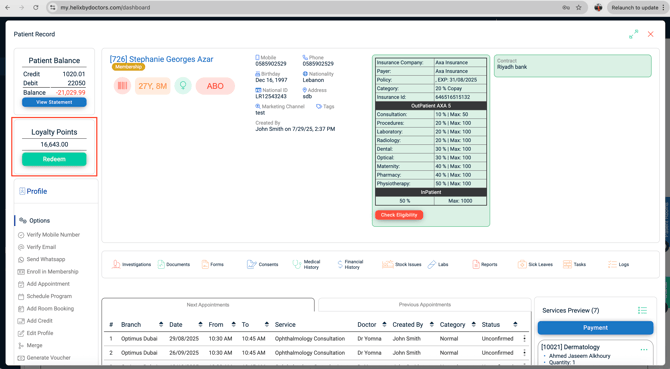
The Loyalty Program in Helix allows clinics to reward patients with points for services they consume. These points can later be redeemed for credit in the patient’s wallet and used to pay invoices.
Setting Up a Loyalty Program:
Steps:
-
Go to Control Panel → Patient Billing → Loyalty Programs.
-
Click the blue + Add Loyalty Program button.
-
In the pop-up, complete the following fields:
-
Name – Title of the program (e.g., “Clinic Rewards”).
-
Excluded Service Types – (Optional) Select service types that should never earn points (e.g., Insurance-covered services).
-
Excluded Services – (Optional) Select specific services to exclude.
-
Conversion Factor – Defines how spending translates into points.
-
Example: Every 10 AED = 1 point which translateds to 1 AED for example.
Here, the conversion factor = 0.1.
-
-
-
Click Submit to save the program.
- Please note that only the 1st Loyalty program created is applicable for redemption. Ensure having all relevant services in a single loyalty program.
How Points Accumulate
-
Each billed service adds loyalty points automatically, except for excluded services/types.
-
Patients see their total accumulated points displayed in their file.
-
Reception staff can inform patients of their available points during visits.
Redeeming Points (From Patient File)
Steps:
-
Open the patient file → go to the Loyalty Points box.
-
Click Redeem.
-
A pop-up shows the total available points.
-
Enter the number of points you wish to redeem (full or partial).
-
Click Redeem.
-
The chosen points are deducted.
-
Their cash value is added to the patient’s Credit Balance.
-
Result: Reception can now use this credit to pay invoices (see Billing & Invoicing KB – Pay with Credit).
❗Common Errors & Fixes
| Issue | Cause | Fix |
|---|---|---|
| Verification code not received (SMS/WhatsApp) | - Incorrect mobile/email in registration - SMS/WA integration not active |
1. Check patient’s contact details in registration 2. Verify integration setup in CRM 3. Retry verification |
| Email verification fails | Email ID is invalid or blocked | Correct email in Edit Profile → Retry verification. |
| WhatsApp templates not showing | CRM templates not configured or approved | Admin must configure Meta-approved templates in CRM. |
| Membership not available at enrollment | - Not configured in Control Panel - User didn’t log out/in after creation |
1. Check membership list in Control Panel 2. Log out & log in again 3. Ensure membership is marked as active |
| Unable to Merge | - Patient records locked by open transactions - Wrong file selected as primary |
1. Ensure transactions are closed first 2. Always open the primary file before merging |
| Voucher template missing | No voucher design uploaded in Control Panel | Upload PDF template under Gift Voucher Templates, then retry. |
| ID Card not printing | - Printer not connected - Wrong printer setup |
Ensure printer is connected and recognized by system. Restart print service if needed. |
✅ Pro Tips
-
Always check balance first → avoid credit/debit confusion before billing.
-
Use WhatsApp over SMS → WA is prioritized and more reliable when both are enabled.
-
Membership discounts auto-apply → confirm setup in Control Panel before enrolling patients.
-
Merge carefully → once merged, records cannot be undone. Double-check before confirming.
-
Voucher expiry defaults to 6 months → adjust during creation if clinic policy differs.
-
Print ID cards right after registration → saves time and prevents missed cards later.
-
Export statements to Excel when resolving billing disputes → easier to share with finance team.