
🧭 Overview
There are multiple buttons at the central section of the patient file that lets you do the following actions:
-
How to view and upload Investigations
-
How to view and upload Documents
-
How to create, fill & view Forms
-
How to view Consent Forms
-
How to manage & view Medical History
-
How to manage & view Financial History
-
How to check Stock Issues
-
How to view Lab Reports
-
How to check Medical Reports
-
How to issue Sick Leaves
-
How to manage & add Tasks
-
How to view & add Logs
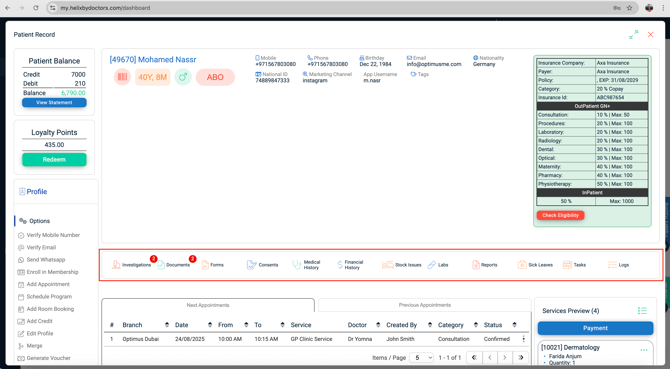
📝 Button Navigation
1. Investigations:
How to view and upload Investigations
-
Upload or review external medical records such as X-rays, CT, MRI, and lab reports.
-
Setup: Control Panel → EMR Settings → Investigation Types.
Click '+' button and. Add type(e.g., X‑ray, CT, MRI, Laboratory) and speciality. - In the patient file, click Investigations → Upload.
Choose Investigation type from the dropdown and upload the file. If the type is linked to Ophthalmology, an extra field appears to choose Right Eye,
Left Eye, or Both.
Supported File Types: PNG, JPG, PDF, BMP, MP4 -
Click the Start Upload (play) icon to begin the upload, then click Submit to Save.
The Investigations button now shows a badge with the total number uploaded.
- View & manage: Investigations → View → grouped by type → open a box to see files (title + upload date/time). Use Expand or Delete → Close.
2. Documents:
How to view and upload Documents
-
Store official records like insurance IDs, patient IDs, discharge letters, eligibility screenshots.
-
Setup: Control Panel → EMR Settings → Document Types → + Add → name → Save.
-
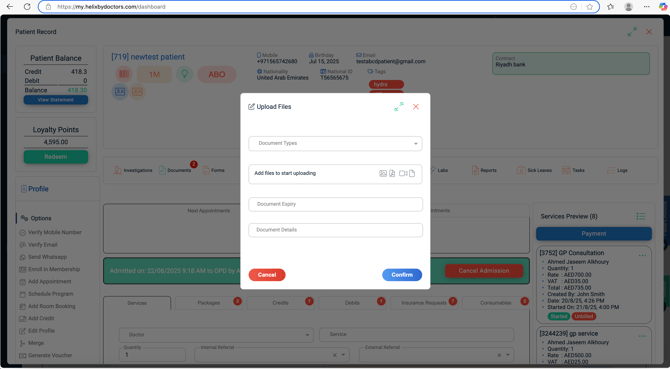
In the patient file, go to Documents → Upload.
-
Select Document Type.
-
(Optional) Expiry Date + details.
-
Choose file → Start Upload → Submit.
Supported types: PNG, JPG, PDF, BMP, mp4
-
- View & manage: Documents → View → grouped by type → open → Delete (top‑right) if needed → Close.
3. Forms - Fill, Sign & View:
How to create, fill and view forms
-
Where you start: Patient file → Forms. Choose Fill, Sign or View. (Designed to work great on iPad/touchscreen.)
-
Open any previously completed form to view: Forms → View.
A. Fill Form (data entry only)
1. Click Forms → Fill.
2. Choose a Fill‑form template from the dropdown in the pop‑up.
3. Click Confirm.
4. Complete every on‑screen field.
5. Click Save.
◦ The filled form is now listed under Forms → View.
Template Setup for Fill Forms (Built Inside Helix)
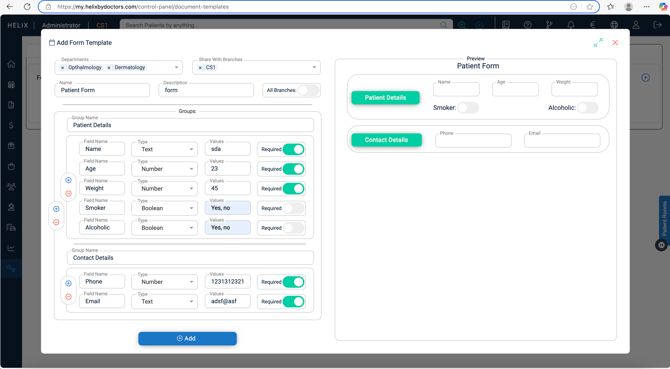
Path: Control Panel → Templates → Document Templates → Form Templates (tab) → + Add
Steps to Create a Fill Form Template
-
Header Fields
-
Name – enter a clear and descriptive form title.
-
Description – optional internal note about the form’s purpose.
-
Department – assign the clinical department that will use this form.
-
Branch Sharing – either:
-
Multi-select individual branches, OR
-
Toggle All Branches to share form across the organization.
-
-
-
Add Groups (Sections)
-
Click + Group.
-
Enter a Group Name (e.g., "Patient Details").
-
Groups help organize fields into logical sections on the final form.
-
-
Add Fields to a Group
-
Inside the desired group, click + Field.
-
Choose a Field Type from the dropdown:
-
Text – free text entry.
-
Number – numeric input.
-
Boolean – checkbox (Yes/No).
-
Single-Select List – one choice from a dropdown.
-
Multi-Select List – choose several options from a dropdown.
-
Radio Buttons – single choice shown as radio buttons.
-
-
Values Box (appears only for list/radio types):
-
Type each option and press comma (,) to separate values.
-
Example: Mild, Moderate, Severe.
-
-
Click Save Field.
-
Repeat until the group is complete.
-
-
Arrange & Repeat
-
Add more groups and fields as needed.
-
Drag-and-drop or reorder fields for clarity.
-
-
Save
-
Click Save to commit the template.
-
The Fill Form is now available under Forms → Fill in patient files.
-
Sign Form (signature capture only)
1. Click Forms → Sign.
2. Pick a Sign‑form template (an uploaded PDF).3. Click Confirm.
4. Patient signs in the designated area.
5. Scroll up and press Save.
◦The signed copy appears in Forms → View.
Template Setup for Sign Forms (Signature Capture)
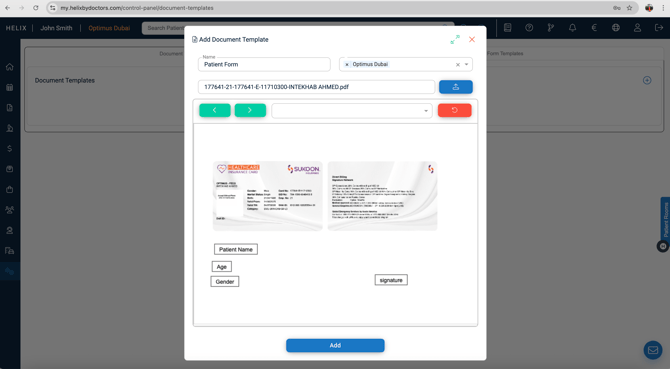
Path: Control Panel → Templates → Document Templates → Document Templates (tab) → + Add
Steps to Create a Sign Form Template
-
Click + Add (top-right).
-
Header Details
-
Label – enter a name for the form (e.g., "Surgery Consent").
-
Branch Selection – multi-select branches where this form will be available.
-
-
Upload PDF
-
Upload the PDF of your form.
-
If the PDF has multiple pages, use the green arrows (top-left) to flip forward/back.
-
-
Insert Placeholders
-
Open the Placeholder dropdown.
-
Choose a data field (e.g., Patient Name, Date, National ID).
-
Click directly on the PDF where the placeholder should appear.
-
Repeat for every required placeholder.
-
Undo (top-right) removes the last placed placeholder.
-
To add a new field not in the list: type its name in the dropdown → click Add Item → place it on the PDF.
-
-
Save
-
Click Save.
-
No logout is required — the new Sign Form template is immediately available under Forms → Sign in the patient file.
-
Using Forms in the Patient File
Fill Forms
-
Patient File → Forms → Fill
-
Select a Fill Form template → complete fields → click Save.
-
Saved forms appear under Forms → View.
Sign Forms
-
Patient File → Forms → Sign
-
Select a Sign Form template → Confirm.
-
Patient signs in the designated area on touchscreen/iPad.
-
Scroll up → click Save.
-
Signed copy is stored under Forms → View.
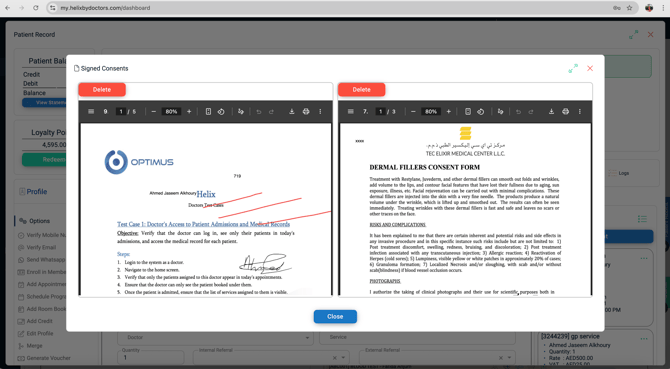
4. How to view Consent Forms
-
Displays every signed consent form in chronological order.
-
Role-based option to delete incorrect forms.
-
Stored permanently unless removed.
5. How to manage & view Medical History
The Medical History section gives doctors and staff a complete, chronological timeline of all patient visits. It shows admissions, services, notes, follow-ups, and allows quick report generation — all without leaving the patient file.
1. Layout & Navigation
When you click Medical History:
-
The screen is divided into three layers:
-
General Panels – patient-level history & charts.
-
Filter Bar – tools to narrow down visits.
-
Visit Timeline – a scrollable list of all visits, newest first.
-
2. General Panels (Top Section)
At the top you’ll always see:
-
General Medical History – summary from the first visit (read-only).
-
Vaccinations – opens the vaccination chart. Options:
-
Print as PDF
-
Send via Email (if email integration is enabled).
-
-
Growth Charts – open three standard charts (height, weight, BMI).
-
Print/email pop-up lets you toggle each chart ON/OFF before sending.
-
-
Obstetric History (female patients only) – opens a confidential OB history pop-up.
-
Fertility History – confidential fertility history pop-up.
3. Filter Bar
Just below the general panels:
-
From Date → To Date – filter visits by time range.
-
Doctor – multi-select list of providers.
-
Department – multi-select list of departments.
-
Show Empty/Deleted Visits – toggle ON to show visits with no data or those deleted.
-
Submit – apply filters.
-
Clear Filters – reset everything.
4. Visit Timeline
Each visit appears as a dark-blue bar, showing:
-
Admission Date
-
Doctor under whom the admission was made
Buttons on Visit Bars
-
Report
-
Generates a report for the entire visit (all doctors & services).
-
Report is stamped and signed by the admitting doctor.
-
-
Add Follow-Up Notes
-
Lets doctors add notes after the visit without re-admitting.
-
Each entry shows Entered By, Date, Time, and can be Edited or Deleted.
-
Follow-up notes automatically appear in visit-level reports under “Follow-Up Note.”
-
-
Insurance Claim Form (Dental only)
-
Appears if service is dental and patient has insurance.
-
Opens a pre-filled claim form with patient/service data.
-
Complete missing fields → Preview → Print/Download PDF or Save.
-
Saving stores the PDF in Documents; later available in Reports for reprint.
-
5. Service Rows (Inside Each Visit)
Each service in a visit appears as its own row.
At a glance:
-
Service Name – shown on the left.
-
Action Buttons – up to four on the right (depending on role & edit window).
Service-Level Buttons
| Button | When it Appears | Function |
|---|---|---|
| Edit Visit | While edit rights valid (default 48 hrs) | Re-opens medical chart for that service. |
| Service Report | Always | Generates a report for this service only. |
| Billing Status | Always | 🟢 Green = invoiced; 🔴 Red = unbilled. |
| Discharge Report | For Surgery services only | Opens the surgery’s discharge report. |
Editing Rules
-
Only the note creator can edit their notes.
-
Edits allowed only during the 48-hour window (or custom limit set in Control Panel).
-
Other users can add new notes, but cannot change existing ones.
Embedded Notes
-
Screening Notes – vital signs, nurse observations.
-
Doctor’s Notes – assessments, diagnoses, prescriptions, referrals, etc.
-
Each note shows Created By.
-
Prescription, lens order, or referral notes include a Print icon for reprinting.
-
6. Full Medical History Report
Use this to compile multiple visits into one consolidated report.
Workflow:
-
Click Full Medical History (top-right).
-
Select a Primary Doctor – their name, signature, and stamp appear on the report.
-
Toggle Include Follow-Up Notes ON/OFF.
-
Use the Search box to find visits, or select All.
-
Pick specific visits if you don’t want them all.
-
Click Generate Report – draft opens in the Report Editor.
-
From the editor you can:
-
Download PDF
-
Print
-
Send via Email (if email integration is enabled).
-
7. How Reports Work
-
Report Editor
-
Any report (visit-level, service-level, discharge) first opens here.
-
You can freely add, edit, or delete text in the report.
-
This does not alter the original medical notes in the chart.
-
-
Output Options
-
Save → report is stored under the Reports ribbon tab.
-
Print / Download PDF → static PDF for handing to patients or sharing externally.
-
Save as PDF → saves to your device.
-
-
After Saving
-
Go to Reports (Ribbon) to:
-
Open/Edit again (re-enter editor).
-
Print/Generate PDF again.
-
Delete if no longer needed (role-based permission).
-
-
8. Key Takeaways
-
Blue Visit Bars = entire visits with their own actions.
-
Service Rows = per-service actions and embedded notes.
-
Follow-Up Notes = append information after the visit without reopening charts.
-
Reports = flexible, editable documents stored separately from clinical notes.
6. How to manage & view Financial History
The Financial History window centralizes all money-related records for a patient. It opens with six dedicated tabs, each using the same layout and tools so reception and finance teams can work quickly and consistently.
Shared tools (all six tabs)
-
Live search-as-you-type (top‑right)
-
Print PDF and Export Excel buttons (top‑left)
-
Paginated list with arrows to move between pages
1) Previous Invoices
Lists every service invoice ever issued to the patient.
Columns
Serial • Date • Created By • Service • Service Type • Doctor • Notes • Invoice Type (Cash / Credit) • Financial Details • Payment Method
Row menu (⋮)
-
Cancel
-
Create Credit Note
-
Edit
-
Print
(exact options depend on your role/permissions)
Cancelling an Invoice — Key effects & follow‑ups
-
Immediate result
-
The invoice disappears from the regular “Outpatient Invoices” list and moves to the Cancelled Invoices report (kept for audit reference).
-
Serial‑number gap
-
Cancellation permanently removes the document, so invoice numbering is no longer consecutive.
-
Financial impact
-
All collection entries linked to the invoice (cash, card, etc.) are deleted with the invoice.
-
Patient Credit: if the invoice was paid from Patient Credit, that credit is not returned automatically.
-
Manually add a new Patient Credit entry for the canceled amount, or
-
Edit the original credit entry to restore the balance.
-
-
Patient Debt: if the invoice created a patient debt, cancelling the invoice does not cancel the debt.
-
You must cancel or adjust the debt entry separately (see dedicated KB article).
-
Always verify both the Cancelled Invoices report and the patient’s Financial History after an invoice cancellation to ensure balances are correct.
Regulatory note (Saudi Arabia)
Clinics operating in KSA may not cancel an issued invoice.
→ Always issue a Credit Note / Refund to reverse or adjust a charge while preserving legal serialization.
Editing an Invoice — Rules & caveats
-
Allowed but discouraged: You can reopen an invoice and change fields, but best practice is to leave the original and use a Credit Note.
What you may edit
-
Date – back‑date or correct the issue date.
-
Doctor – switch to another provider.
-
Services – (not recommended; prefer refund) replace or delete an item.
-
Payment Method
-
Change to any method except Patient Debit (after save you can’t create a debit).
-
Switching from Patient Credit is impossible — refund the invoice instead.
-
-
Notes – add or amend free‑text comments.
Special cases
-
Insurance invoices: editing copay or claim amounts does not recalculate reconciliation; adjust those figures manually after saving.
Preferred alternative
-
To correct services, prices, or payment allocations, issue a Credit Note / Refund and re‑invoice. This keeps a clean audit trail.
Regulatory (Saudi Arabia)
Issued invoices cannot be edited. Use credit notes for adjustments.
2) Previous Credit Notes
Tracks the refund workflow from request to issue.
How to issue a Refund? (Refund workflow)
-
From Previous Invoices, choose Create Credit Note in the row menu.
-
The window auto‑populates as if refunding the entire invoice by default.
-
You may edit the amount or change the payment method if needed.
-
Enter a Reason and specify whether it’s a Discount or a Refund.
-
Click Credit Note to submit the request.
-
-
The request appears in Pending Refunds (inside Previous Credit Notes) with full details: invoice serial, date, amount, reason, requester.
-
If an approval flow is configured, approvers get a notification to Approve or Reject.
-
The approval screen shows a preview of the original invoice and a free‑text box for the approval reason.
-
Approver chooses Approve & Issue (money returned now) or Approve only (issue later).
-
-
Approved but un‑issued refunds move to Approved Refunds. Extra columns show: Approved By, Approved At, Approval Reason, Issue Date.
-
Row menu lets you Cancel, Issue (specify refund date), or Review.
-
Issuing prints a refund voucher.
-
Credit Note / Refund vs. Invoice Cancellation
-
What it does
-
A Credit Note (refund) reverses the payment recorded against the service.
-
The original invoice remains in the file, but its net value becomes 0.
-
-
Why choose it
-
Keeps invoice number sequence intact — no gaps in your register.
-
Provides a clear audit trail: you can see the original charge alongside its credit note.
-
A credit note is the preferred way to void a charge while preserving continuity and full financial traceability.
3) Point‑of‑Sale Invoices (Pharmacy)
Invoices raised from Pharmacy POS.
Columns
Serial • Date • Created By • Items • Notes • Financial Details • Payment Method
Row menu
Cancel, Create Credit Note, Edit, Print (same behavior as service invoices)
4) Product Invoices (Product POS)
Invoices from Product POS (e.g., bar, café, merchandise).
-
Uses the same columns and row‑menu actions as Pharmacy POS invoices.
5) Proforma Invoices
Quotations generated from Billing → Proforma Invoice.
Columns
Serial • Date • Created By • Services • Doctor • Financial Details
Row menu
Cancel, Print
Note: Proformas are non‑financial until accepted; they exist for reference only.
6) Membership Services
Shows invoices created when services included in a paid Membership are billed later.
Columns
Serial • Date • Created By • Service • Doctor • Membership Name • Financial Details
The original membership sale invoice itself appears under Previous Invoices.
Why this matters
Together, these six tabs give reception and finance teams a complete audit trail — from first invoice to final refund — without leaving the patient file.
7. How to check Stock Issues
-
Lists consumable medical items issued to the patient.
-
Columns: Date, Service, Doctor, Code, Name, Barcode, Category, Brand, Manufacturer, Price, Cost, Retail Price.
-
Exportable to PDF/Excel for reporting.
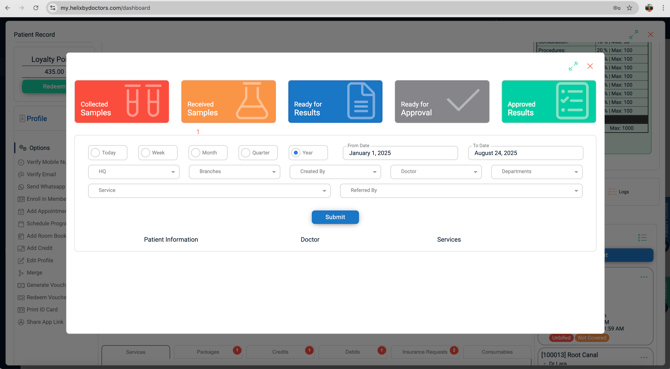
8. Lab Reports:
How to view Lab Reports(based on internal integration with PACS)
-
Direct shortcut to view internal results from the Lab module.
-
Only relevant if the clinic runs its own lab in Helix.
9. Reports:
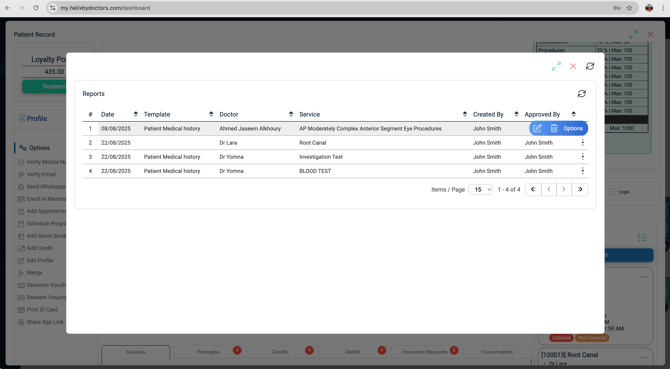
How to view Medical Reports
-
Repository of all saved reports from Medical History (visit reports, discharge summaries, etc.).
-
Actions: Open/Edit, Print/Download PDF, Delete (role based permissions required).
10. Sick Leaves:
How to create & issue Sick Leave certificate
The Sick Leaves button in the Patient File lets you create and issue a sick-leave certificate directly for a patient.
⚠️ These certificates are not government-attested. A PDF template must be uploaded before use.
A. Template Setup (One-Time)
Path: Control Panel → System Templates → Sick-Leave Templates
-
Click + Add Template (top-right).
-
Fill the header:
-
Title – name of the certificate (e.g., “General Sick Leave”).
-
Branch – select one or more branches that can issue this certificate.
-
-
Upload the PDF of your sick-leave form.
-
If multi-page, use the blue page arrows (top-left) to navigate.
-
-
Insert placeholders (e.g., Patient Name, DOB, Physician, Director, Issue Date).
-
Select a placeholder from the dropdown → click on the PDF where it should appear.
-
Use Undo to remove the last-placed placeholder.
-
-
Click Save → the template is ready for use.
B. Issuing a Sick-Leave Certificate
-
Open the Patient File → click Sick Leave in the ribbon.
-
Choose a template from the dropdown.
-
Set the leave period by selecting the start and end dates.
-
(Optional) Toggle applicable reason switches:
-
Follow-up before end of sick leave
-
Referral to medical committee
-
Approval of permanent/partial disability
-
Cannot be treated at this facility
-
Other (type details in free-text box)
-
-
Enter:
-
Physician Name
-
Medical Director Name
-
Issue Date
-
-
Click Next → preview the filled certificate.
-
If edits are needed, click Previous to adjust.
-
-
Once satisfied, choose Print or Download PDF.
Result: The sick-leave certificate is ready to hand to the patient or email if required.
11. Tasks:
How to manage & add Tasks
The Tasks button in the Patient File allows staff to create, assign, and track patient-related tasks directly from within the patient record. This ensures no follow-up is missed and responsibilities are clearly assigned.
A. Viewing Tasks
-
Click Tasks in the ribbon.
-
A pop-up opens showing:
Header:
-
Patient Name
-
E-mail
-
Mobile Number
Task List Columns:
-
Task Name
-
Assigned To
-
Status
-
Priority
-
Comments
-
Due Date
-
Feedback
-
Created At
B. Creating a Task
-
In the Tasks pop-up, click Add Task (right-hand side).
-
(Optional) Link the task to a specific Visit.
-
Complete the mandatory fields:
-
Task Name – enter a short, descriptive name.
-
Assigned To – select one or more users (multi-select).
-
Priority – choose from dropdown (e.g., Low, Medium, High).
-
Due Date – set a deadline.
-
Comments – describe the task in detail.
-
-
Click Add Task to save.
C. What Happens Next
-
The task appears in the list for the assigned user(s).
-
Assignees see the task on their Home-screen To-Do list (see Home Screen KB for details).
-
Tasks remain visible until marked complete or updated with feedback.
✅ This feature helps clinics track approvals, follow-ups, and patient-related actions seamlessly across teams.
12. Logs:
How to view & add Logs
-
Interaction log for non-clinical notes (phone, email, chat, meeting).
-
Each entry stores Date, Time, User, and can be deleted.
-
Useful for tracking communication history.
✅ Pro Tips
-
Use the ribbon for one-click access to patient records — no need to switch modules.
-
Always check badge counts (e.g., Investigations, Packages) to know how many items exist.
-
Encourage staff to upload supporting documents (insurance, eligibility, consents) at the time of registration for completeness.