
🌐 Overview
-
Screening happens after a patient is registered and admitted.
- Once admitted, the patient panel shows the file number of the patient, patient name, and time of admission, if the visit was booked with the original booking time; if not, it clearly flags the visit as a Walk-in
-
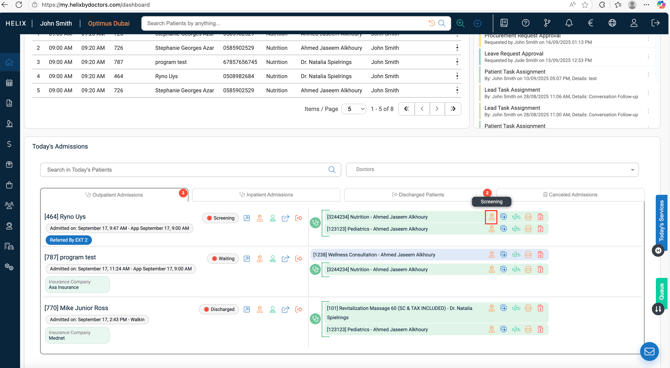
Staff can open Screening from Today’s Admissions.
-
Information recorded includes:
-
Chief Complaint
-
Vital Signs
-
Nurse’s Notes
-
General Medical History (persistent across visits)
-
-
For children, Screening also includes vaccination charts, growth charts, and pediatric-specific notes.
🧭 Navigation
-
Go to Home → Today’s Admissions.
- Click Send to Screening to update the status from waiting to Screening(Optional)
-
Select the patient and click Screening.
⚙️ Screening Page Layout
🔹 Top Section – Patient Demographics
-
File Number, Name, Photo (if uploaded from Emirates ID).
-
Blood Group
-
Age, Gender, Nationality, Date of Birth, Mobile Number, National ID, etc.
-
Tags – small notes visible to staff and doctors.
-
Insurance or Contract details (if linked).
Quick Shortcuts (under patient name):
-
Investigations → Upload or view.
-
Documents → View.
- Forms → View, Fill & Sign.
-
Consents → View or Re-sign.
-
Add Service / Package.
-
Consumables → Issue stock.
-
Open Patient Profile.
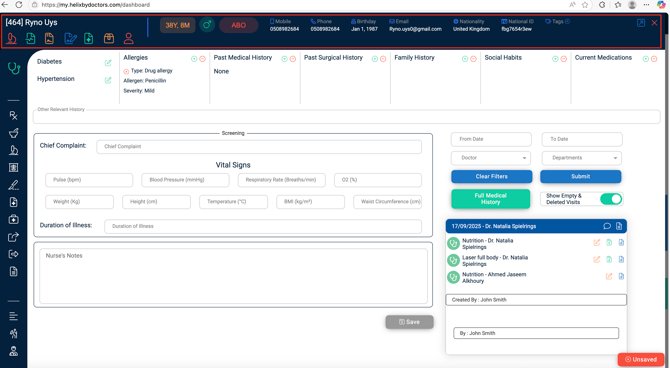
Visibility of sensitive data(mobile, email) depends on the roles and persmissions
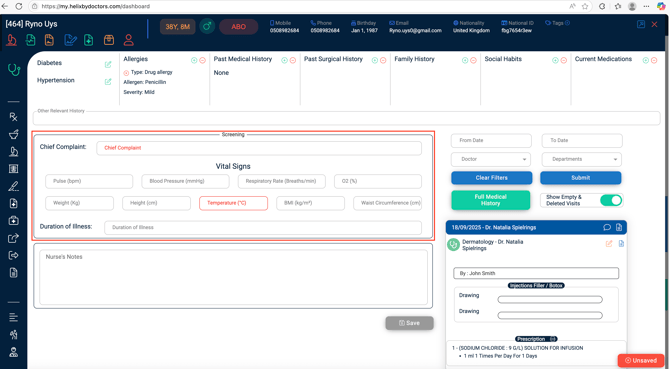
🔹 Center – Screening Information
-
Chief Complaint → Patient’s main issue.
-
Vital Signs → Height, Weight, BMI (auto-calculated), Blood Pressure, Pulse, Respiration, Temperature, Waist Circumference, Duration of Illness.
- BMI is calculated automatically if both height and weight are provided.
-
Nurse’s Notes → Free-text entry for nurse observations.
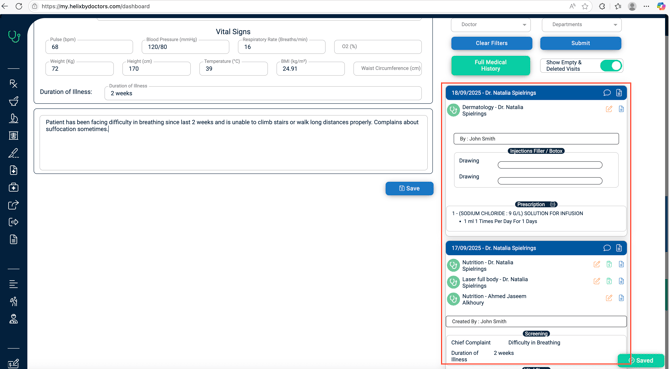
🔹 Right Panel – Patient History
-
Shows all previous visits in chronological order.
-
Includes notes made by doctors and nurses in those visits.
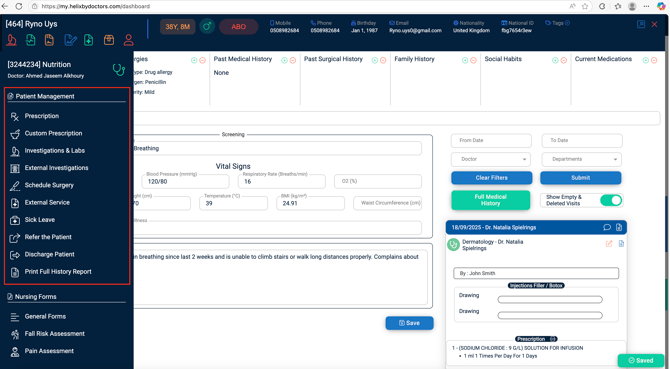
🔹 Left Panel – Patient Management
-
Includes items like Prescription, Investigations Referrals, Schedule Surgery or External Service, etc.
🧭 General Medical History
-
Completed once during the first visit and updated only when needed.
-
Always required for compliance.
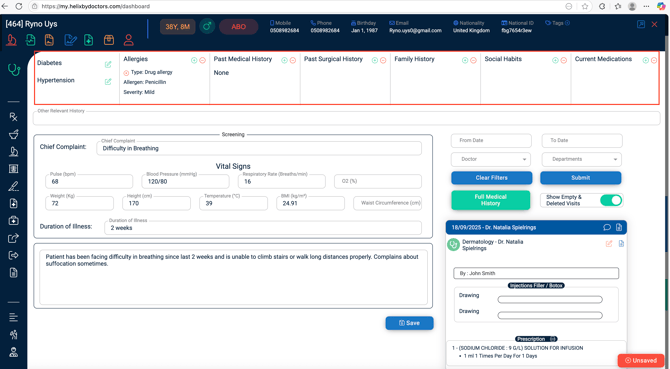
Sections include:
-
Diabetes
-
Hypertension
-
Allergies
-
Past Medical History
-
Past Surgical History
-
Family History
-
Social Habits
-
Current Medication
How to Record:
-
Diabetes/Hypertension: Click Edit, toggle ON, enter details (type, duration, control status).
-
Other conditions: Click +, choose from dropdown.
-
If not applicable: mark as “No condition”(-) (mark as none, don’t leave blank).
-
Medications: Add them in the Current Medication section (add item if not present in the dropdown).
-
Medical History updates automatically with time (e.g., years since diagnosis basis date selected).
🧒 Pediatric Screening
Extra features appear for pediatric patients:
-
Vaccination Chart
-
Expand to view and add notes.
-
Can be printed or emailed(provided integration is done).
-
-
Growth Charts (visible in Medical Record specifically)
-
Includes standard weight growth chart, length growth chart and head-circumference chart.
-
Select which charts to include.
-
Can be printed or emailed.
-
-
Extra Pediatric Fields
-
Circumference.
-
Child brought by.
-
Baby’s activities.
-
Feeding method.
-
Crying description.
-
General examination.
-
🧭 Nursing Forms
-
Located in the left-hand panel.
-
Examples:
- General Forms
- Fall Risk Assessment
- Pain Assessment
-
Saved forms can be edited or deleted.
-
Availability/access depends on user role permissions and specialty and clinic setup.
Examples
Pain Assessment
- Open the left pane → Nursing Forms → Pain Assessment.
- Fill out all fields, then click Save.
- A bottom-right notification appears: “Successfully created.”
- Result: On the right-side medical history panel (above Screening and Vital Signs), a new entry shows the form name, Edit and Delete buttons, and Created by.
Fall Risk Assessment
- Open the left pane → Nursing Forms → Fall Risk Assessment.
- Complete the form; the Score and Interpretation are calculated automatically.
- Click Approve.
- A bottom-right notification appears: “Successfully created.”
The assessment appears on the right-side medical history panel with Edit and Delete buttons, and Created by.
🔄 Workflow Reminders
-
Vitals must be entered once per visit (not per provider).
-
Recording the vital signs is a Healthcare Authority requirement. These measurements should be taken and recorded every time the patient visits the clinic
-
General Medical History must not be skipped – mark conditions as “None” if absent.
-
All Screening entries stay visible for doctors in their charting view.
- The left-pane shortcuts (e.g., Prescriptions, External Investigations, Refer Patient) appear in both the Screening page and the Medical Chart
💡 Pro Tips
-
✅ Enter at least one Chief Complaint for every patient.
-
✅ Never leave history fields blank – always record “None” if nothing exists.
-
📊 Use pediatric charts for accurate child monitoring.
-
📎 Upload external reports (lab results, referrals) directly from shortcuts.
-
🏷️ Use Tags to highlight important details or key reminders.