
🌐 Overview
-
Payments can be created from different screens but always flow into the Chart of Accounts (CoA).
-
Every transaction is tied to the right ledger, supplier/patient, and (optionally) cost center.
-
Built-in approval workflows (Pending → Approved → Posted) give control and accountability.
-
Tools like filters, exports, search, and attachments make it easy to reconcile and audit.
🧭 Navigation
-
Payments Received: Main Menu → Accounting → Payments Received
-
Payments Made: Main Menu → Accounting → Payments Made
-
Vouchers: Main Menu → Accounting → Payment Vouchers
⚙️ How to Use
📤 Payments Made
Used when paying suppliers or staff for approved expenses.
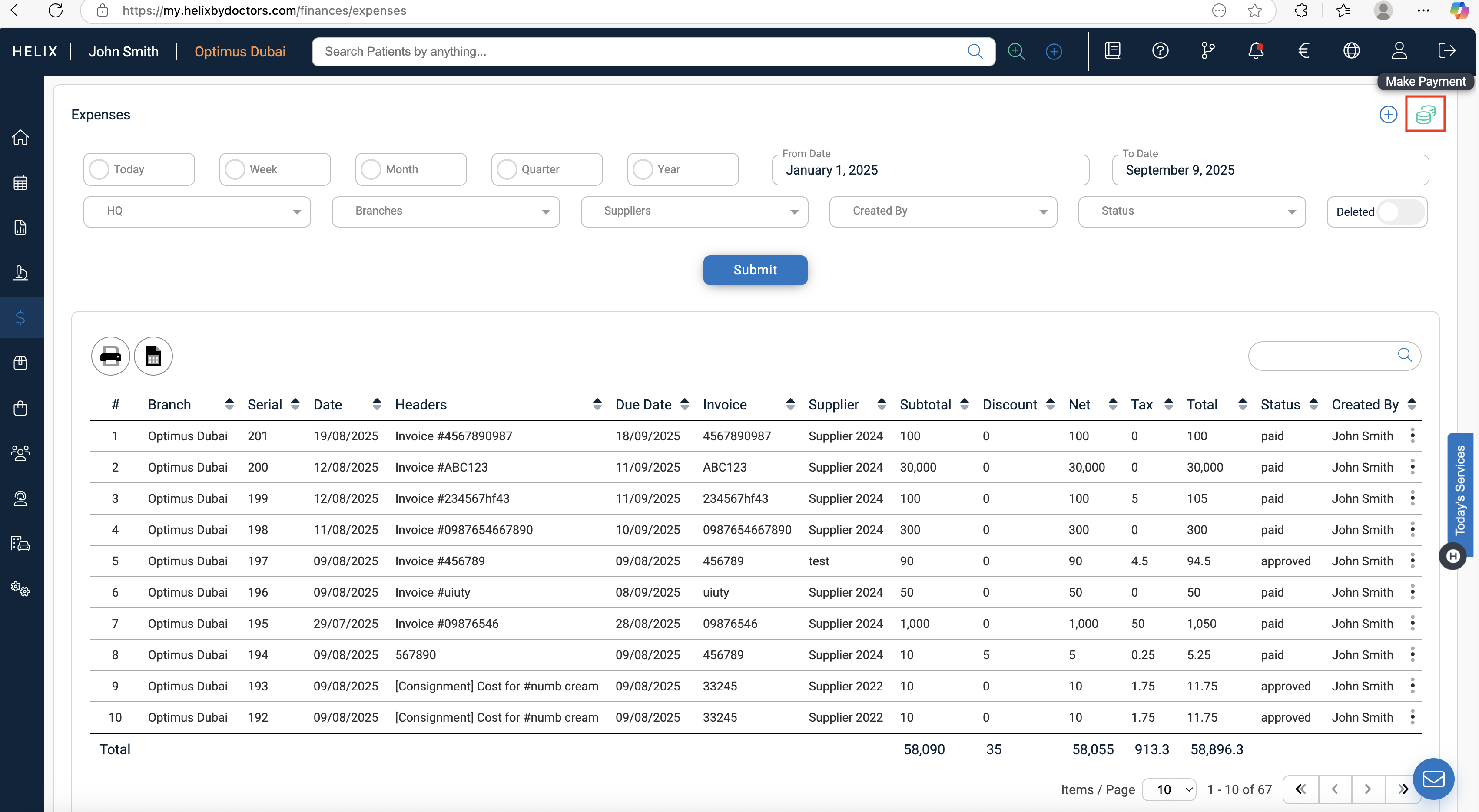
Go to Accounting → Payments Made → + Make Payment (Flow 1, covered here)
or
from Accounting → Expenses → Make a Payment (Flow 2)
Flow 2 Sceenshot :
Flow 1 :
-
Choose the Supplier – only approved expenses appear.
-
Select Account Paid From (cash/bank).
-
Enter Reference # (optional).
-
Pick Transaction Type (cash/credit/debit/cheque).
-
If cheque → add Bank, Cheque No., Cheque Date, Details.
-
-
Enter Transaction Date and Notes (optional).
-
Apply amounts: Select All or enter per expense line.
-
(Optional) Add Discounts, Bank Fees, Attachments.
-
Submit → Expense status = Paid, voucher is created.
Report View
-
Shows Serial #, Date, Supplier, Ledger, Amount, Status.
-
Status workflow: Pending → Approve/Deny → Post.
-
Audit logs: Created By, Approved By, Posted By.
-
Tools: Filters, Show Deleted, Export Excel, Print PDF.
📥 Payments Received
Used when receiving payments from patients, insurers, or corporates.
-
Go to Accounting → Payments Received → + Add.
-
Fill in:
-
Date & Reference
-
Income Account (e.g., Cash in Hand, Bank Account)
-
Received From (Accounts Receivable – patient/insurer)
-
Amount & Tax Amount
-
Payment Method
-
If cheque → enter Bank, Cheque No., Cheque Date, Details.
-
Notes/Details (optional).
-
-
Submit → Receipt is logged with Pending status.
Workflow & Reports
-
Pending → Approve/Deny → Post → Unpost (if correction needed).
-
Bulk actions: Select all → Approve, Post, Delete multiple items.
-
Reports show Serial #, Date, Income Account, Totals, Status.
-
Export Excel/Print PDF available.
🧾 Payment Vouchers
Formal proof of any payment (in or out), with multi-line ledger postings.
-
Go to Accounting → Payment Vouchers → + Add Payment Voucher.
-
Fill voucher header:
-
Branch, Date, Reference, Transaction Type, Notes.
-
-
Add Line Items (green +):
-
Account (Credited), Category (Debited), Details, Subtotal, Tax Group.
-
Tax and totals are auto-calculated.
-
Add more rows with green +, delete with red bin.
-
-
Attach supporting files/images.
-
Totals auto-summarize at the bottom.
-
Submit → Voucher created as Pending.
Voucher Workflow
-
Pending → Approve/Deny → Post → Unpost.
-
Row menu actions depend on status (e.g., Edit/Delete while Pending, Unpost after Posted).
-
Report columns: Serial #, Date, Reference, Subtotal, Tax, Total, Status, Created/Approved By.
-
Export Excel, Print PDF, Search bar, Show Deleted toggle.
Cost Centers
Cost Centers in Helix are tags used to group financial transactions under specific departments or activities. They don’t hold balances themselves but allow you to track where money is being spent or earned, making it easier to analyze profitability and manage budgets.
🔹 Create a Cost Center
-
Navigate to Finances → Cost Centers.
-
Click + Add Cost Center (top-right).
-
Enter:
-
Name (e.g., Pharmacy, Radiology, HR).
-
Code (short identifier).
-
Type (Administrative, Clinical, Operational).
-
-
Click Submit.
-
The Cost Center is added to the list.
-
🔹 List View (Report)
-
Left side: Export to Excel & Print PDF.
-
Right side: Search-as-you-type bar.
-
This view works as a report of all cost centers.
🔹 Link Cost Centers with Departments
-
Navigate to Control Panel → Structure → Departments.
-
Edit a department.
-
Assign a Cost Center.
-
Save changes.
⚠️ This is the only place in the system where cost centers are linked. Once linked, all transactions tied to that department automatically reflect under the cost center in reports.
📊 Management
-
Always reconcile Payments Made with supplier bills and Payments Received with outstanding invoices.
-
Use Cost Centers (via Department linking) for departmental-level reporting.
-
Attach supporting docs for every voucher/payment to strengthen the audit trail.
-
Ensure vouchers are Approved and Posted on time to keep ledgers accurate for monthly reports.
💡 Pro Tips
-
🧾 Use Reference numbers consistently (invoice IDs, receipt numbers) for easy reconciliation.
-
📎 Always attach scans of cheques, invoices, or receipts.
-
✅ Use bulk approve/post in Payments Received to save time.
-
🔍 Check Show Deleted toggle to review denied/removed records.
-
📊 Post vouchers promptly before month-end to avoid reporting gaps.
-
⚖️ For cheques, always complete Bank, Cheque No., Date fields to avoid errors.