
🧭 Overview
Before you can print appointment letters, your clinic must choose whether to:
-
Use the default Helix letter format
-
Upload and assign custom templates (PDF format with placeholders)
Once set up, letters can be printed directly from the Calendar when viewing a booked appointment.
📝 Configuration Guide
A. Choose Default Template Mode
📍 Path: Control Panel → System Settings → Branch Settings
-
Scroll to the Appointments and Scheduling section.
-
Find the option: Use Appointment Letter Templates
-
Choose:
-
OFF → Use Helix’s default letter format
-
ON → Use custom templates (uploaded by your team)
-
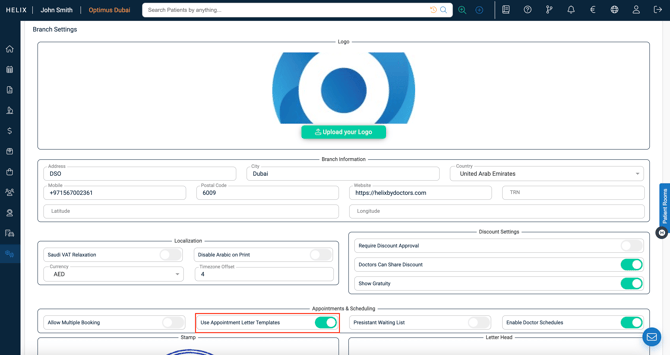
B. Upload a Custom Appointment Letter Template (if ON)
📍 Path: Control Panel → Templates → Document Templates
-
Click + Add (top right)
-
In the pop-up:
-
Name your template (e.g., “Dermatology Letter”)
-
Select which branches it applies to
-
Upload your PDF template
-
-
Once uploaded:
-
A preview appears
-
Use the green arrows to navigate if the PDF has multiple pages
-
Add Placeholders to the Template
Placeholders are smart fields that automatically fill in details like patient name, appointment time, or doctor name.
-
From the dropdown list, select a placeholder (e.g., “Patient Name”, Doctor's Name, etc)
-
Click the spot in the template where it should appear
-
To create a new placeholder:
-
Type the name into the dropdown
-
Click Add Item, then place it
-
-
Click Undo to remove the last placement if needed
-
Click Add to save the template
🟢 Log out and back in to activate the new template
Print the Appointment Letter
📍 Path: Calendar → Click on a booked appointment
-
Click the “Print Appointment Letter” icon
-
Depending on setup:
-
If default mode is active → letter prints immediately
-
If using custom templates → a dropdown appears
-
-
Choose the desired template
-
Helix fills in all placeholders and generates the printable letter
❗Common Issues & Fixes
| Issue | Cause | Resolution |
| Can’t see custom templates | Not uploaded or not assigned to branch | Go to Control Panel → Templates → Document Templates and verify |
| Placeholders show as blank | Not placed properly on the template | Edit the template and re-insert the placeholder in the correct location |
| Wrong template used | Default template is active | Switch ON the Use Templates option in Branch Settings |
✅ Pro Tips
-
Use custom templates to include clinic logo, disclaimers, or instructions
-
Create different templates for departments (e.g., Dental, Surgery, Pediatrics)
-
Always preview placeholders before finalizing a template
-
Use placeholders for consistent and error-free letters