
Overview
The Purchasing module in Helix enables clinics to manage the end-to-end procurement process efficiently. Whether you're raising internal stock requisitions, generating purchase orders, or tracking vendor credits, this module ensures transparency and control across all purchasing activities. It’s tightly integrated with Inventory, Finance, and Control Panel settings to streamline approvals, supplier management, and stock intake.
🔑 Accessing the Purchasing Module
Path:
Main Menu → Purchasing
🧩 Sub-Modules in the Purchasing Section
Here’s a breakdown of each feature available under the Purchasing module:
1. Purchase Requisitions
Users can raise a request when more stock or quantity is required for a specific inventory item.
-
Click the ➕ icon, select the item, and mention the required quantity.
-
This goes for approval. Once approved, it moves to the Procurement Request tab.
-
A report of all raised requisitions can also be generated.
2. Procurement Requests
Here you can:
-
Raise a new procurement request manually or
-
View all requests that were auto-generated from approved purchase requisitions.
Once a request is approved, it can be converted into a Purchase Order.
3. Request for Quotations (RFQ)
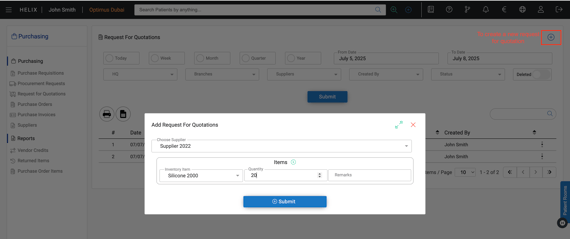
Use this section to send RFQs to suppliers and compare quotations before raising a Purchase Order (if applicable for the client).
4. Purchase Orders (PO)
This section displays all raised and approved purchase orders.
-
You can raise a new PO or approve requests from the Procurement tab.
-
Only approved POs appear in the GRN (Goods Received Notes) list under Inventory.
-
A PO report can also be generated using filters such as supplier name, branch, and date range.
5. Purchase Invoices
Once a GRN is posted and the items are marked as received, the system generates a Purchase Invoice.
This tab shows all created and pending invoices for financial review and processing.
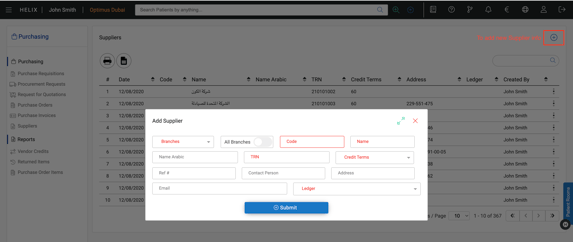
6. Suppliers
This section allows:
-
Adding new supplier profiles
-
Viewing and managing all existing suppliers linked to your clinic’s purchasing records.
📊 Reports in Purchasing
| Report Name | Description |
|---|---|
| Vendor Credits | Displays a report of all credits issued by vendors for returned, expired, or unused items. Helps the accounting team track reimbursements and outstanding credits. |
| Returned Items | Shows a breakdown of all items returned to vendors — organized by item and supplier. Useful for inventory reconciliation and vendor follow-ups. |
| Purchase Order Items | A detailed list of all approved purchase orders, including item-wise breakdowns, quantities, and associated supplier data. Helps monitor procurement performance. |
⚙️ Control Panel Setup for Purchasing
Before using the Purchasing module, certain fields must be configured in the Control Panel.
Navigate to: Main Menu → Control Panel → Purchasing Section
Here’s what to configure:
| Control Panel Section | Setup | Description |
|---|---|---|
| Terms & Conditions | T&C | These terms get printed on the Purchase Order and shared with suppliers. |
| Address Book | Shipping/Billing | Save default supplier addresses to appear on POs. |
📌 Make sure your Inventory setup and Accounting categories are completed before raising Purchase Orders to ensure smooth flow across modules.
✅ Pro Tips
-
Ensure each item being purchased is first created in Inventory.
-
Items must be assigned a category (Medical/Pharmacy/General) and inventory account.
-
Coordinate with the Finance team to link accounting setups for each purchase.
-
Only approved Purchase Orders will flow to Inventory for Goods Receipt and Invoicing.