
Audience: Administrators, Practice Managers, HR Officers
Purpose: Explain how Helix uses role-based access to control what users can see and do, and provide step-by-step instructions for managing roles and permissions.
What Are User Roles?
Helix uses role-based access control (RBAC) to assign permissions based on job function. Each user is assigned a role, which defines:
-
What modules they can access
-
What actions they can perform (view, add, edit, delete, approve)
-
What data they can see
Roles ensure security, simplify navigation, and maintain compliance.
Why Role-Based Access Matters
-
Security: Prevents unauthorised access to sensitive patient or financial data
-
Compliance: Supports local healthcare data regulations
-
Efficiency: Users only see tools relevant to their job
-
Accountability: Tracks actions and approvals by role
Standard User Roles in Helix
| Role | Primary Function | Typical Users | Key Permissions |
|---|---|---|---|
| Administrator | System configuration and full access | IT staff, senior managers, medical directors | Full access to the system |
| Receptionist | Front desk operations | Front desk, admin assistants |
Patient registration, appointment booking, billing, payment processing |
| Nurse | Patient screening and clinical prep | Nurses, medical assistants |
Patient screening, vital signs entry, general medical history documentation |
| Doctor | Clinical documentation and orders | Physicians, dentists, therapists |
Access to medical charts, prescription writing, investigation ordering |
| CRM Officer | Marketing and communication | Marketing team, CRM managers |
Lead management, campaign creation, feedback management |
| HR Officer | Staff records and payroll | HR staff |
Employee management, attendance tracking, leave processing |
| Accountant | Financial transactions and reporting | Finance team |
Financial reports, accounts management, payment approvals |
| Inventory Officer | Inventory and purchasing | Procurement, store managers |
Inventory management, purchasing, stock adjustment |
Common Permissions by Role
Administrator Permissions - full access
- Create and manage roles and users
- Configure system settings
- Set up branches and departments
- Define medical services
- Manage templates
- Configure integrations (e.g., WhatsApp)
- Manage service prices
Receptionist Permissions
- Register patients
- Book, reschedule, and cancel appointments
- Admit patients
- Process payments
- Generate invoices
- Apply discounts (within limits)
- Manage patient credits and debits
- Discharge patients
Nurse Permissions
- View patient appointments and admissions
- Access screening functions
- Record vital signs
- Document general medical history
- Access limited medical chart features
- Dispense items from inventory
Doctor Permissions
- View assigned patients
- Document medical examinations
- Write prescriptions
- Order investigations
- Record diagnoses (ICD-10 codes)
- Schedule follow-ups
- Generate medical reports and other medical letters
CRM Officer Permissions
- Manage leads
- Create and track marketing campaigns
- Send WhatsApp messages to patients/leads
- Manage feedback forms
- Access CRM-related reports
HR Officer Permissions
- Manage employee records
- Track attendance
- Process leave requests
- Manage payroll information including commissions
Accountant Permissions
- Manage chart of accounts
- Process financial transactions
- Approve refunds and discounts
- Generate financial reports
- Manage customer and supplier accounts
- Issue salaries and commissions
Inventory Officer Permissions
- Manage inventory items
- Create purchase orders
- Process goods received
- Adjust stock levels
- Transfer items between stores
Creating Custom Roles
Administrators can define custom roles to meet specific organisational needs.
To create a new role:
-
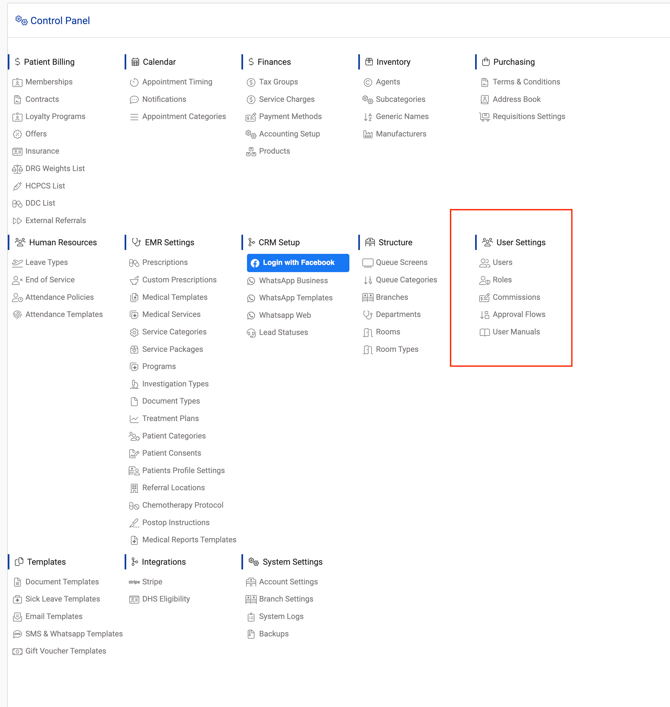
Go to Control Panel > User Settings > Roles
-
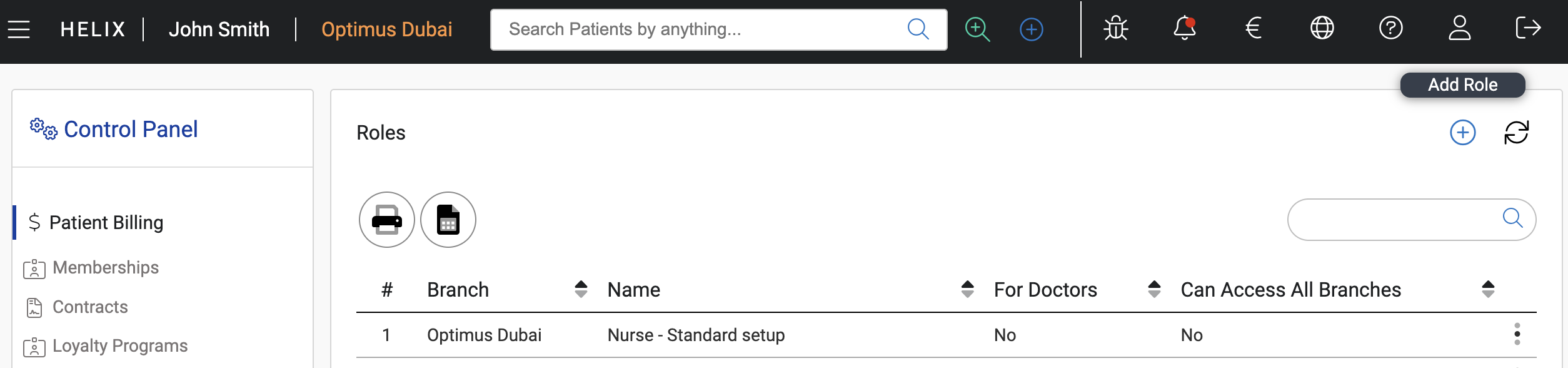
Click “Add Role”
-
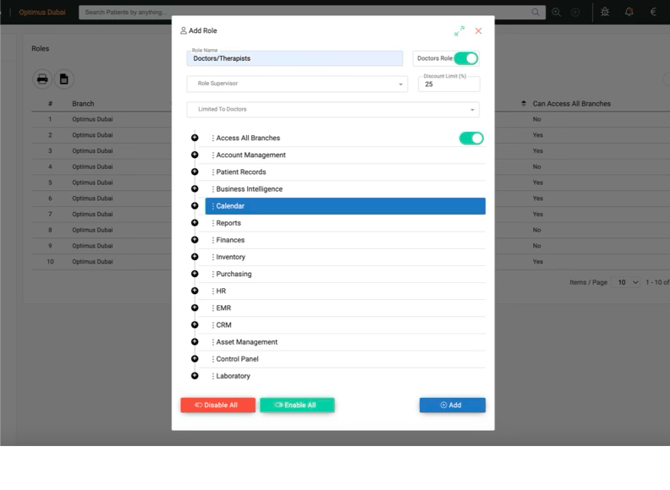
Set the Role Name and toggle “Doctor Role” if this role is for a clinician or service provider
-
Select a Role Supervisor (used in approval workflows)
-
Set a Discount Limit (or 100 for no authority)
-
Define Branch Access (single or all branches)
-
Configure permissions using the expandable categories
- Use "Enable All" at the bottom for full access (typically for administrators only)
- Use “Disable All” at the bottom for denying any access other than the basic (typically for employees who are not users, housekeeping)
-
Click “Add” to save the role
Assigning Roles to Users
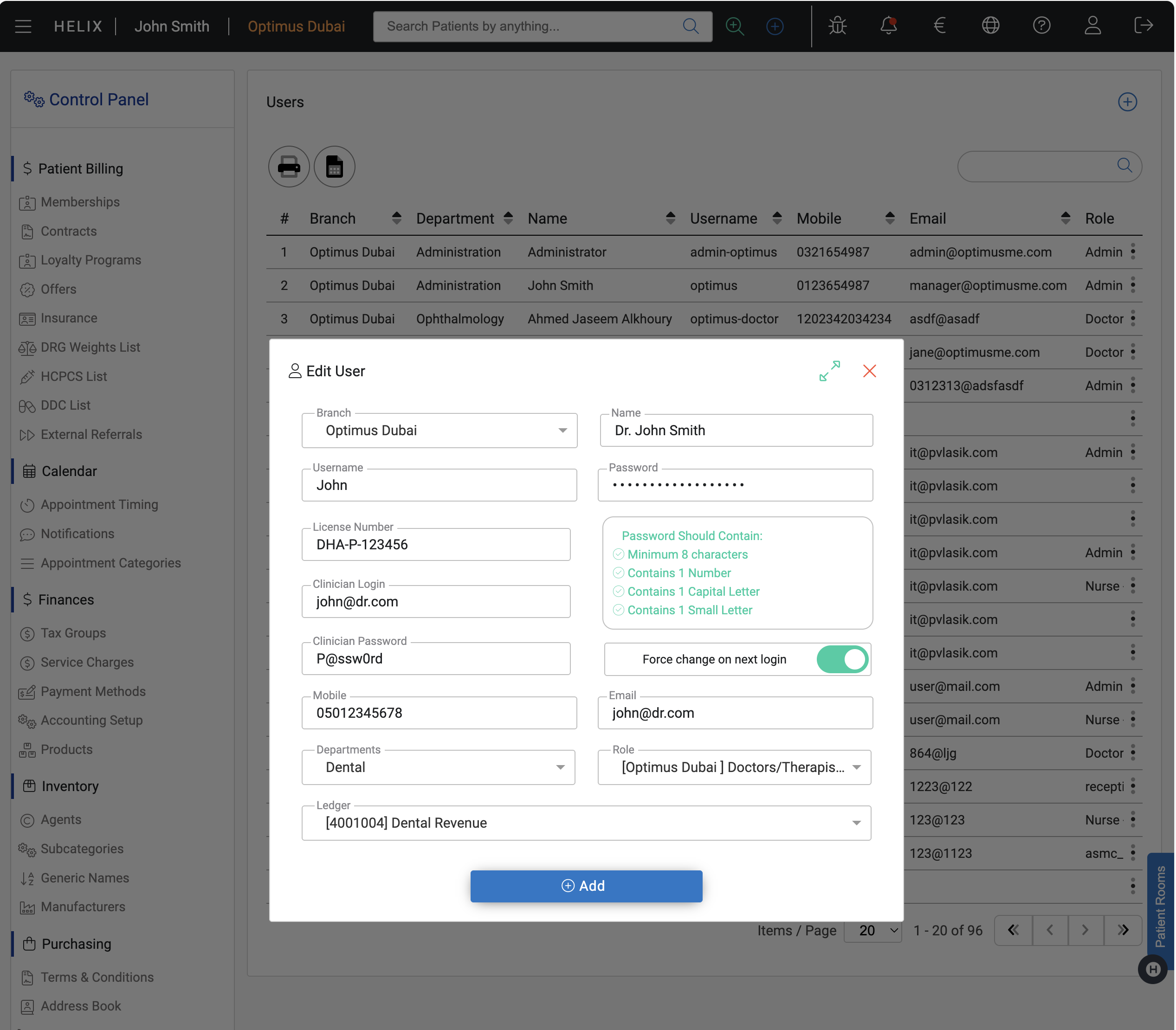
When creating or editing a user:
-
Select the appropriate role from the predefined list
-
Permissions are inherited from the role
-
Individual permissions cannot be manually overridden per user and must be modified at the role level
-
For doctors, ensure:
-
Medical License Number is entered in the format:
DHA-P-XXXXXX- License number should be entered without -00x
-
EclaimLink credentials (username & password) are filled
-
Role-Based Approval Workflows
Some actions require approval from designated supervisors. Approval flows are tied to the role hierarchy.
Examples of approval scenarios:
-
Discounts
-
Refunds
-
Purchase orders
-
Leave requests
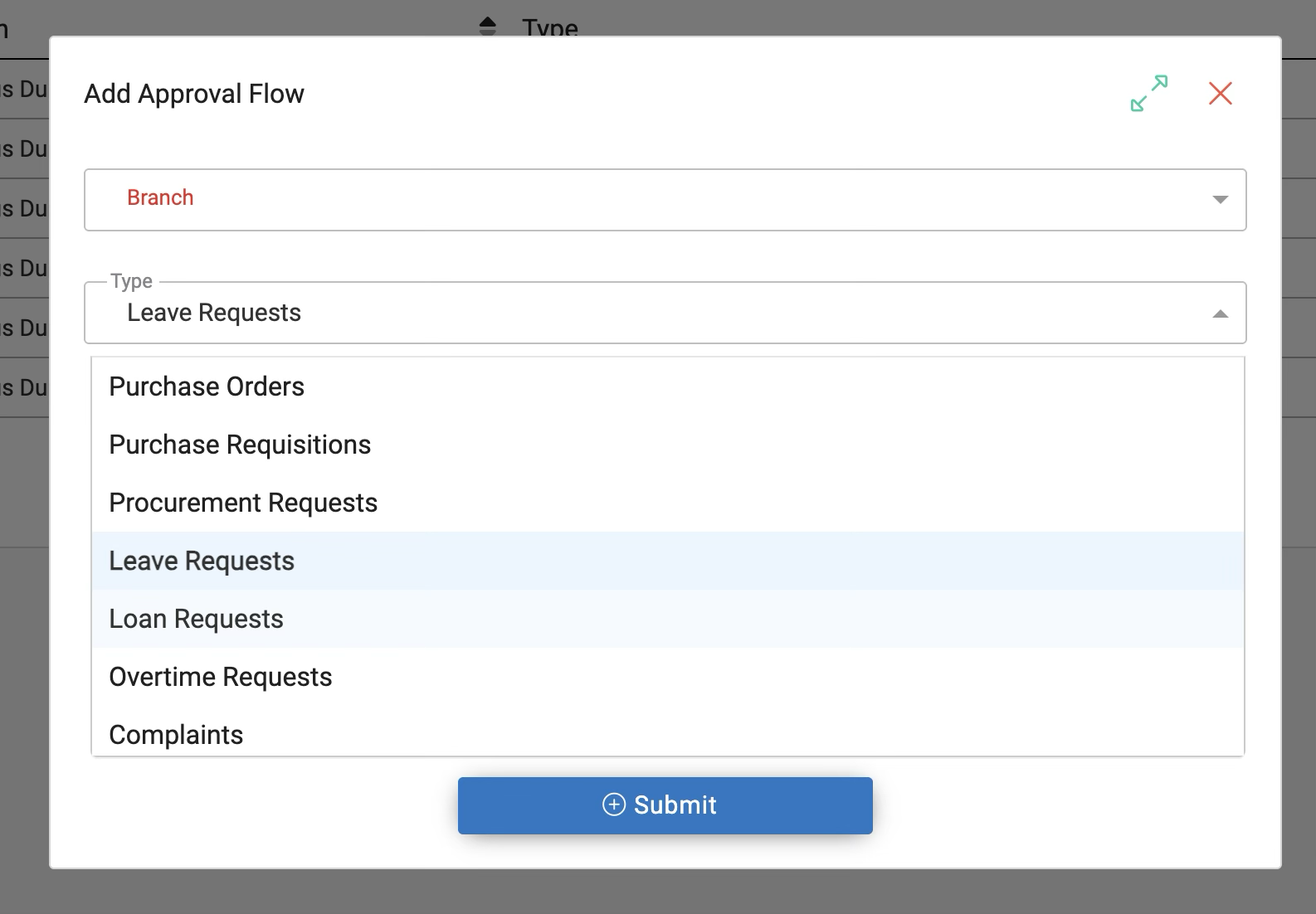
Set up begins in the employee profile (HR module) under reporting manager, and continues via role configuration.
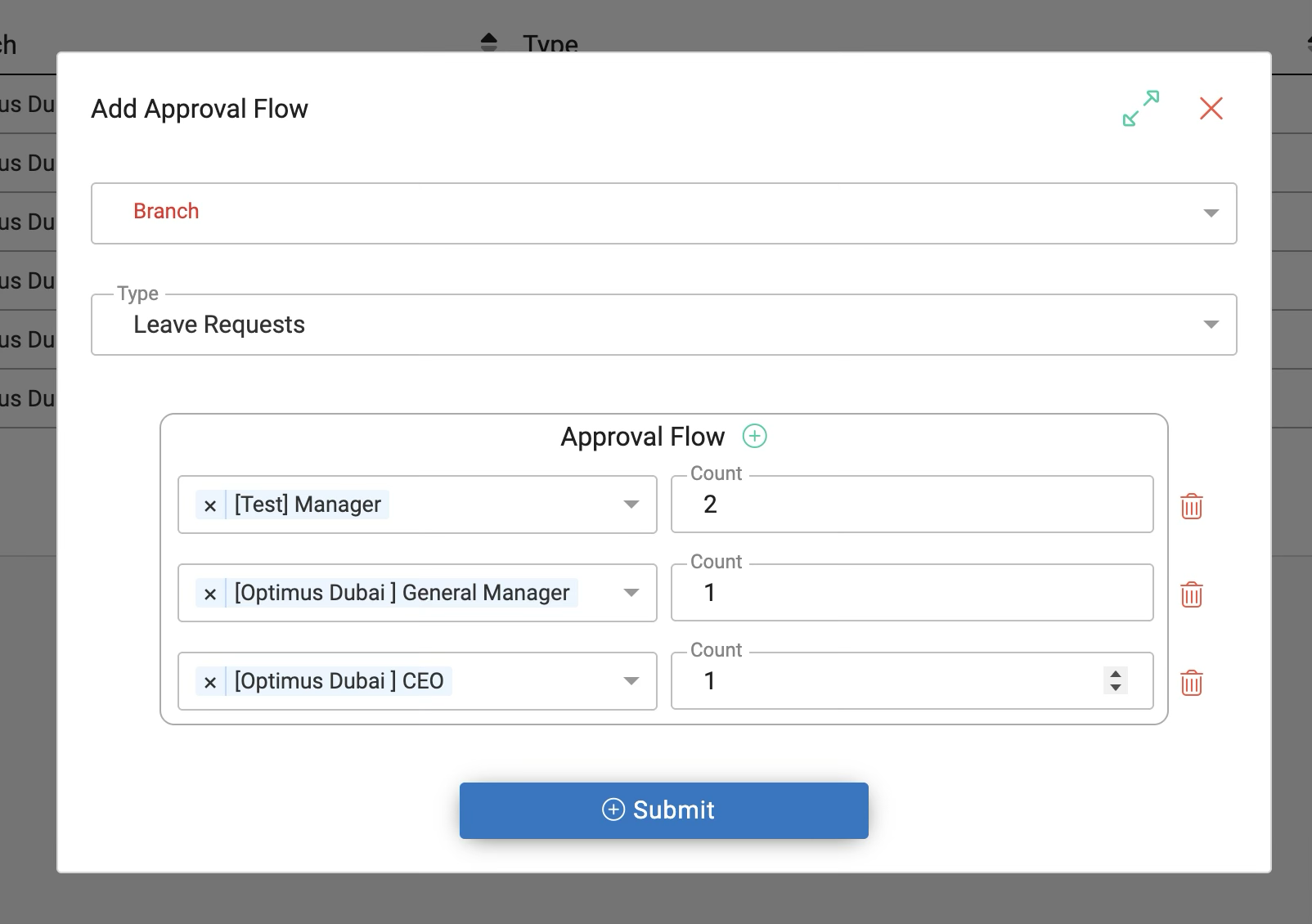
Approval Flows
- Approval flows define which roles must approve specific actions
- Flows can include single or multiple approvals at multiple levels
Best Practices
-
Follow the principle of least privilege — only grant access needed for the role
-
Audit roles periodically to ensure they are still appropriate
-
Provide training so users understand what they can and cannot access
-
Use role-based reporting to track user activity where needed