
Overview
The Opening Stock feature in Helix allows you to upload initial inventory quantities for all your items in the Supply Chain module. This is an essential setup step to ensure your inventory reflects real-time quantities from Day 1.
⚠️ Important: All inventory items must already be uploaded in the system before adding opening stock. If the item is missing, it won’t appear in the selection dropdown.
🔍 Where to Find It
From the left-hand menu bar, go to:
Inventory → Medical → Top-right corner → Click the blue box icon ("Opening Stock")
You now have two options to upload opening stock:

✅ Method 1: Manual (One-by-One Entry)
Use this if you want to add inventory items one at a time.
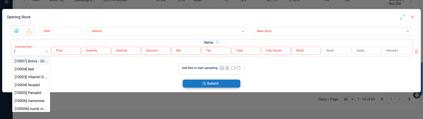
📜 Explanation of Fields
-
Date: Select the date for when the stock is added.
-
Branch: Choose the branch receiving the inventory.
-
Main Store: This dropdown pulls from rooms set up in Control Panel → Rooms. The selected room must be of type = Inventory Main Store. See Room Setup KB.
-
Inventory Item: Choose from a dropdown list. (Note: Items will only show here if they were already created in the Inventory module.)
-
Price: The purchase price per unit from the supplier.
-
Quantity: Number of units being stocked (e.g., 50 syringes).
-
Subtotal: Automatically calculated as Price × Quantity.
-
Discount: If supplier provided any discount.
-
Net: Automatically calculated as Subtotal - Discount.
-
Tax: Enter applicable tax.
-
Total: Auto-filled as Net + Tax.
-
Free Goods: Additional units received free of cost.
-
Retail: Price at which the item is sold to patients/customers.
-
Serial: Batch or lot number.
-
Expiry: Expiration date in YYYY-MM-DD format.
-
Remarks: Add any relevant notes.
⚠️ All red-highlighted fields are mandatory.
📂 Method 2: Bulk Upload via Excel
Use this if you have a large list of items to upload at once.
🔍 How to Access
Click the green button to Download Excel Template (Opening Stock)
📄 Excel Columns Explained
| Column | Description |
|---|---|
| item code | Must match the code from your inventory item list |
| price | Unit purchase price from supplier |
| quantity | Number of units to add to stock |
| subtotal | Auto-calculated: price × quantity |
| discount | Any supplier discount per batch |
| net | subtotal - discount |
| tax | Tax applicable to the item |
| total | net + tax |
| freeGoods | Any free units provided |
| retail | Unit selling price to patients |
| serial | Batch or lot number |
| expiry | Expiry date (YYYY-MM-DD) |
| remarks | Any additional comments |
⚠️ Best Practices When Filling the Excel
-
No duplicate item codes.
-
No decimal values in any column.
-
Do not leave any rows empty.
-
For missing values, enter
0instead of leaving blank. -
Make sure all values (e.g., code, price, retail) match exactly with your previously uploaded inventory item list.
🔄 Upload the File
Once your Excel is ready:
-
Go to Inventory → Medical → Blue box icon
-
Click the orange upload button
-
Upload the Excel
-
Review and Submit
- Only click on upload once, and submit once. Multiple clicks on these buttons can cause multiple uploads of the quantities for the items.
✅ Pro Tips
-
Use the bulk upload method for faster setup.
-
Always check that inventory items exist before uploading opening stock.
-
Create "Inventory Main Store" rooms ahead of time to avoid upload errors.
-
Download the latest template every time to avoid formatting issues.